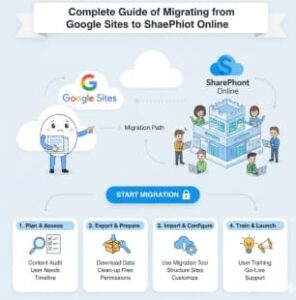
As organizations continue to adopt Microsoft 365 for collaboration and content management, many teams find themselves needing to migrate from Google Sites to SharePoint Online. While Google Sites is simple and easy to use, SharePoint Online offers far more flexibility, security, integration, and scalability for modern workplaces. However, migrating from Google Sites to SharePoint Online is not a one-click process. There is no native tool that fully automates this transition, which makes careful planning and execution essential.
This guide walks you through a practical, step-by-step approach to migrating from Google Sites to SharePoint Online, covering both manual and automated options, best practices, and important considerations to ensure a smooth migration.
Step 1: Assess Your Existing Google Sites Environment
Before starting the migration, it’s critical to understand what you currently have in Google Sites.
Review Existing Content
Begin by identifying all the pages, documents, images, videos, and embedded elements within your Google Sites. Many sites contain content pulled from Google Drive, YouTube, Google Forms, or external links. Make a complete inventory so nothing is missed during the migration.
Understand Content Structure
Take note of how content is organized. Look at page hierarchies, navigation menus, subpages, and sections. This will help you design a logical and user-friendly structure in SharePoint Online.
Step 2: Plan Your SharePoint Online Structure
A successful migration is not just about moving content—it’s about improving how users access and manage information.
Decide on SharePoint Site Types
Determine whether your content belongs in:
- Communication Sites for company-wide announcements, policies, or intranet content.
- Team Sites for department-specific or collaborative content.
Some organizations use a mix of both, depending on business needs.
Build Information Architecture
Plan how SharePoint pages, document libraries, lists, and permissions will be structured. Think about navigation, metadata, and searchability so users can easily find what they need.
Design the Look and Feel
SharePoint Online allows branding through themes, layouts, and web parts. Use this opportunity to align the site with your organization’s visual identity while improving usability compared to Google Sites.
Step 3: Prepare Content for Migration
Preparation reduces errors and rework later in the process.
Export and Collect Content
Since Google Sites does not provide a full export option:
- Manually copy and paste text into documents or directly into SharePoint pages.
- Download images, PDFs, and videos stored in Google Drive.
- Capture screenshots or notes of page layouts you want to replicate.
Organize Files
Convert Google Drive files into Microsoft-compatible formats such as:
- Google Docs → Word (.docx)
- Google Sheets → Excel (.xlsx)
- Google Slides → PowerPoint (.pptx)
Group files logically into folders to match your planned SharePoint structure.
Step 4: Create SharePoint Online Sites
Set up your SharePoint Online environment before migrating content.

- Create the required Communication Sites or Team Sites.
- Configure document libraries, lists, and permission groups.
- Apply branding and navigation settings.
Having the structure ready ensures that content is placed correctly from the start.
Step 5: Migrate Content to SharePoint Online
Pages and Text Content
For each Google Sites page:
- Create a corresponding SharePoint page.
- Use SharePoint web parts such as Text, Image, Quick Links, and Hero web parts to rebuild layouts.
- Optimize content for readability and consistency.
Files and Documents
Upload documents to SharePoint document libraries using:
- Manual upload
- OneDrive sync
- Drag-and-drop via browser
Ensure files are stored in the correct locations with appropriate metadata.
Embedded Media and Links
Recreate embedded elements using SharePoint alternatives:
- Videos via Microsoft Stream or YouTube embeds
- External websites using the Embed web part
- Update hyperlinks to reflect new SharePoint URLs
Step 6: Test and Validate the Migration
Testing is essential to ensure accuracy and usability.
Review Migrated Content
Check that:
- All pages display correctly
- Links work as expected
- Files open without issues
- Permissions are correctly assigned
Gather User Feedback
Share the new SharePoint site with a small group of users. Their feedback can help identify missing content, navigation issues, or usability improvements before the full rollout.
Step 7: Redirect or Retire Google Sites
Once SharePoint Online is live:
- Provide users with links to the new SharePoint site.
- If possible, update internal documentation or bookmarks.
- Archive Google Sites content as a backup before decommissioning the old site.
This ensures a clean transition without losing historical data.
Step 8: Train Users on SharePoint Online
Adoption is just as important as migration.
Provide training on:
- Navigating SharePoint sites
- Editing pages and documents
- Managing permissions and sharing
- Using search and version history
Well-trained users are more likely to embrace SharePoint Online and use it effectively.
Automatic Migration Options
For larger or more complex environments, partial automation can save time.
Third-Party Migration Tools
Several tools can assist with migrating Google Workspace content:
- Cloudiway: Supports Google Workspace to Microsoft 365 migrations.
- ShareGate and AvePoint: Excellent for SharePoint migrations, though Google Sites content may require customization.
- SharePoint Migration Tool (SPMT): Useful for migrating files from Google Drive to SharePoint libraries.
APIs and Scripting
Advanced users can automate parts of the process:
- Google Sites API (limited for newer sites)
- Microsoft Graph API for creating SharePoint sites, pages, and uploading content
Google Drive Content Conversion
Since most embedded content lives in Google Drive:
- Use Microsoft Migration Manager to move files directly to SharePoint.
- Use Google Takeout to export files and upload them manually.
PowerShell and Custom Scripts
PowerShell, Python, or Node.js scripts can help automate:
- Site and library creation
- File uploads
- Permission mapping
Content Transformation
Because Google Sites and SharePoint use different page structures:
- Convert exported HTML into SharePoint-friendly formats
- Use tools like Pandoc or custom scripts to reformat content
Key Considerations for Automatic Migration
- Data Mapping: Google Sites elements must be mapped to SharePoint web parts.
- Complex Layouts: Automated tools may not perfectly replicate designs.
- Permissions: Google Sites permissions must be translated into SharePoint groups carefully.
Automation reduces effort but still requires manual review and cleanup.
Migrating from Google Sites to SharePoint Online is a strategic move that can significantly enhance collaboration, governance, and scalability. While there is no fully automated migration solution, a structured approach—combined with the right tools and planning—can make the transition smooth and successful. By assessing your current environment, planning your SharePoint architecture, and choosing the right migration method, you can create a modern, future-ready intranet that delivers real value to your organization.
Extra posts:
 Collaborate with Guests in a SharePoint Online Site A Complete Guide
  Follow SharePoint Online Sites
  Microsoft SharePoint: A Complete Guide to Features, Benefits, and Business Use Cases
  Creating Groups in Exchange Online and SharePoint Online A Unified Collaboration Experience
  Connecting SharePoint Data to Copilot Insights A Complete Guide to Smarter Collaboration
  Understanding Google Family Guide to Keep Connected and Safe