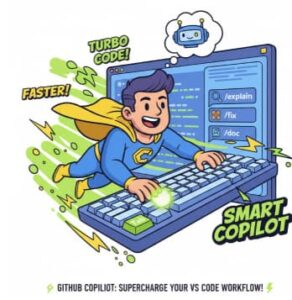
GitHub Copilot isn’t just a fancy autocomplete; it’s a true AI pair programmer that can fundamentally change how you write code. But like any powerful tool, mastering it requires knowing the hidden tricks and, most importantly, the keyboard shortcuts that keep your hands on the keys and your focus in the flow.
If you’re using VS Code, you’ve got the ideal setup. Let’s dive deep into the must-know shortcuts and best practices to transform you from a Copilot novice into a speedy!
The Essential Shortcuts: Your New Muscle Memory
The number one rule for maximum productivity is to minimize mouse use. The inline code suggestions are Copilot’s bread and butter, and the associated shortcuts are the most crucial to learn.

The ‘Accept’ Tab is non-negotiable. It’s the core of the Copilot experience. Getting comfortable cycling through suggestions with Alt + ] (or Option + ] on Mac) means you don’t settle for the first thing Copilot offers. Often, the third or fourth suggestion is the most accurate or idiomatic for your current codebase.
The Power of Copilot Chat in VS Code
While inline suggestions handle the “what’s next” moments, Copilot Chat is where you tackle bigger, more complex tasks. Think of it as your virtual desk buddy for higher-level planning, explaining, or editing.
Opening Chat Views
Copilot gives you a few ways to chat, depending on your task:
- Open Main Chat View: Ctrl + Alt + I (Windows/Linux) or Ctrl + Alt + I (Mac). This opens a persistent chat panel in the side bar, perfect for ongoing conversations or multi-step tasks.
- Start Inline Chat: Ctrl + I (All OS). This is a game-changer! It opens a small chat box right in your editor where your cursor is. Use it to quickly ask questions about a code block you’ve just highlighted, or to make small, contextual edits without losing your focus.
Chat Slash Commands: The Quick Actions
Within the chat interface, using slash commands (/) is the ultimate productivity hack. They’re like predefined prompts that tell Copilot exactly what to do

Advanced Productivity Tips: Prompting Like a Pro
Copilot is only as good as the context you give it. Here’s how to set it up for success and get the best possible suggestions every time.
1. Context is King: Open the Right Files
Copilot draws context from the files currently open in your VS Code workspace. If you’re building a new component that uses helper functions from three other files, open those files! This gives Copilot a bigger picture of your project’s structure, variable names, and stylistic conventions, leading to far more accurate suggestions.
2. Write Descriptive Comments (or Docstrings)
If Copilot is struggling to guess your intent, don’t just mash random keys. Write a concise, human-readable comment describing the function or class you are about to create.
- Bad Prompt:
// make a loop - Good Prompt:
// Loop through the 'users' array and filter out any user objects where 'isActive' is false, then return the remaining users.
The more specific you are, the better the output. Use examples within your comments if you’re dealing with data manipulation: // Function that takes a string 'Hello World' and returns 'world hello'.
3. Use Chat Mentions for Specific Context
When using Copilot Chat, leverage the # (mention) syntax to explicitly point Copilot to context it should use:
#selection: Refers to the code you’ve currently highlighted in the editor.#file: Refers to the currently active file.#codebase: (For Copilot Enterprise/Business) Refers to the entire codebase, great for asking about where a certain utility is defined or used across your project.
You can combine these. For instance: “/fix #selection by using the utility function defined in #file“.
4. Break Down Complex Tasks (Agent Mode)
For implementing a large feature (like “Add OAuth authentication”), don’t expect a single inline suggestion. This is a job for the Chat View’s Agent mode. Agents are designed to autonomously plan and implement complex features across multiple files.
- Open the Chat View (Ctrl + Alt + I).
- Switch to the Agent mode (if available).
- Type a high-level request:
Implement a user authentication system with OAuth2, using JWTs for session management. Create a new file for the service layer. - The agent will generate a plan, execute code changes across files, and let you review and accept them step-by-step.
5. Review, Review, Review
This is less of a hack and more of a mandatory practice. Copilot is an AI, and it will make mistakes. Never merge or ship code suggested by Copilot without reviewing it for:
- Correctness and Logic: Does it actually solve the problem?
- Security: Does it introduce any vulnerabilities (e.g., SQL injection, insecure cryptography)?
- Readability: Does it match your team’s coding style and conventions?
Treat Copilot’s suggestions as a highly advanced first draft, not the final solution. The goal is to spend less time typing boilerplate and more time reviewing and refining high-quality code.
GitHub Copilot is a revolution in developer productivity, and knowing the core Tab and Alt + shortcuts is your entry ticket. But truly mastering it in VS Code means embracing the Chat interface, utilizing slash commands for quick actions, and becoming a professional prompt engineer who feeds the AI the perfect context. By adopting these GitHub Copilot VS Code keyboard shortcuts and developer productivity tips, you’re not just coding faster—you’re working smarter.
Extra posts:
 Boosting Productivity with GitHub Copilot Real-World .NET Coding Examples
  Mastering GitHub Copilot: Tips, Shortcuts, and Prompts That Work
  Writing Cleaner Code with GitHub Copilot Suggestions
  GitHub Copilot for Python: Real-World Coding Scenarios & Practical Examples
  Beyond the Code: Setting Up Alerts for Unusual GitHub Copilot Activity (and Why You Need To)
  Practical Use Cases Writing, Refactoring, and Testing Code with GitHub Copilot