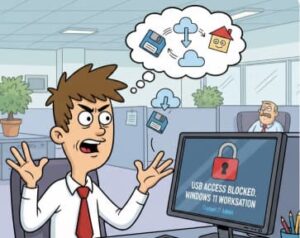
You plug in your USB drive.
Nothing happens.
No sound. No pop-up. No detection.
If you’re using Windows 11 at work and your company has disabled USB ports, you’re not alone. Many organizations block USB access as part of their data security policies. It’s common. It’s intentional. And yes it can be frustrating when you just want to grab your resume, certificates, or a few personal files.
But here’s the good news:
You don’t need USB to move your personal files smoothly.
Let’s break this down in a practical, professional, and stress-free way.
Why Companies Block USB Ports (It’s Not About You)
Before we jump into solutions, let’s understand the “why.”
Organizations disable USB access mainly to prevent:
- Data leaks
- Malware infections
- Unauthorized file transfers
- Intellectual property theft
On corporate-managed Windows 11 devices, these restrictions are usually enforced through IT policies. It’s part of a bigger cybersecurity strategy.
So instead of trying to bypass it (which can seriously backfire), the smarter move is to work with the system.
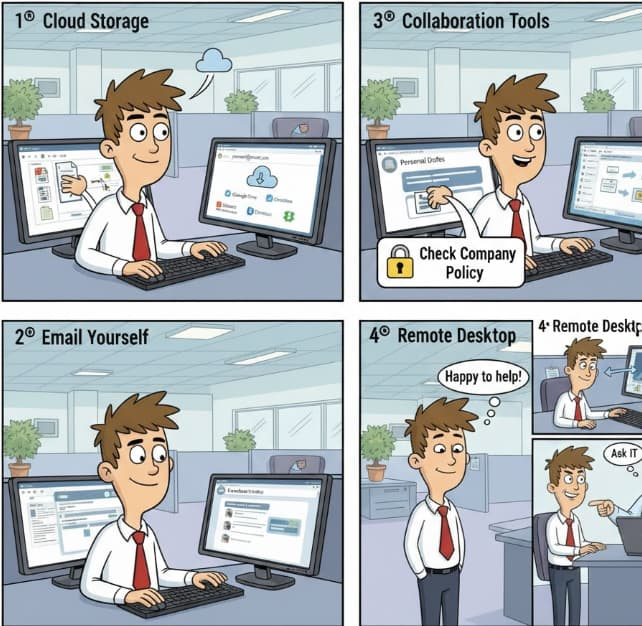
5 Smart Ways to Transfer Personal Files Without USB on Windows 11
Here’s how you can move your personal files safely and professionally.
Use Cloud Storage (The Easiest & Most Reliable Way)
If your company allows web access, cloud storage is usually the smoothest solution.
Popular options include:
- Google Drive
- Microsoft OneDrive
- Dropbox
How to do it on Windows 11:
- Open your browser.
- Log into your personal cloud account.
- Drag and drop files directly from File Explorer.
- Download them later from your home device.
Windows 11 makes this especially easy with Snap Layouts. You can place File Explorer on one side and your browser on the other for quick drag-and-drop transfers.
Pro tip:
Only upload strictly personal files. Never upload confidential company documents.
Email Yourself (Best for Small Files)
If you’re moving:
- A resume
- A PDF
- A few photos
- A Word document
Email works perfectly — as long as attachment limits aren’t restricted.
Steps:
- Create a new email.
- Attach your files.
- Send it to your personal email.
- Download it at home.
This method is simple, fast, and low risk for small file sizes.
Use Workplace Collaboration Tools (If Allowed)
Many companies use tools like:
- Microsoft Teams
- Slack
If external access is permitted, you may be able to upload files in a private chat or personal workspace and access them later from another device.
But again — this depends on company policy.
Always stay within approved usage guidelines.
Remote Desktop Access
If your company allows remote access:
- Log into your work PC from home.
- Transfer your personal files directly to your personal system.
This completely eliminates the need for USB drives and often provides a smoother experience.
The Most Professional Move: Ask IT
This one might feel uncomfortable — but it’s actually the safest option.
If the files are clearly personal (like tax documents, certifications, or your resume), IT may:
- Temporarily enable USB access
- Provide a secure file-sharing method
- Guide you through an approved transfer process
It shows transparency and protects you from any misunderstandings.
What You Should NEVER Do
Let’s be real.
When USB is blocked, some people immediately start looking for “workarounds.”
That’s risky.
Bypassing security controls can result in:
- HR investigation
- Termination
- Legal consequences
Even if your intention is harmless, security systems can’t tell the difference between personal files and data exfiltration.
Protect your reputation.
Why Cloud is Actually Better Than USB Anyway
Here’s something interesting:
USB drives are slower, easier to lose, and more vulnerable to malware.
Cloud storage:
- Is encrypted
- Has backup redundancy
- Can be accessed anywhere
- Doesn’t require physical hardware
In many ways, this “restriction” is actually pushing us toward better digital hygiene.
Quick Checklist Before You Transfer Anything
Ask yourself:
✔ Are these files 100% personal?
✔ Am I following company policy?
✔ Is this method approved?
✔ Would I be comfortable explaining this to IT?
If the answer is yes to all four — you’re good to go.
If your company blocked USB ports on Windows 11, it’s not the end of the world.
You still have secure, professional ways to transfer personal files:
- Cloud storage
- Collaboration tools
- Remote access
- IT-assisted transfer
The key isn’t finding a loophole.
It’s moving smart.
Because protecting your career is more important than moving a few files quickly.
Extra posts:
 How to Move the Start Menu to the Left in Windows 11 (Like Windows 10 Style)
  Turning Widgets into a Personal Productivity Dashboard in Windows 11
  Using BitLocker to Encrypt Your Files in Windows 11
 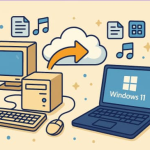 How to Transfer Files and Apps from Old PC to Windows 11
  Recover Deleted Files with Windows File Recovery A Lifesaver from Microsoft
  Recovering Deleted Files Using Windows File Recovery A Complete Guide