As organizations increasingly rely on virtual events to connect with customers, employees, and partners, Microsoft Teams Webinars have emerged as a powerful and scalable solution. Built into Microsoft 365, Teams Webinars combine enterprise-grade security, advanced presenter controls, and seamless integrations to deliver professional online events without the need for third-party tools.
Whether you’re hosting a product launch, training session, internal town hall, or lead-generation event, Microsoft Teams Webinars offer the flexibility and reliability needed for modern digital communication. In this guide, we’ll explore the key features of Microsoft Teams Webinars, walk through a step-by-step setup process, and share best practices to ensure your webinar is a success.
Key Features of Microsoft Teams Webinars
Microsoft Teams Webinars go beyond standard video meetings by offering tools specifically designed for structured, large-scale online events.
1. Large-Scale Attendee Capacity
Teams Webinars are designed to scale effortlessly. Organizations can host:
- Up to 1,000 interactive attendees, where participants can engage through Q&A, polls, and reactions.
- Up to 20,000 view-only attendees, ideal for broadcasts, company announcements, or public webinars where interaction needs to be controlled.
This scalability makes Teams Webinars suitable for both internal corporate events and public-facing sessions.
2. Customizable and Branded Registration Pages
One of the standout features of Teams Webinars is the ability to create custom registration forms. Hosts can:
- Design branded registration pages with event details
- Collect attendee information such as name, email address, organization, job title, or custom questions
- Control who can register (internal users only or public access)
This is particularly valuable for marketing teams and HR departments that need structured attendee data for follow-ups or compliance.
3. Advanced Presenter and Organizer Controls
Teams Webinars provide presenters with robust tools to manage the event professionally:
- Screen sharing with window or application-level control
- PowerPoint Live for smoother presentations and presenter notes
- Virtual backgrounds and background blur
- Role-based permissions (Organizer, Presenter, Attendee)
Organizers maintain full control over attendee microphones, cameras, and interaction settings, ensuring a distraction-free experience.
4. Built-In Polls and Moderated Q&A
Audience engagement is critical for successful webinars. Microsoft Teams includes:
- Live polls powered by Microsoft Forms
- Moderated Q&A, allowing organizers to approve or dismiss questions before they appear publicly
- The ability to respond privately or publicly to attendee questions
These tools help presenters gather real-time feedback and keep participants actively involved.
5. Detailed Analytics and Post-Event Reporting
After the webinar, organizers can access comprehensive analytics, including:
- Registration vs. attendance rates
- Join and leave times
- Engagement levels
- Poll responses and Q&A activity
These insights are invaluable for measuring ROI, improving future events, and reporting to stakeholders.
6. Webinar Recording and On-Demand Sharing
Microsoft Teams Webinars can be recorded automatically or manually. Recordings are:
- Stored securely in Microsoft OneDrive or SharePoint
- Easily shared with registrants or internal teams
- Useful for on-demand viewing, training libraries, or content repurposing
This ensures your content continues to deliver value long after the live session ends.
7. Seamless Microsoft 365 Integration
Teams Webinars integrate natively with the Microsoft ecosystem, including:
- Outlook for scheduling and calendar management
- Microsoft Dynamics 365 for lead tracking and CRM workflows
- Microsoft Forms for surveys and polls
- Power BI for advanced reporting and analysis
These integrations eliminate the need for external platforms and simplify event management.
Step-by-Step Guide to Creating a Webinar in Microsoft Teams
Setting up a webinar in Microsoft Teams is straightforward, even for first-time users.
Step 1: Set Up Your Webinar
- Open Microsoft Teams.
- Go to the Calendar tab from the left navigation.
- Click the dropdown arrow next to New Meeting.
- Select Webinar from the list.
This opens the webinar creation interface.
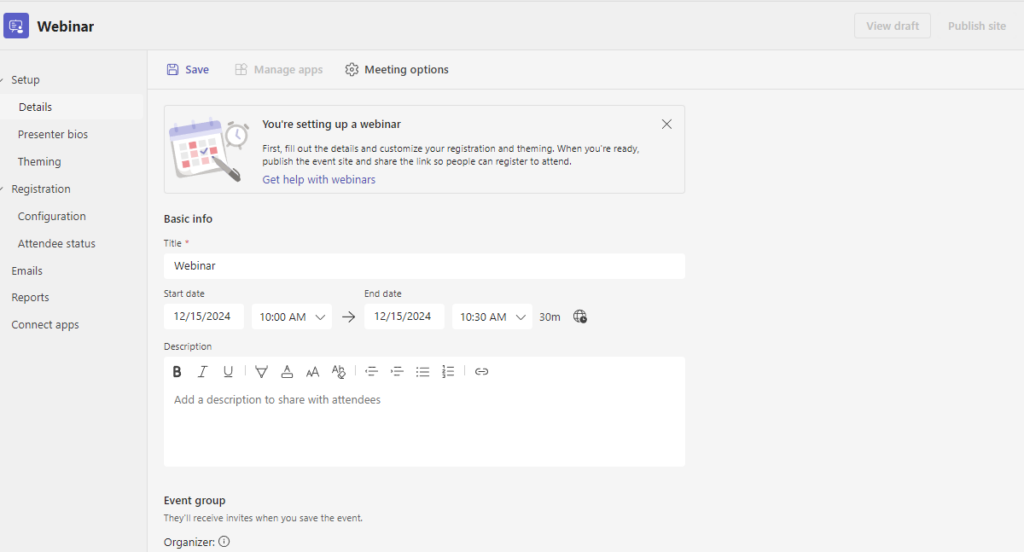
Step 2: Customize the Registration Form
Once you select Webinar:
- Add the event title, date, start time, and duration
- Configure whether the webinar is public or restricted to your organization
- Customize registration fields to collect relevant attendee information
You can preview the registration page before sharing it.
Step 3: Add Presenters and Define Roles
In the Presenters section:
- Add presenters using their email addresses
- Assign appropriate roles so they can present, manage Q&A, or share content
This ensures smooth collaboration during the live session.
Step 4: Configure Event Options
Before publishing the webinar, review event settings:
- Enable or disable Q&A
- Control attendee chat permissions
- Disable microphones and cameras for attendees
- Decide who can bypass the lobby
These settings help maintain control and professionalism.
Step 5: Promote Your Webinar
After publishing:
- Copy the registration link
- Share it via email campaigns, social media, landing pages, or internal portals
- Add the event to Outlook calendars for better attendance rates
Step 6: Host the Webinar
On the event day:
- Join from your Teams calendar
- Start the webinar as the organizer
- Monitor attendee count, engagement, and questions in real time
Presenters can focus on delivering content while organizers manage logistics.
Step 7: Post-Webinar Follow-Up
After the event:
- Download attendance and engagement reports
- Share the recording with registrants
- Send follow-up emails with additional resources or next steps
This step is crucial for lead nurturing and long-term impact.
Tips for Hosting a Successful Microsoft Teams Webinar
- Rehearse in Advance: Test audio, video, screen sharing, and transitions.
- Engage Early: Use polls or opening questions to capture attention.
- Stick to the Agenda: Respect your audience’s time with clear structure.
- Assign a Moderator: Let one person manage Q&A while presenters focus on content.
- Follow Up Promptly: Send recordings, slides, and thank-you emails within 24–48 hours.
Microsoft Teams Webinars provide a secure, scalable, and feature-rich platform for hosting professional online events. With deep Microsoft 365 integration, advanced analytics, and easy setup, Teams Webinars are an excellent choice for businesses, educators, and enterprises looking to deliver impactful virtual experiences.
By understanding the features, following a structured setup process, and applying best practices, you can ensure your webinars are engaging, data-driven, and successful every time.