
File Explorer in Windows 11 received a sleek redesign, but beyond its fresh look, it hides several powerful features that can significantly boost your productivity. If you find yourself constantly digging through folders or managing a lot of files, these advanced tips will help you navigate faster and smarter.
1. Master the Quick Access Toolbar
Windows 11 allows you to customize the Quick Access section in File Explorer.
- Pin your frequently used folders (like Projects, Downloads, or Work Docs).
- To pin: Right-click a folder → Pin to Quick access.
- You can also pin specific drives for faster access without scrolling.
This saves you from repeatedly drilling down into nested directories.
2. Use Tabs Like a Pro
One of the most-requested features finally arrived: File Explorer Tabs.
- Open new tabs with Ctrl + T (just like in your browser).
- Switch quickly with Ctrl + Tab.
- Drag files between tabs by simply holding and dropping them.
Tabs make multitasking between multiple folders far easier than juggling multiple File Explorer windows.
3. Take Advantage of Keyboard Shortcuts
Memorizing a few hotkeys can drastically cut down navigation time:
- Alt + D → Jump to the address bar
- Ctrl + L → Highlight the file path
- Alt + P → Show/hide the Preview Pane
- Ctrl + Shift + N → Create a new folder instantly
- F2 → Rename a selected file or folder
Combine these shortcuts with tabs, and you’ll zip through file operations.
4. Unlock the Hidden Right-Click Menu
Windows 11 streamlined the context menu, but the “classic” one still exists.
- Right-click a file and press Shift + F10 (or click Show more options) to reveal the full menu.
- This is essential if you rely on third-party tools or advanced file properties that don’t appear in the simplified menu.
5. Enable Navigation and Preview Panes
If you frequently preview files, enabling the Preview Pane or Details Pane can save you clicks.
- Go to View → Show and enable Preview pane or Details pane.
- This allows you to view file contents (like PDFs, Word docs, or images) without opening them.
For large projects, this avoids constantly opening and closing files just to check contents.
6. Use the Address Bar for Power Navigation
The address bar isn’t just for showing your current location—it’s also a powerful shortcut.
- Type a folder name directly, and Explorer will suggest matches.
- Enter paths like
C:\Users\YourName\Downloadsand press Enter to jump instantly. - Use “..” to quickly move up one directory level.
7. Harness Libraries and Saved Searches
If you often work across multiple folders:
- Create Libraries (Documents, Music, Videos, Pictures) and add custom folders to them.
- Use Saved Searches for repetitive queries (e.g., all PDFs modified this week).
These tools create dynamic hubs for your files instead of browsing folder by folder.
8. Try PowerToys for Enhanced File Management
Microsoft’s free PowerToys utility supercharges File Explorer:
- Preview more file types (Markdown, SVG, JSON, etc.).
- File Explorer add-ons for batch renaming, image resizing, and advanced search.
- Quick Peek to preview files with a spacebar press (like macOS Finder).
Windows 11’s File Explorer is more capable than it appears at first glance. By mastering tabs, shortcuts, panes, and hidden features, you can drastically speed up navigation and streamline your workflow. And with tools like PowerToys, you can push it even further.
If you spend hours every week inside File Explorer, these small optimizations can add up to huge time savings.
Extra posts:
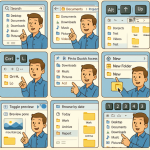 Advanced File Explorer Tips for Faster Navigation in Windows 11
  How to Enable Tabs in File Explorer in Windows 11
  Microsoft Defender Advanced Protection Tips for Windows 11
 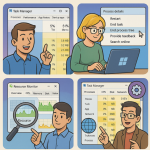 Advanced Task Manager Tips for Power Users in Windows 11
  Setting Up Windows Hello for Faster Logins in Windows 11
  How to Use File History for Backup in Windows 11