
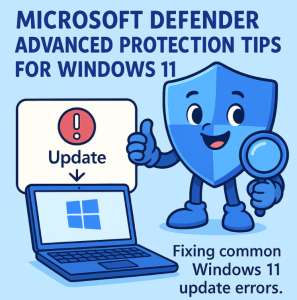
Windows 11 comes with Microsoft Defender Antivirus built-in, offering powerful protection without requiring third-party software. While it works well out of the box, enabling a few advanced settings can significantly strengthen your defenses against ransomware, phishing, and sophisticated cyberattacks.
Here are some practical tips to get the most out of Microsoft Defender on Windows 11:
1. Keep Microsoft Defender Updated
- Defender receives regular security intelligence updates from Microsoft.
- Go to Settings > Windows Update > Advanced options and make sure Receive updates for other Microsoft products is turned on.
- Run a Quick Scan after major updates to ensure nothing slipped through.
2. Turn On Controlled Folder Access
Ransomware attacks often encrypt files and demand payment. Controlled Folder Access blocks unauthorized apps from modifying your files.
- Navigate to Windows Security > Virus & threat protection > Ransomware protection.
- Enable Controlled folder access.
- Add your important folders (Documents, Pictures, OneDrive) to the protected list.
3. Use Tamper Protection
Hackers may try to disable your antivirus before attacking. Tamper Protection prevents malicious apps from altering Defender’s settings.
- Go to Windows Security > Virus & threat protection settings.
- Switch on Tamper Protection.
4. Enable Exploit Protection
This feature reduces the risk of malware exploiting vulnerabilities in apps.
- Open Windows Security > App & browser control > Exploit protection settings.
- Leave system-wide settings on defaults for best balance, but consider turning on Force randomization (ASLR) and Data Execution Prevention (DEP) for extra safety.
5. Use SmartScreen for Safer Browsing
Windows Defender SmartScreen helps block phishing sites and unsafe downloads.
- Go to Windows Security > App & browser control.
- Enable Check apps and files and SmartScreen for Microsoft Edge.
- Turn on Potentially unwanted app blocking to stop bloatware and adware.
6. Enable Network Protection
Network Protection blocks connections to dangerous websites even outside your browser.
- Open PowerShell as Administrator and run:
Set-MpPreference -EnableNetworkProtection Enabled - This helps block phishing domains across all apps, not just browsers.
7. Run Microsoft Defender Offline Scan
Some malware hides deep in the system and can’t be removed while Windows is running.
- Go to Windows Security > Virus & threat protection > Scan options.
- Select Microsoft Defender Offline scan.
- Your PC will restart and scan before Windows boots.
8. Use Windows Security Notifications Wisely
Defender can notify you about potential threats or settings that need attention.
- Go to Windows Security > Manage notifications.
- Keep Virus & threat protection notifications enabled.
- Disable unnecessary ones if you want fewer interruptions, but keep security-critical alerts on.
9. Complement with BitLocker & Backup
Microsoft Defender is strong, but pairing it with BitLocker drive encryption and a reliable backup strategy (File History, OneDrive, or external drives) ensures that even if malware strikes, your data remains safe.
10. Regularly Review Security Health
- Open Windows Security > Device performance & health.
- Check for recommendations on storage, battery, and device integrity.
- Resolve issues early to avoid performance or vulnerability problems.
Microsoft Defender in Windows 11 is more powerful than ever—when properly configured. By turning on these advanced features, you can transform your PC into a hardened security environment without needing third-party tools.
Cyber threats evolve daily, but with a proactive setup and safe online habits, Defender can keep you well-protected.
Extra posts:
 Advanced Task Manager Tips for Power Users in Windows 11
  Advanced File Explorer Tips for Faster Navigation in Windows 11
  Advanced File Explorer Tips for Faster Navigation in Windows 11
  How to Enable Ransomware Protection in Windows 11
 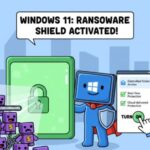 Setting Up Ransomware Protection in Windows 11 – A Simple and Complete Guide
  Top 10 Windows 11 Tips Every Beginner Should Know