
Windows 11 brought a fresh design and new features that make your desktop more interactive and productive. Among these, widgets stand out as a convenient way to get quick access to important information at a glance. Whether you want to check the weather, stay on top of news, or manage your calendar, Windows 11 widgets make it simple. In this post, we’ll explore the best Windows 11 widgets and show you how to add them to your system.
Best Windows 11 Widgets
Here are some of the most useful widgets available in Windows 11:
1. Weather Widget
Stay updated on local weather conditions and forecasts right from your desktop. It’s one of the most popular widgets for quick daily planning.
2. Calendar Widget
Syncs with your Outlook or Microsoft 365 calendar, helping you keep track of meetings, appointments, and reminders.
3. To-Do Widget
Ideal for productivity, this widget integrates with Microsoft To Do so you can manage your tasks and checklists directly from the Widgets board.
4. Traffic Widget
Perfect for commuters, this widget shows local traffic conditions and estimated travel times to help you plan your route.
5. Sports Widget
Follow your favorite teams and leagues with live scores, schedules, and news updates.
6. Watchlist & Finance Widget
For investors, this widget provides stock market updates, cryptocurrency values, and company news.
7. Entertainment & News Widget
Stay up to date with trending stories, headlines, and entertainment updates from your preferred sources.
8. Photos Widget
This pulls in memories and recent pictures from your OneDrive, letting you relive moments right on your desktop.
How to Add Widgets in Windows 11
Adding and customizing widgets in Windows 11 is simple. Here’s how you can do it:
- Open the Widgets board:
- Click on the Widgets icon on the taskbar (a square divided into sections).
- Or press Win + W.
- Add a new widget:
- In the Widgets board, scroll down and click Add widgets.
- Choose from the list of available widgets (Weather, Calendar, To-Do, Sports, etc.).
- Customize your widget:
- Click the three-dot menu (⋮) on the widget.
- Select Customize widget.
- Adjust settings such as location (for weather), favorite teams (for sports), or sources (for news).
- Resize or rearrange widgets:
- Use the resize option in the widget menu to make it small, medium, or large.
- Drag and drop widgets to rearrange them within the board.
Widgets in Windows 11 are a fantastic way to personalize your desktop and stay informed without constantly switching between apps. Whether you’re checking the weather, tracking your schedule, or following the latest headlines, widgets can save you time and keep you focused.
As Microsoft continues to expand the widget ecosystem, more third-party widgets are expected, giving users even greater customization options. For now, start with the built-in widgets and tailor your Widgets board to fit your daily routine.
✅ Tip: If you don’t see the Widgets button on your taskbar, right-click on the taskbar, choose Taskbar settings, and toggle on Widgets.
Extra posts:
 Using Widgets Effectively in Windows 11
  The Complete Guide to Widgets in Windows 11
 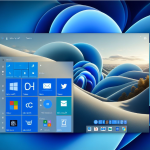 Turning Widgets into a Personal Productivity Dashboard in Windows 11
  From Start Menu to Widgets Customizing Windows 11 Like a Pro
  How to Move the Start Menu to the Left in Windows 11 (Like Windows 10 Style)
  Setting Up Windows Hello for Faster Logins in Windows 11