
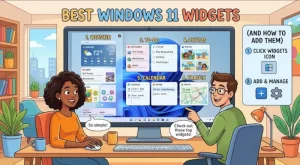
Checking the weather, reviewing your schedule, tracking a to-do list, and catching up on the news can quickly turn into a series of distractions when each task requires opening a separate app. Windows 11 widgets offer a more convenient approach: they bring useful information together in one accessible place, so you can check what matters without interrupting your workflow.
Whether you use your PC for work, study, or everyday tasks, the right widgets can help you stay organized and informed. From weather forecasts and calendar events to sports scores and financial updates, Windows 11 provides several options for personalizing your information feed.
Here’s a practical look at the best Windows 11 widgets, how to add them, and how to configure your Widgets board to suit your daily routine.
What Are Windows 11 Widgets?
Windows 11 widgets are compact information panels that display updates from supported apps and online services. You can access them through the Widgets board, which opens from the taskbar or with the Windows + W keyboard shortcut.
Depending on your Windows version, region, account configuration, and installed apps, the Widgets board may include weather forecasts, calendar information, task lists, news, sports, financial data, and other content.
Widgets are designed for quick access rather than replacing full applications. For example, a calendar widget can help you check upcoming appointments, while your calendar app remains the better place to create complex events or manage detailed meeting settings.
One important distinction: The Widgets board is not the same as placing traditional desktop gadgets directly on your wallpaper. Windows 11 primarily presents widgets in a dedicated board, although supported widgets and Windows versions may offer additional integration.
8 Best Windows 11 Widgets to Try
1. Weather Widget: Check Conditions Before You Head Out
The Weather widget is one of the most practical additions to a Windows 11 setup. It displays local conditions and forecast information, helping you plan your commute, outdoor activities, or travel.
Depending on the available data and configuration, you may see current temperatures, weather conditions, and upcoming forecasts.
Best for: Anyone who wants a quick weather check without opening a browser or dedicated weather app.
Setup tip: Configure your location and temperature units where those options are available. If the displayed location is incorrect, check the location settings in the widget or the associated Microsoft service.
2. Calendar Widget: Keep Your Schedule Visible
The Calendar widget helps you stay aware of upcoming appointments and important dates. Depending on your account and the current widget implementation, calendar information may integrate with Outlook or supported Microsoft 365 services.
For professionals who manage multiple meetings, even a quick glance at the day’s schedule can make a difference.
Best for: Office workers, remote teams, students, and anyone who relies on a digital calendar.
Setup tip: Make sure your calendar account is connected and synchronized. If events do not appear, verify the account and calendar settings in the relevant application or service.
3. Microsoft To Do: Keep Tasks Within Reach
A task list is useful only when you remember to check it. Microsoft To Do helps you organize errands, project tasks, reminders, and daily priorities, while supported widget integrations can make task information easier to access.
You can use Microsoft To Do to maintain separate lists for work and personal responsibilities, break larger projects into smaller actions, and keep track of outstanding tasks.
Best for: Professionals managing multiple responsibilities, students working toward deadlines, and people who prefer simple digital checklists.
Setup tip: Sign in with the account that contains your lists and confirm that the relevant widget or integration is available in your Windows installation. Widget availability and supported actions can vary by version.
4. Traffic Widget: Plan Your Commute
The Traffic widget is particularly useful if you travel to an office, attend regular appointments, or frequently drive to unfamiliar locations.
Where supported, traffic information can help you identify congestion and understand road conditions before leaving. The exact information and customization options depend on the widget provider and regional availability.
Best for: Daily commuters and frequent drivers.
Setup tip: Check the location or area settings, if available, and use a dedicated navigation app for turn-by-turn directions and route comparisons.
5. Sports Widget: Follow Your Favorite Teams
Keeping up with sports can involve checking several websites for scores, fixtures, standings, and breaking news. A sports widget can bring relevant updates together in the Widgets board.
Depending on available coverage, you may be able to follow particular teams, leagues, or competitions and see current scores or upcoming matches.
Best for: Sports fans who want quick updates throughout the day.
Setup tip: Personalize your sports interests when the available experience supports it. Regional coverage and supported competitions may differ.
6. Finance and Watchlist Widget: Monitor Market Updates
If you follow public companies or financial markets, a watchlist can provide a convenient snapshot of selected investments and market movements.
Available finance experiences may display stock prices, market indexes, company headlines, and other financial information. Cryptocurrency coverage, where available, depends on the provider and current regional support.
Best for: Investors, business professionals, and anyone who regularly monitors market news.
Setup tip: Add the companies or instruments you want to follow, if watchlist customization is available. Treat displayed prices as informational and check a reliable financial platform for current quotes before making investment decisions.
7. News and Entertainment Widgets: Stay Informed
The News experience helps you catch up on current events, business developments, technology, entertainment, and other topics without opening multiple websites.
Microsoft’s content experience can personalize recommendations based on selected interests and available settings. However, the specific stories, sources, and customization controls may vary.
Best for: Readers who want a quick overview of the day’s headlines.
Setup tip: Review your interests and available content preferences. If you find the feed distracting, adjust the topics or notification settings available in your version of Windows.
8. Photos Widget: Revisit Your Favorite Memories
The Photos widget can make your Widgets board more personal by surfacing selected images and photo memories. Depending on the current integration and configuration, this may include supported OneDrive photo content.
It offers a simple way to revisit family pictures, travel memories, and other images without opening your photo library every time.
Best for: Anyone who wants a more personal Windows experience.
Setup tip: Check which photo sources your widget supports, confirm that the relevant account is connected, and review your photo privacy settings before enabling automatic memories.
How to Add Widgets in Windows 11
Adding widgets takes only a few steps. The exact labels and available options can vary with Windows updates, but the general process is straightforward.
Step 1: Open the Widgets Board
You have two convenient options:
- Click the Widgets icon on the taskbar, if it is enabled.
- Press Windows + W on your keyboard.
The Widgets board should open, displaying your available widgets and information feed.
Step 2: Open the Widget Selection Menu
Look for Add widgets or the widget-management option in the Widgets board. Select it to view the widgets currently available on your system.
If a particular widget is missing, it may depend on your Windows version, installed applications, region, or Microsoft account configuration.
Step 3: Add Your Preferred Widgets
Browse the available options and select the widgets you want to use. Depending on the interface, you may see an Add button or another control for placing a widget on the board.
Start with two or three useful widgets rather than adding everything at once. Weather, calendar, and tasks are a sensible combination for a work-focused setup.
Step 4: Customize Widget Settings
Select the three-dot menu (⋮) on a widget to review its available controls. Depending on the widget, you may be able to change its size, remove it, or access personalization settings.
For example:
- Weather: Check location and units.
- Sports: Select teams or competitions where supported.
- News: Adjust available interests and content preferences.
- Finance: Manage your watchlist where supported.
Not every widget offers the same settings, so do not expect every option to appear in every menu.
Step 5: Resize or Rearrange Widgets
If your Windows version supports resizing, use the widget’s menu to choose from the available size options. You can also drag supported widgets to rearrange their order within the board.
Put the information you check most frequently near the top. This reduces scrolling and makes your Widgets board more useful during a busy workday.
How to Enable the Widgets Button on the Taskbar
Can’t find the Widgets icon? It may be hidden in your taskbar settings.
- Right-click an empty area of the taskbar.
- Select Taskbar settings.
- Find the Widgets option under the taskbar items or related settings.
- Turn it on if the option is available.
You can still try Windows + W to open the Widgets board, even if the taskbar icon is not visible.
If widgets fail to load, check your internet connection, install available Windows updates, and verify that relevant applications are up to date. If a widget is still unavailable, check Microsoft’s current documentation for your Windows version.
Tips for Getting More Out of Windows 11 Widgets
A well-organized Widgets board should save time, not create another source of distraction.
- Prioritize useful information. Choose widgets that support your routine instead of adding every available option.
- Personalize your content. Review location, interests, account connections, and other supported settings.
- Keep privacy in mind. Calendar entries, photographs, and personalized content may reveal information when displayed on screen. Review account and lock-screen privacy settings, especially on shared computers.
- Distinguish quick updates from complete applications. Use widgets for at-a-glance information and open the full application when you need detailed controls.
- Check compatibility before troubleshooting. Widget availability can change with Windows updates, app versions, account types, and regional settings.
Make Your Windows 11 Desktop More Useful
Windows 11 widgets provide a practical way to keep essential information within easy reach. Weather helps you plan your day, calendar and task integrations support productivity, and news, sports, finance, and photos add information tailored to your interests.
To get started, open the Widgets board with Windows + W, add the widgets available on your system, and customize the settings that matter most to you. Begin with a small selection, arrange it around your daily habits, and remove anything that does not add value.
The best Windows 11 widgets are not necessarily the ones with the most features. They are the ones that help you make quicker decisions, stay organized, and spend less time switching between applications.
Extra posts:
 Using Widgets Effectively in Windows 11
  The Complete Guide to Widgets in Windows 11
 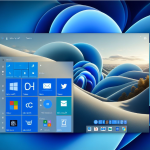 Turning Widgets into a Personal Productivity Dashboard in Windows 11
  From Start Menu to Widgets Customizing Windows 11 Like a Pro
  Can I Rollback a Windows 11 Update? A Complete Guide to Reverting Windows Updates Safely
  Windows 10 Extended Security Updates: A Bridge to Your Windows 11 Experience