
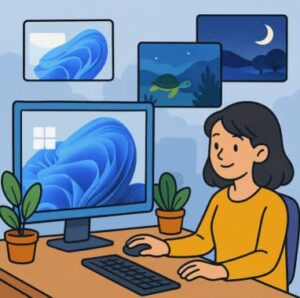
Your Windows 11 desktop is more than a background image. For many developers, IT professionals, and solution architects, it is the workspace where documentation, terminals, code editors, dashboards, browsers, and communication tools stay open for hours at a time.
A well-configured desktop can reduce visual clutter and make a workstation feel more purposeful. Windows 11 gives you several ways to achieve that through themes, wallpapers, colors, lock-screen settings, and personalization controls.
The useful part is knowing how these settings fit together. A theme is not simply a wallpaper. It can package multiple visual settings into a reusable configuration, while wallpapers give you more granular control over the desktop appearance.
This guide explains how Windows 11 themes and wallpapers work, how to configure them, where to find additional options, and how to create a setup that looks good without getting in the way of your work.
What Are Windows 11 Themes?
A Windows 11 theme is a collection of personalization settings that can be applied together. Depending on the theme, these settings can include:
- Desktop background images
- Accent colors
- Windows color preferences
- Sounds
- Mouse cursor settings
- Related personalization preferences
The advantage is consistency. Instead of configuring every visual element individually, you can apply a theme and adjust individual settings afterward.
For example, a developer might prefer a dark visual environment with muted accent colors and a minimal wallpaper. An IT administrator working across multiple systems may instead want a neutral desktop that makes it easier to distinguish between environments.
Windows 11 also includes several built-in themes, so you do not need third-party software to start customizing your system.
How to Change a Windows 11 Theme
Windows 11 keeps theme management inside the Settings application.
To access the available themes:
- Open Settings.
- Select Personalization.
- Choose Themes.
- Browse the available theme options.
- Select a theme to apply it.
The same area also provides access to individual personalization controls.
This matters because you are not locked into the exact appearance of a theme. You can start with a complete theme and then modify the background, colors, sounds, or other settings independently.
For managed enterprise environments, this distinction is particularly useful. A standard theme can provide a baseline appearance while users retain limited control over personal preferences, depending on organizational policies.
Windows 11 Wallpapers: More Than Just a Background
The desktop wallpaper is the most visible part of Windows personalization, but Windows 11 gives you several ways to control how it behaves.
Go to:
Settings → Personalization → Background
From there, you can choose different background types, including:
- Picture: Use a single image.
- Solid color: Keep the desktop visually simple.
- Slideshow: Rotate through multiple images.
- Windows spotlight: Use Microsoft’s changing spotlight imagery when available.
Picture vs. Slideshow
A single picture works well when consistency matters. It is especially useful for corporate workstations, branded environments, or anyone who wants a predictable desktop.
A slideshow is better when you want variety. You can point Windows to a folder containing multiple images and configure the system to cycle through them.
For professional environments, however, avoid overly busy wallpapers. High-contrast images and detailed patterns can make desktop icons harder to scan, especially when you’re switching between applications frequently.
How to Set a Custom Wallpaper
You do not need specialized software to use your own Windows 11 wallpaper.
Navigate to:
Settings → Personalization → Background → Personalize your background
Choose Picture, then select an image from your computer.
You can also right-click a supported image file and use the Windows option to set it as the desktop background.
Pay attention to image resolution. A wallpaper designed for a 1920×1080 display can look stretched or soft on a 4K monitor. Likewise, ultrawide displays often require images with significantly wider aspect ratios.
For multi-monitor workstations, this becomes even more important. A wallpaper that looks excellent on one monitor may be poorly positioned when Windows spans or assigns backgrounds across multiple displays.
Understanding Background Fit Options
Windows provides several ways to position an image on the desktop. The available options can include:
- Fill: Expands the image to cover the desktop.
- Fit: Displays the entire image while preserving its proportions.
- Stretch: Adjusts the image to the available desktop area.
- Tile: Repeats a smaller image.
- Center: Places the image in the middle of the desktop.
- Span: Designed for certain multi-monitor configurations.
For most high-resolution photographs, Fill is a practical choice. If preserving the entire image is more important than covering every pixel, Fit may be preferable.
The key is to preserve the original aspect ratio whenever possible. Stretching a photograph can produce obvious distortion.
Dark Mode and Light Mode
Themes and wallpapers work closely with Windows 11’s appearance settings.
Go to:
Settings → Personalization → Colors
You can configure Windows to use a light or dark mode, or control the Windows interface and application modes separately where supported.
Dark mode can be particularly comfortable for developers and administrators who spend long periods working with terminals, IDEs, logs, and other text-heavy interfaces. But it is not automatically better for everyone.
The practical approach is to match the interface to your environment.
A subdued dark theme paired with a low-contrast wallpaper can create a focused workspace. A bright wallpaper combined with highly saturated accent colors, on the other hand, can create unnecessary visual competition with the applications you’re actually using.
Choosing Wallpapers for Professional Work
A good professional wallpaper should support your workflow rather than compete with it.
Consider these factors:
1. Contrast
Desktop icons need to remain readable. Avoid placing bright text or icons over complex areas of the image.
2. Resolution
Use an image that matches or exceeds your monitor’s native resolution. This reduces scaling artifacts.
3. Composition
If your desktop contains many shortcuts, keep the most visually complex parts of the wallpaper away from areas where icons are concentrated.
4. Color
Strong colors can become distracting over an eight-hour workday. Neutral or muted palettes tend to work better for professional environments.
5. Multiple monitors
If you use two or three displays, test how the wallpaper behaves across different resolutions and orientations.
A minimalist setup often wins here. Your desktop is a working surface, not necessarily a showcase.
Where to Find More Windows 11 Themes and Wallpapers
Windows 11 includes built-in personalization options, but additional themes and wallpapers can be available through Microsoft’s ecosystem, including the Microsoft Store.
When evaluating third-party wallpaper or theme applications, consider more than appearance.
Check:
- Publisher reputation
- Application permissions
- Update frequency
- Privacy policy
- Whether the application runs continuously in the background
- Whether it adds unnecessary startup processes
- Compatibility with your Windows version
This is especially important on corporate machines. A wallpaper utility that requires persistent background access may introduce unnecessary software into an environment where endpoint security and application control matter.
For managed devices, built-in Windows functionality is usually the safer baseline.
Creating a Practical Theme Strategy for IT Teams
For organizations managing many Windows 11 endpoints, personalization can also become part of desktop standardization.
An organization might establish:
- A standardized corporate wallpaper
- Approved brand colors
- A default light or dark appearance
- Standard lock-screen imagery
- Separate configurations for different device roles
For example, development workstations could use a darker, minimalist configuration, while shared administrative machines could use a more neutral corporate theme.
The goal isn’t to eliminate personalization. It is to establish a sensible baseline.
Windows configuration management tools can then be used where organizational requirements call for centralized control. This is more scalable than manually configuring every workstation.
Troubleshooting Common Theme and Wallpaper Problems
If a wallpaper isn’t displaying correctly, start with the basics.
Image looks stretched:
Check the background fit option and use an image with a suitable aspect ratio.
Wallpaper keeps changing:
Check whether the background is configured as a slideshow or another dynamic option.
Theme changes more settings than expected:
Review the individual personalization settings after applying the theme. Themes can affect multiple visual elements.
Customizations aren’t available:
On organization-managed devices, administrators may restrict certain personalization settings through policy.
Wallpaper looks blurry:
Use a higher-resolution source image and make sure Windows isn’t scaling a low-resolution image to a much larger display.
Practical Takeaway: Build a Desktop That Helps You Work
Windows 11 themes and wallpapers are simple features, but they become surprisingly useful when you treat personalization as part of workstation design rather than decoration.
Start with a theme that matches your preferred working environment. Choose a high-resolution wallpaper that doesn’t compete with desktop icons. Configure light or dark mode based on your applications and working conditions. If you’re managing business devices, establish a standardized baseline before allowing additional customization.
For most professionals, the best desktop isn’t the most elaborate one. It’s the one that stays out of the way while making the workstation feel organized and intentional.
Once you’ve configured the basics, the next step is to review the rest of Windows 11’s personalization settings—especially accent colors, lock-screen behavior, taskbar preferences, and multi-monitor configuration—to create a consistent environment across your devices.
Extra posts:
 Creating Custom Themes & Wallpapers in Windows 11
  Understanding the New Task Manager in Windows 11 (Complete Guide)
  How to Speed Up Windows 11 Without Third-Party Tools (Complete Expert Guide)
  Can I Rollback a Windows 11 Update? A Complete Guide to Reverting Windows Updates Safely
  The Complete Guide to Widgets in Windows 11
  How to Secure Your Windows 11 PC (Complete Guide)