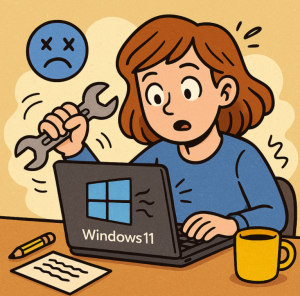
Windows 11 is sleek, fast, and packed with features—but even the best systems have their quirks. Whether it’s a laggy start menu, Wi-Fi drops, or stubborn updates, you don’t always need to call IT to get back on track. Here’s how to fix common Windows 11 issues yourself, safely and efficiently.
1. Restart Before You Panic
It sounds simple, but rebooting often fixes temporary system glitches, clears memory, and resets background processes.
Try this first:
- Click Start → Power → Restart.
- Wait for your PC to fully reboot before testing again.
💡 Pro tip: If your system is frozen, hold the power button for 10 seconds to force a shutdown, then turn it back on.
2. Fix Wi-Fi and Internet Issues
If your Wi-Fi keeps dropping or won’t connect, try these quick steps:
- Run the built-in troubleshooter:
- Go to Settings → System → Troubleshoot → Other troubleshooters.
- Click Run next to Internet Connections.
- Reset your network adapter:
- Open Settings → Network & Internet → Advanced network settings → Network reset.
- Restart your PC after the reset.
If that doesn’t help, unplug your router for 30 seconds and plug it back in.
3. Speed Up a Slow PC
A sluggish computer often needs a little cleanup.
Try this:
- Close startup programs:
- Press Ctrl + Shift + Esc to open Task Manager.
- Go to Startup apps and disable anything you don’t need.
- Free up space:
- Go to Settings → System → Storage → Cleanup recommendations.
- Run Windows Update:
- Sometimes new updates contain performance fixes.
4. Fix Frozen Apps or Programs
If an app refuses to close or respond:
- Press Ctrl + Alt + Delete and open Task Manager.
- Find the frozen app, select it, and click End task.
- Restart the app.
Still crashing? Try reinstalling the app or checking for updates in the Microsoft Store.
5. Solve Update Problems
If Windows updates fail or get stuck:
- Run the Windows Update Troubleshooter:
- Go to Settings → System → Troubleshoot → Other troubleshooters → Windows Update → Run.
- Clear the update cache manually (advanced users):
- Open Command Prompt as administrator and type:
net stop wuauserv net stop bits del %systemroot%\SoftwareDistribution\DataStore\*.* /s /q net start wuauserv net start bits
- Open Command Prompt as administrator and type:
- Restart your computer and check for updates again.
6. Fix Sound Problems
If your speakers or headphones suddenly stop working:
- Right-click the sound icon → Troubleshoot sound problems.
- Make sure the right output device is selected.
- Update your sound driver:
- Right-click Start → Device Manager → Sound, video, and game controllers → right-click your audio device → Update driver.
7. When All Else Fails — Use System Restore
If nothing works, roll your PC back to a time when it did:
- Type System Restore in the Start menu search.
- Select Create a restore point → System Restore → Choose a restore point.
- Follow the prompts to restore.
This won’t affect your personal files—it just resets system settings and drivers.
Extra posts:
 How to Fix Common Microsoft Teams Connection Problems
  Fixing Wi-Fi Connection Problems Easily on Windows 11
  Understanding Teams Policies: Messaging, Meetings & Calling | Complete Guide
  AI Mistakes in Microsoft Copilot and How to Fix Them
  How to Move the Start Menu to the Left in Windows 11 (Like Windows 10 Style)
  Setting Up Windows Hello for Faster Logins in Windows 11