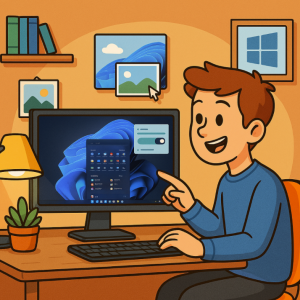
Windows 11 isn’t just about sleek design and smooth performance—it’s also about making your computer truly yours. Whether you’re a productivity enthusiast, a gamer, or someone who loves a minimalist setup, personalizing your desktop can transform your everyday experience.
Here’s a step-by-step guide to personalizing your Windows 11 desktop like a pro.
1. Start With a Stunning Wallpaper
Your wallpaper sets the tone for your desktop. In Windows 11:
- Right-click on the desktop and select Personalize.
- Choose Background to set a picture, solid color, or slideshow.
- For a unique look, try using Windows Spotlight, which updates your background daily with high-quality images.
💡 Pro tip: Use apps like Wallpaper Engine (via Steam) or free sites like Unsplash to get dynamic or high-resolution wallpapers.
2. Customize the Taskbar
The taskbar in Windows 11 is centered by default, but you can tweak it:
- Go to Settings > Personalization > Taskbar.
- Move icons to the left if you prefer a classic look.
- Hide or show features like Widgets, Search, or Task View.
💡 Pro tip: Third-party tools like Start11 let you bring back the Windows 10-style taskbar or experiment with custom themes.
3. Explore Accent Colors & Dark Mode
Make your desktop pop with a color scheme that matches your personality.
- Go to Settings > Personalization > Colors.
- Switch between Light, Dark, or Custom modes.
- Enable Transparency Effects for a modern, glass-like look.
- Pick an accent color that applies to your Start menu, taskbar, and window borders.
💡 Pro tip: Use the Auto Dark Mode app to switch automatically between light and dark themes based on the time of day.
4. Redesign the Start Menu
The Start menu in Windows 11 is clean, but you can personalize it further:
- Pin your most-used apps for quick access.
- Unpin apps you don’t need.
- Group shortcuts into folders (just drag and drop).
💡 Pro tip: If you want more customization, Open-Shell is a free tool that gives you deep control over the Start menu style.
5. Organize With Virtual Desktops
Virtual desktops let you separate work, gaming, and personal tasks.
- Press Win + Tab to open Task View.
- Create new desktops and customize each with different apps or wallpapers.
💡 Pro tip: Rename desktops (e.g., Work, Gaming, Creative) to stay focused.
6. Widgets & Live Information
Widgets bring you quick access to weather, calendar, news, and more.
- Hover over the Widgets icon in the taskbar (or press Win + W).
- Customize which widgets appear and rearrange them.
💡 Pro tip: Use third-party widgets from Rainmeter for a futuristic dashboard with live system stats, clocks, and calendars.
7. Tidy Up Your Icons
A clutter-free desktop = a stress-free mind.
- Right-click the desktop → View → adjust icon size or auto-arrange.
- Hide desktop icons entirely if you prefer a minimal setup.
- Use Folders or tools like Fences to keep things organized.
8. Go Beyond With Third-Party Tools
If you want to level up your customization:
- Rainmeter – Add live system monitoring, clocks, and futuristic widgets.
- Fences – Organize desktop icons into smart containers.
- Lively Wallpaper – Use animated wallpapers that react to your system.
- Start11 – Unlock deep Start menu and taskbar customization.
Personalizing Windows 11 is more than just changing wallpapers—it’s about creating a workspace that feels inspiring, efficient, and uniquely yours. Start with simple tweaks like wallpapers and themes, then experiment with third-party tools for pro-level customization.
With the right setup, every time you sit down at your computer, you’ll feel more at home—and more motivated to get things done.
Extra posts:
 Customizing the Lock Screen in Windows 11 A Step-by-Step Guide to Personalize and Optimize
  Adding Animated Wallpapers to Your Desktop in Windows 11
  How to Set Up Remote Desktop on Windows 11? A Beginner’s Guide
  How to Play Xbox Games on Windows 11 Like a Pro
  Voice Typing in Windows 11 Dictate Like a Pro
  From Start Menu to Widgets Customizing Windows 11 Like a Pro