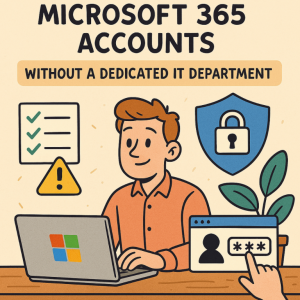
Small businesses and solo professionals increasingly rely on Microsoft 365 for productivity and collaboration. But with cyber threats growing more sophisticated, securing your Microsoft 365 environment is essential—even if you don’t have a dedicated IT team. Fortunately, Microsoft provides built-in tools and features that make it possible to protect your accounts with minimal technical overhead.
Below are practical steps you can take right away to strengthen your Microsoft 365 security.
Step 1: Enable Multi-Factor Authentication (MFA)
Passwords alone aren’t enough to keep attackers out. MFA adds a second layer of protection by requiring a verification step, like an app notification or text message.
How to set it up:
- Go to the Microsoft 365 Admin Center.
- Navigate to Users > Active users.
- Enable Multi-factor authentication.
- For a simple setup, turn on Security Defaults in Microsoft Entra ID.
- For more flexibility, use Conditional Access Policies to require MFA based on roles, devices, or locations.
This is one of the most effective ways to reduce the risk of account compromise.
Step 2: Enforce Strong Password Policies
Weak or reused passwords are one of the most common entry points for attackers. Strong password rules make it much harder for criminals to gain access.
How to set it up:
- Enable Microsoft Entra Password Protection to block commonly used or guessable passwords.
- Require passwords with at least 12 characters, mixing letters, numbers, and symbols.
- Configure a banned password list tailored to your business.
- Encourage your team to use a password manager to handle complexity without frustration.
Step 3: Limit Access with Role-Based Controls
Not everyone needs admin rights. Assigning the right level of access keeps sensitive data safer and reduces the impact if an account is compromised.
How to set it up:
- Use Role-Based Access Control (RBAC) to ensure people only have access to the tools they need.
- Apply Privileged Identity Management (PIM) to grant admin access temporarily, only when required.
- Always require MFA for accounts with elevated privileges.
Step 4: Automate Governance
Manually managing permissions and group policies can get messy, especially as your business grows. Governance tools keep your Microsoft 365 environment organized and secure.
How to set it up:
- Turn on built-in controls for group creation, external sharing, and data retention.
- Consider third-party tools like ShareGate to automate governance tasks and flag risky configurations.
This reduces human error and ensures consistent enforcement of policies.
Step 5: Educate Your Team About Phishing
Technology alone can’t stop every attack—people are often the first line of defense. Teaching staff how to recognize suspicious messages helps prevent accidental clicks.
What to do:
- Remind staff to check links before clicking.
- Encourage them to be cautious of emails with urgent or unusual requests.
- Install Microsoft’s Report Message add-in for Outlook so suspicious emails can be flagged quickly.
Step 6: Control File Sharing in OneDrive and SharePoint
Accidentally sharing files too widely can expose sensitive information. Take time to configure safe defaults for collaboration.
How to set it up:
- Change the default sharing setting so files are shared only with people inside your organization.
- Use password-protected or time-limited links for external sharing.
- Review shared files regularly to ensure permissions are appropriate.
Step 7: Back Up Critical Data
Microsoft provides some recovery features like version history, but it’s not a complete backup solution. Having an additional backup protects against accidental deletion or ransomware.
Options to consider:
- Use a third-party backup service specifically designed for Microsoft 365.
- At a minimum, download and store critical files in another secure location on a regular schedule.
Step 8: Monitor Activity and Set Up Alerts
Keeping an eye on user activity helps you catch suspicious behavior early.
How to set it up:
- Enable auditing in Microsoft 365 to track user and admin actions (logs are retained for 90 days).
- Create alerts for unusual sign-ins, file access, or permission changes.
- For advanced monitoring, consider Microsoft Sentinel, which provides analytics and threat detection.
Step 9: Stay Informed
Cybersecurity is constantly evolving, and what works today may not be enough tomorrow.
How to stay updated:
- Follow Microsoft’s official security blogs.
- Attend free webinars or workshops.
- Subscribe to newsletters that highlight new threats and best practices.
Extra posts:
 How to Create User Accounts in Microsoft 365
  What Is the Compliance Manager Secure Score in Microsoft 365?
  How to Create and Manage Local vs Microsoft Accounts in Windows 11
  Boosting Finance Department Productivity with Copilot A Modern Guide
  Optimize and Secure Your System with Microsoft PC Manager
  Microsoft Authenticator App A Complete Guide to Secure Authentication