
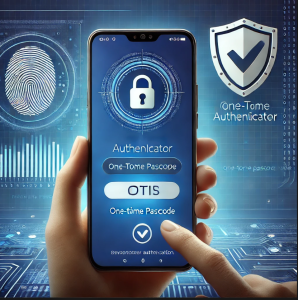
In today’s digital landscape, securing user identities is more critical than ever. With increasing cyber threats, passwords alone are no longer enough to protect accounts from unauthorized access. This is where multi-factor authentication (MFA) comes into play, and the Microsoft Authenticator app is one of the most effective tools available.
This blog will provide a complete overview of the Microsoft Authenticator app, its features, setup process, and best practices for secure authentication.
What is the Microsoft Authenticator App?
The Microsoft Authenticator app is a free mobile application that provides an extra layer of security by enabling multi-factor authentication (MFA) and passwordless sign-ins for Microsoft and third-party accounts. It is available on both iOS and Android devices and helps users securely sign in without relying solely on passwords.
Key Features of Microsoft Authenticator
- Multi-Factor Authentication (MFA) – Adds an extra security layer by requiring a second factor, such as a time-based one-time password (TOTP) or push notification approval.
- Passwordless Sign-in – Users can log in to their accounts using biometric authentication (fingerprint, facial recognition) or device PIN.
- One-Time Passcodes (OTP) – Generates time-sensitive codes for signing into Microsoft and non-Microsoft services that support MFA.
- Account Backup & Recovery – Enables cloud backups for account restoration in case of device loss or upgrade.
- Secure Notifications – Push notifications for approving sign-ins with a single tap.
- Support for Third-Party Accounts – Works with non-Microsoft services like Google, Facebook, and Amazon that use OTP-based authentication.
How to Set Up Microsoft Authenticator
Step 1: Download the App
- iOS Users: Download from the Apple App Store.
- Android Users: Download from the Google Play Store.
Step 2: Add a Microsoft Account
- Open the app and select Add account.
- Choose Work or school account or Personal Microsoft account.
- Sign in using your Microsoft credentials.
- Follow on-screen instructions to enable push notifications and biometrics.
Step 3: Enable MFA for Microsoft 365 Accounts
- Go to Microsoft Security Settings.
- Select Set up Authenticator App and scan the QR code provided.
- Confirm the setup by approving the test notification.
Step 4: Add Third-Party Accounts
- In the app, tap Add account.
- Choose Other (Google, Facebook, etc.).
- Scan the QR code provided by the third-party service.
- Use the generated code for sign-in.
Passwordless Authentication with Microsoft Authenticator
Microsoft Authenticator supports passwordless authentication, making logins more secure and convenient.
- Instead of entering a password, users receive a push notification to approve a sign-in request.
- Biometric verification (fingerprint or facial recognition) adds an extra layer of security.
- Eliminates password-related risks like phishing and credential theft.
To enable passwordless authentication:
- Open the Microsoft Authenticator app.
- Select your Microsoft account.
- Enable Phone Sign-in.
- Follow the prompts to complete setup.
Best Practices for Using Microsoft Authenticator
- Enable Cloud Backup – Protects account recovery in case of device loss.
- Use Biometrics for Extra Security – Enhances security beyond PIN authentication.
- Keep the App Updated – Ensures the latest security improvements.
- Enable MFA on All Accounts – Secure Microsoft and third-party accounts with Authenticator.
- Review Sign-in Activity Regularly – Monitor suspicious login attempts in Microsoft Security settings.
Useful Links:
Extra posts:
 Web app available for Kaizala Free secure mobile messaging app
  How to Resolve Microsoft Authenticator App Issues
  How to Secure Your Windows 11 PC (Complete Guide)
  Managing App Permissions for Better Privacy in Windows 11 A Complete Guide
  Microsoft Teams Rooms Complete Guide
  Microsoft Quick Assist Mobile App – What You Should Know