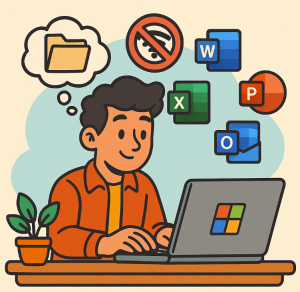
Microsoft 365 (formerly Office 365) is best known for its cloud-powered features—real-time collaboration, seamless file syncing, and automatic updates. But what if you’re working in a place with no internet access? The good news: you can still use Microsoft 365 apps offline. With a few simple steps, you’ll be able to keep creating, editing, and managing your files without interruption.
1. Install Microsoft 365 Desktop Apps
To use Microsoft 365 offline, you need the desktop versions of Word, Excel, PowerPoint, Outlook, and other apps installed on your device.
- Sign in to your Microsoft 365 account.
- Go to Apps & Devices and download the Office installer.
- Once installed, you can open the apps without being online.
Note: While you don’t need an internet connection to use the apps, you’ll need to connect at least once every 30 days so Microsoft can verify your subscription.
2. Work with Files Stored Locally
If you’re planning to be offline:
- Save your files on your device instead of OneDrive or SharePoint.
- You can always upload or sync them later when you reconnect to the internet.
- To avoid confusion, organize your offline documents in a dedicated folder.
3. Enable Offline Access for OneDrive
Want to access cloud files offline? Sync them with OneDrive:
- Open the OneDrive desktop app.
- Choose the folders you want to be available offline.
- These files will be downloaded to your computer, so you can open and edit them even without internet.
When you reconnect, OneDrive will automatically sync your changes with the cloud version.
4. Use Outlook Offline
If you rely on email, Outlook has a built-in offline mode:
- Open Outlook, go to Send/Receive > Work Offline.
- This allows you to read, compose, and draft emails without being connected.
- Once you’re back online, Outlook will send your messages automatically.
5. Plan for Offline Collaboration
While real-time co-authoring requires the internet, you can still collaborate offline:
- Download the file locally.
- Share it via USB, email, or other offline methods.
- Later, you can merge changes back into a shared online file.
6. Keep Software Updated
Microsoft 365 updates bring security patches and new features. Since updates require an internet connection, make sure to update your apps before going offline for extended periods.
Extra posts:
 Offline Office installation using ODT
  Managing Microsoft 365 on the Go The Power of the Microsoft 365 Admin Mobile App
  Microsoft 365 vs Azure vs Dynamics 365 – What’s the Difference?
  Data Residency and Compliance in the Microsoft Cloud with Microsoft 365
  Understanding the Microsoft 365 Roadmap
  Overview of Microsoft 365 Products and Plans