

If you often download software, test unknown files, or experiment with system settings, you already know the risk involved. One wrong click can slow down your computer, install malware, or create changes that are difficult to reverse. That is where Windows 11 Sandbox becomes incredibly useful.
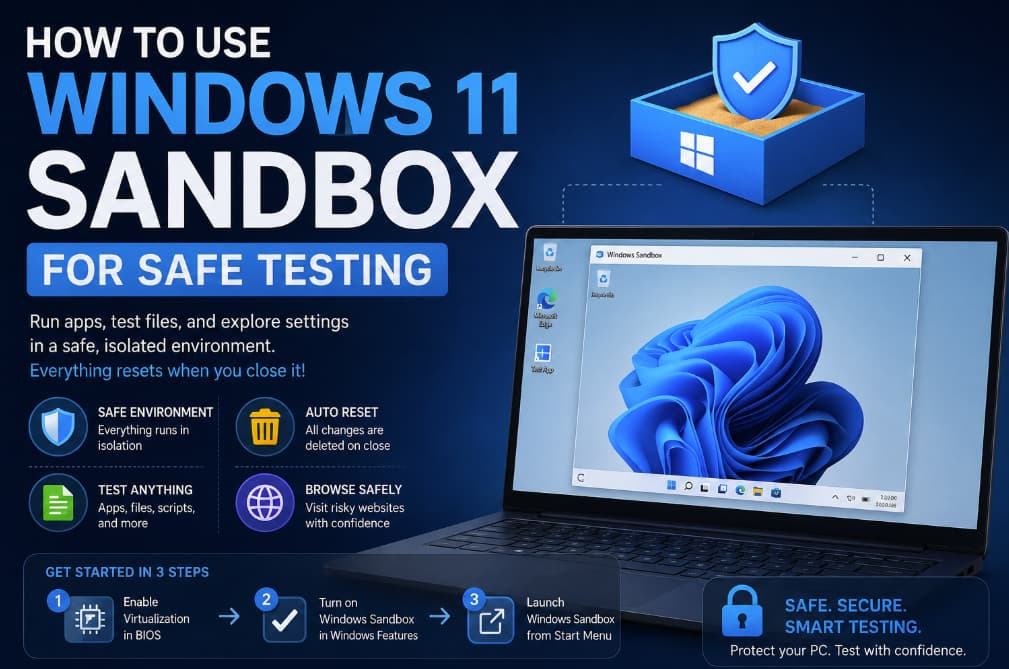
Windows Sandbox is a lightweight virtual environment built directly into Windows 11. It allows you to run suspicious apps, test software, or explore settings in an isolated space without affecting your main operating system. Once you close the Sandbox, everything inside it disappears automatically. No leftover files, no permanent changes, and no cleanup required.
For IT professionals, developers, cybersecurity learners, and even casual users, Windows Sandbox is one of the safest tools available for quick testing. The best part is that it is already included in certain versions of Windows 11, so you do not need third-party virtualization software to get started.
In this guide, you will learn what Windows Sandbox is, how it works, how to enable it, and the best ways to use it safely and effectively.
What Is Windows 11 Sandbox?
Windows Sandbox is a temporary desktop environment that runs separately from your main Windows installation. Think of it as a disposable mini-computer inside your actual computer.
When you launch Sandbox, Windows creates a clean and isolated version of the operating system. You can install apps, open files, browse websites, and test scripts without worrying about damaging your real system.
The moment you close the Sandbox window, all changes are permanently deleted.
This feature is especially useful for:
- Testing unknown applications
- Opening suspicious email attachments
- Running beta software
- Trying system tweaks safely
- Checking scripts before using them on your real PC
- Malware analysis in a controlled environment
Unlike traditional virtual machines, Windows Sandbox is lightweight and launches quickly because it uses files already available on your host system.
Windows 11 Sandbox Requirements
Before enabling Sandbox, make sure your system meets the requirements.
You Need:
- Windows 11 Pro, Enterprise, or Education
- Virtualization enabled in BIOS/UEFI
- At least 4 GB RAM (8 GB recommended)
- SSD storage recommended
- Dual-core CPU or better
Unfortunately, Windows 11 Home edition does not officially support Sandbox.
To check your Windows version:
- Press
Windows + R - Type
winver - Press Enter
A small window will display your edition and version.
How to Enable Windows Sandbox in Windows 11
Setting up Sandbox only takes a few minutes.
Step 1: Enable Virtualization
First, ensure hardware virtualization is enabled.
- Restart your computer
- Enter BIOS or UEFI settings
- Find virtualization settings
- Enable:
- Intel VT-x
- AMD-V
- Save changes and restart
You can confirm virtualization status using Task Manager:
- Press
Ctrl + Shift + Esc - Go to the Performance tab
- Select CPU
- Check if “Virtualization” says Enabled
Step 2: Turn On Windows Sandbox
Now enable the feature inside Windows.
- Open the Start menu
- Search for “Windows Features”
- Click Turn Windows features on or off
- Find and check:
- Windows Sandbox
- Click OK
- Restart your computer
After rebooting, Sandbox will be available from the Start menu.
How to Launch Windows Sandbox
Launching Sandbox is simple.
- Open the Start menu
- Search for Windows Sandbox
- Click the app
After a short loading period, a clean Windows desktop will appear inside a window.
This environment works like a normal PC. You can:
- Open browsers
- Download files
- Install applications
- Change settings
- Test scripts
But remember: everything disappears once you close it.
How to Use Windows Sandbox Safely
While Sandbox is designed for safe testing, following best practices will make it even more effective.
1. Test Suspicious Files
If you receive an unknown file or installer, copy it into Sandbox first instead of opening it on your real computer.
You can simply drag and drop files into the Sandbox window.
This is useful for:
- Email attachments
- Downloaded software
- Scripts
- Unknown executables
If the file behaves suspiciously, your actual system remains protected.
2. Browse Risky Websites
Need to visit a website you do not fully trust?
Open it inside Sandbox.
Even if the site attempts malicious downloads or browser exploits, the environment resets once closed.
This is particularly useful for cybersecurity research or verifying unfamiliar websites.
3. Test Software Before Installation
Some programs modify registry settings, install unwanted background services, or include bundled software.
Running them inside Sandbox first helps you identify issues before installing them on your main PC.
This can save you from:
- Adware
- Unwanted startup apps
- System slowdowns
- Registry clutter
4. Experiment With System Settings
Advanced users often like testing:
- Registry edits
- PowerShell commands
- Windows tweaks
- Group Policy changes
Sandbox gives you a safe environment to experiment without risking your main operating system.
5. Analyze Potential Malware
Cybersecurity learners and researchers frequently use Sandbox for basic malware behavior testing.
However, Windows Sandbox is not a replacement for professional malware analysis environments. Highly advanced malware may detect virtualization or attempt network communication.
Still, it provides a safer starting point than testing directly on your real machine.
Important Limitations of Windows Sandbox
Although Sandbox is powerful, it does have limitations.
No Persistent Storage
Everything is deleted after closing.
If you want to save files, move them to your host computer before exiting.
Limited Hardware Access
Sandbox does not provide full GPU acceleration or advanced hardware integration like some dedicated virtual machines.
Requires Windows Pro or Higher
Windows Home users cannot officially use the feature.
Not Ideal for Long-Term Testing
Since the environment resets every session, Sandbox works best for temporary testing rather than ongoing development work.
Windows Sandbox vs Virtual Machines
Many users wonder whether Sandbox replaces traditional virtual machines like VirtualBox or VMware.
The answer depends on your needs.
Windows Sandbox Is Better For:
- Quick testing
- Temporary sessions
- Fast startup
- Lightweight usage
- Opening suspicious files
Virtual Machines Are Better For:
- Running multiple operating systems
- Persistent environments
- Advanced networking
- Software development labs
- Long-term testing
Sandbox is essentially designed for convenience and security rather than full virtualization flexibility.
Tips to Improve Sandbox Performance
If Sandbox feels slow, try these optimizations:
Use an SSD
Sandbox performs significantly better on SSD storage.
Increase RAM
More available memory improves responsiveness.
8 GB or more is recommended for smooth performance.
Close Heavy Applications
Before launching Sandbox, close unnecessary apps to free system resources.
Keep Windows Updated
Microsoft regularly improves virtualization and Sandbox stability through updates.
Is Windows Sandbox Safe?
Yes, Windows Sandbox is considered very safe for everyday testing purposes.
Microsoft designed it with strong isolation between the host operating system and the virtual environment. Each session runs in a clean state, helping reduce the risk of permanent infection or system damage.
However, no environment is completely immune to sophisticated threats. For highly sensitive security research, professionals often use dedicated isolated labs instead.
For regular users, though, Sandbox is one of the safest built-in tools available in Windows 11.
Windows 11 Sandbox is one of the most underrated security features in modern Windows systems. It offers a fast, simple, and effective way to test files, software, and settings without putting your primary operating system at risk.
Whether you are an IT professional, developer, student, or everyday Windows user, Sandbox can help you avoid malware, system instability, and unwanted software changes.
The setup process only takes a few minutes, but the added protection and flexibility can save hours of troubleshooting later.
If you regularly download software or explore unfamiliar files online, enabling Windows Sandbox is a smart move.
Extra posts:
 Complete Windows Sandbox Guide: How to Use Windows Sandbox in Windows 11
  Why Is My Windows 11 Sandbox Not Working? 10 Ways to Fix It
  Getting Started with Microsoft Playwright Testing Features and How to Use It
  Can I Rollback a Windows 11 Update? A Complete Guide to Reverting Windows Updates Safely
  Debugging and Testing Your Copilot Studio Bots Efficiently
  Windows 10 Extended Security Updates: A Bridge to Your Windows 11 Experience