In today’s digital world, audio content is everywhere. From video meetings and online classes to YouTube tutorials and podcasts, we rely heavily on spoken words to communicate, learn, and stay connected. But what happens when audio isn’t clear, the environment is noisy, or you simply can’t turn the volume up? This is where Live Captions in Windows 11 become more important than ever.
Microsoft has introduced Live Captions as a powerful accessibility feature designed to make spoken content easier to understand, more inclusive, and more convenient for everyone. While it was originally created with accessibility in mind, Live Captions have quickly proven to be useful for a wide range of everyday situations.
Let’s take a closer look at what Live Captions are, how they work, and why they can completely change the way you experience audio on your Windows 11 PC.
What Are Live Captions in Windows 11?
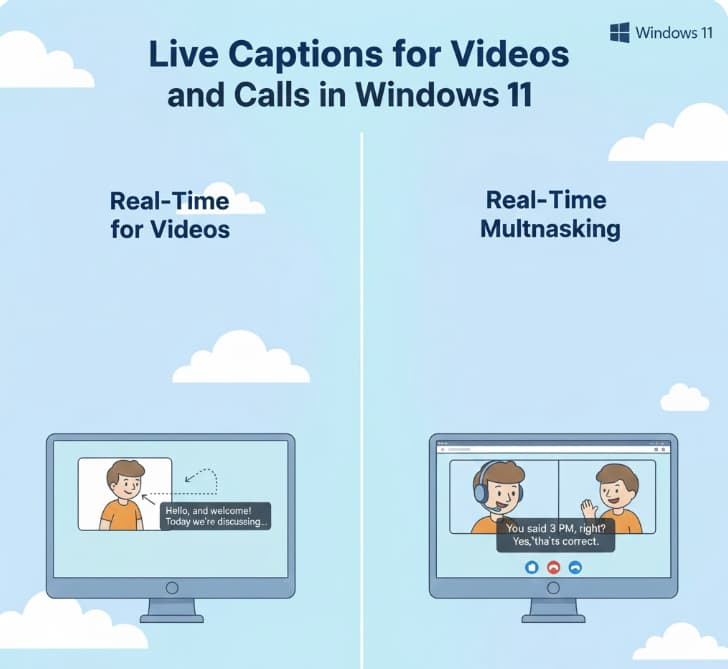
Live Captions is a built-in Windows 11 feature that automatically generates real-time captions for any audio playing on your computer. This includes videos, voice calls, podcasts, webinars, and even audio picked up by your microphone during in-person conversations.
Unlike traditional captions that depend on the app or website providing them, Live Captions work system-wide. That means you don’t have to rely on YouTube captions, Zoom subtitles, or any third-party transcription tools. If your PC can hear it, Windows 11 can caption it.
The captions appear instantly on your screen, allowing you to read along as someone speaks. This makes it easier to follow conversations, catch details you might otherwise miss, and stay engaged—even when sound isn’t an option.
Why Live Captions Matter More Than You Think
At first glance, Live Captions may seem like a feature mainly designed for people who are deaf or hard of hearing. While that group benefits enormously, the truth is that Live Captions are useful for almost everyone.
Here are a few real-world situations where Live Captions make a big difference:
- You’re in a noisy environment, like a café or airport, and can’t hear clearly.
- You’re watching a video late at night and don’t want to disturb others.
- You’re in a virtual meeting with poor audio quality or heavy accents.
- You’re learning a new subject and want to read along to better understand complex terms.
- You’re attending an online class or webinar and don’t want to miss key points.
In all these scenarios, Live Captions help ensure that spoken words are never lost.
Key Benefits of Live Captions
1. Improved Accessibility
Live Captions make digital content more accessible to people with hearing impairments, allowing them to fully participate in conversations, meetings, and entertainment without relying on others.
2. Better Clarity and Understanding
Even people with normal hearing can struggle with unclear audio, background noise, or fast speech. Reading captions alongside audio improves comprehension and reduces misunderstandings.
3. Increased Privacy
One of the standout features of Windows 11 Live Captions is that everything runs entirely on your device. Unlike cloud-based transcription services, your audio is not sent to external servers. This ensures your conversations remain private and secure.
4. Universal Compatibility
Live Captions work across all apps and platforms. Whether you’re using Microsoft Teams, Zoom, Discord, YouTube, Spotify, or a locally stored video file, the captions work seamlessly.
How to Turn On Live Captions in Windows 11
Enabling Live Captions is quick and easy. You have two simple options:
Method 1: Keyboard Shortcut
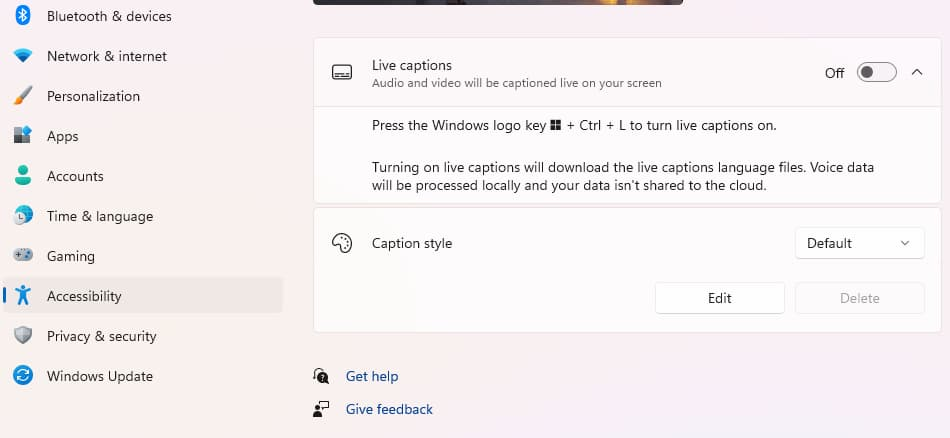
Press Windows Key + Ctrl + L
This instantly turns Live Captions on or off.
Method 2: Through Settings
- Open Settings
- Go to Accessibility
- Select Captions
- Toggle Live Captions to “On”
Once activated, a caption box will appear on your screen, usually at the top. You can move it, resize it, or dock it wherever you find most comfortable.
Customizing the Live Captions Experience
Windows 11 gives you plenty of control over how captions look and behave. You can personalize them to suit your reading preferences and visual needs.
Customization options include:
- Caption position: Choose whether captions appear at the top, bottom, or float freely on the screen.
- Font size and style: Make text larger or easier to read.
- Text and background color: Adjust colors for better contrast.
- Background opacity: Reduce transparency for clearer visibility.
These options are especially helpful for users with visual impairments or those who spend long hours reading captions.
Live Captions During Video Calls and Meetings
One of the most powerful uses of Live Captions is during online meetings and calls. Whether you’re attending a work meeting, job interview, or virtual class, Live Captions can display everything participants say in real time.
The best part? It doesn’t matter which platform you’re using. Live Captions work with:
- Microsoft Teams
- Zoom
- Google Meet
- Discord
- Skype
- And many other communication apps
This ensures smoother communication, fewer misunderstandings, and a more inclusive experience for everyone involved.
Language Support and Future Improvements
Currently, Live Captions in Windows 11 support English. Microsoft has already confirmed plans to expand language support, which will make this feature even more valuable for global users.
As Windows 11 continues to evolve, we can expect improvements in accuracy, performance, and language coverage.
Why Live Captions Are a Big Step Forward
Live Captions are not just another small accessibility feature—they represent a major step toward making technology more human-centered and inclusive. By providing real-time, on-device captions for all audio, Microsoft is removing communication barriers and giving users more control over how they consume information.
Whether you rely on captions daily or only occasionally, this feature has the potential to make your digital life clearer, calmer, and more accessible.
If you haven’t tried Live Captions in Windows 11 yet, now is the perfect time. Once you start using them, you may find yourself relying on captions more often than you expected—especially in meetings, videos, and noisy environments.
Live Captions prove that accessibility features don’t just help a few people—they improve the experience for everyone. With this feature, Windows 11 takes an important step toward a more inclusive and understanding digital world.