
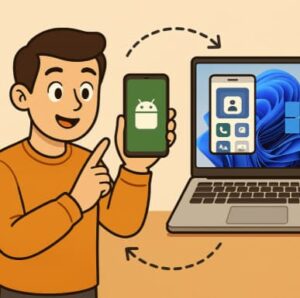
If you’ve ever wanted to reply to texts, check notifications, or access your phone’s photos without picking it up, Windows 11’s Phone Link app makes it easier than ever. By syncing your Android phone with your Windows PC, you can enjoy a truly connected experience between your devices.
Here’s a step-by-step guide on how to set it up and make the most out of it.
What Is Phone Link?
Phone Link (previously known as Your Phone) is Microsoft’s official app for connecting your Android device to your Windows PC. Once paired, you can:
- View and respond to text messages
- Make and receive phone calls
- Access recent photos
- Manage mobile notifications
- Even mirror your Android screen (for supported devices)
This integration brings your mobile experience directly to your desktop — perfect for productivity or simply staying in the flow without switching devices.

Step-by-Step: Sync Your Android with Windows 11
Step 1: Install Phone Link on Windows 11
- Open the Start Menu and search for Phone Link.
- If it’s not already installed, get it from the Microsoft Store.
Step 2: Download Link to Windows on Your Android
- On your phone, open the Google Play Store.
- Search for Link to Windows and install it.
- Open the app and sign in with the same Microsoft account you use on your PC.
Step 3: Pair Your Devices
- On your PC, open Phone Link and select Get Started.
- You’ll see a QR code on your screen.
- On your Android phone, open Link to Windows and scan the QR code.
- Approve the necessary permissions (for notifications, messages, calls, etc.).
Your phone and PC should now be linked!
What You Can Do After Connecting
Once your devices are synced, here’s what you can enjoy:
- Text directly from your PC: Send and receive SMS without touching your phone.
- Access photos instantly: Drag and drop pictures from your phone to your computer.
- Manage notifications: Get and dismiss alerts directly from Windows.
- Make calls: Dial numbers or answer calls using your PC’s microphone and speakers.
- Screen mirroring: Some devices (like Samsung Galaxy phones) allow full mirroring.
Tips for a Seamless Experience
- Keep both devices connected to the same Wi-Fi network.
- Make sure your phone’s battery optimization doesn’t restrict background activity for Link to Windows.
- Regularly update both Phone Link and Link to Windows apps.
- If syncing stops, open the app on both devices to re-establish the connection.
Supported Devices and Compatibility
- Android Version: Android 7.0 (Nougat) or higher
- Windows Version: Windows 11 (latest update recommended)
- Some advanced features (like screen mirroring) are exclusive to select Samsung and Surface Duo models.
Why Use Phone Link?
The beauty of Microsoft’s Phone Link lies in its simplicity and security. Whether you’re working, gaming, or streaming, your mobile world stays within reach — without ever breaking your focus.
You can seamlessly switch between your Android and Windows devices, manage communications, and even transfer content — all from one screen.
Syncing your Android phone with Windows 11 using Phone Link is one of the easiest ways to boost your productivity. With just a few steps, you can manage your entire phone experience right from your desktop.
As Microsoft continues refining the integration, expect even more powerful features — making your Android and Windows ecosystem feel like one connected workspace.
Extra posts:
 Syncing Your Android Phone with Windows 11 Using Phone Link
  Continue working on your Android phone using Microsoft Launcher and OneDrive
  Intel HAXM vs. Hyper-V/WHPX Choosing the Right Setup for Android Emulator on Windows
  Windows 11 Clipboard History & Cloud Sync Copy-Paste Superpowers
 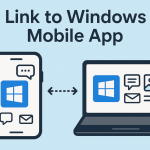 Enhance Productivity with the Link to Windows Mobile App
  How to Set Up Google Family Link to Supervise Your Child (2026)