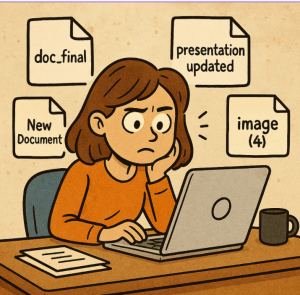
If you’ve ever worked in a Microsoft 365 environment, you know how messy things can get: Teams called “Project”, SharePoint sites named after random acronyms, and files scattered across libraries with names like “Final_v3_Updated_ReallyFinal.docx”.
The root problem? Naming conventions that look good in policy documents but fall apart in day-to-day use.
The good news: you can design conventions that are practical, simple, and easy for people to actually follow. Here are some steps to make it work.
1. Start With the People, Not the Policy
Before creating a 10-page document about acronyms and abbreviations, talk to the people who will use these names daily. Ask:
- How do you search for files or Teams today?
- What makes it easy (or frustrating) to find things?
- What’s “natural” in their department’s language?
A naming convention that ignores how people already think and search won’t last.
2. Define Scope: Where Do Naming Conventions Apply?
Microsoft 365 includes a lot of services where names matter:
- Teams & Microsoft 365 Groups
- SharePoint sites & libraries
- OneDrive folders (shared)
- Planner boards
- Power BI workspaces
- Files
Don’t try to control everything at once. Start with Teams and SharePoint site names—they impact navigation and search the most.
3. Keep It Short and Predictable
Lengthy, complex names get ignored. Instead, focus on a short structure that helps people immediately know what they’re looking at.
Example structure for Teams:[Department] – [Purpose/Project]
- HR – Policies
- Finance – Budget FY25
- IT – Project Phoenix
For SharePoint libraries or folders:[Category]_[Year]_[Short Descriptor]
- Reports_2025_Q1
- Contracts_2024_Vendors
4. Use Prefixes and Suffixes Wisely
Prefixes or suffixes help organize names consistently in search and alphabetical lists.
Examples:
- Add “ARCHIVE” to old projects:
ARCHIVE – Marketing – 2023 Campaigns - Add “EXT” for external collaboration:
Sales – Partners EXT
This makes it obvious at a glance and avoids hidden mistakes.
5. Agree on Abbreviations (But Don’t Overdo It)
Nothing kills usability like everyone inventing their own acronyms. Decide on a short approved abbreviation list for departments, years, and project phases.
Examples:
- HR, FIN, IT, MKT
- FY25 (not “FiscalYear2025” or “2025Budget”)
- PH1, PH2, PH3 for project phases
The trick: keep the list short enough to remember without needing a manual.
6. Balance Governance With Flexibility
Too much governance = people bypass it. Too little governance = chaos.
Practical tips:
- Use naming policies in Microsoft 365 (via Azure AD) to automatically add prefixes/suffixes like department tags.
- Provide templates or starter Teams/sites with naming pre-filled.
- Offer guidance in plain language instead of a rigid 20-rule document.
7. Communicate and Reinforce, Don’t Just Publish
The best naming convention is useless if it’s buried in SharePoint. Instead:
- Show examples during onboarding.
- Remind users when new Teams are created.
- Celebrate good practices—call out when a well-named site makes life easier.
Naming should feel like a productivity tool, not a compliance exercise.
8. Review and Adjust Over Time
What works today may not work a year from now. Schedule a lightweight review every 6–12 months:
- Are people still following the convention?
- Are new needs (like external collaboration) creating gaps?
- Can anything be simplified?
Your convention should evolve just like your organization.
The goal of a naming convention isn’t perfection—it’s consistency that saves time. When people can find the right Team, site, or file without frustration, the convention is working.
Keep it short. Keep it human. Keep it flexible. That’s how you design naming conventions in Microsoft 365 that people actually follow.
Extra posts:
 How to Create a Microsoft 365 Group Naming Policy
  How Microsoft 365 and Copilot Empower People and Businesses During the Holiday Season
  Allow Priority people to reach to you while on dnd in Teams
  Managing Microsoft 365 on the Go The Power of the Microsoft 365 Admin Mobile App
  Microsoft 365 vs Azure vs Dynamics 365 – What’s the Difference?
  Data Residency and Compliance in the Microsoft Cloud with Microsoft 365