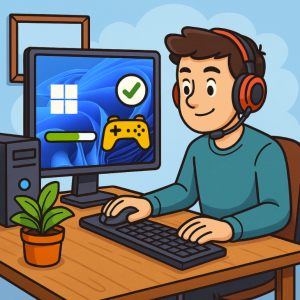
Windows 11 brings a modern look, better security, and new features tailored for gamers. But like any operating system, default settings aren’t always optimized for maximum performance. Whether you’re aiming for smoother gameplay, higher FPS, or reduced input lag, a few system tweaks can make a big difference. Here’s a guide to optimizing Windows 11 for gaming performance.
1. Keep Windows and Drivers Updated
- Windows Update: Ensure your system is running the latest patches and performance updates. Go to Settings > Windows Update and install any pending updates.
- GPU Drivers: Download the latest drivers directly from NVIDIA GeForce Experience, AMD Adrenalin, or Intel Arc Control for optimal graphics performance.
2. Enable Game Mode
Windows 11 comes with a Game Mode feature that prioritizes gaming by allocating more resources to your game.
- Navigate to Settings > Gaming > Game Mode and switch it On.
This helps reduce background activity and stabilizes FPS during long sessions.
3. Turn On Hardware-Accelerated GPU Scheduling
This feature reduces latency and improves frame rates by letting the GPU manage its own memory.
- Go to Settings > System > Display > Graphics > Default Graphics Settings
- Enable Hardware-accelerated GPU scheduling.
Restart your PC for the changes to take effect.
4. Adjust Power Settings
Gaming laptops and desktops often underperform on balanced power plans. Switch to High Performance or Ultimate Performance mode:
- Open Control Panel > Hardware and Sound > Power Options
- Select High Performance or enable Ultimate Performance with the command:
powercfg -duplicatescheme e9a42b02-d5df-448d-aa00-03f14749eb61
5. Disable Startup Programs and Background Apps
Unnecessary apps running in the background can eat into your system’s performance.
- Press Ctrl + Shift + Esc to open Task Manager.
- Under the Startup tab, disable apps you don’t need.
- In Settings > Apps > Installed Apps, uninstall or disable apps you rarely use.
6. Optimize Graphics Settings Per Game
Windows 11 lets you set graphics preferences for each game:
- Go to Settings > System > Display > Graphics.
- Select your game and set it to High Performance.
This ensures your GPU (not integrated graphics) is used for gaming.
7. Disable Visual Effects
Windows 11’s animations and transparency look great but can slightly impact performance.
- Press Win + R, type
sysdm.cpl, and hit Enter. - Under Performance Options > Adjust for best performance, or manually disable effects like transparency and animations.
8. Manage Storage and Enable DirectStorage
- Use Storage Sense to clean up junk files: Settings > System > Storage.
- If you have an NVMe SSD, Windows 11’s DirectStorage allows faster loading times in supported games. Make sure your GPU supports it and your games are updated.
9. Disable Xbox Game Bar (Optional)
While the Xbox Game Bar is useful for capturing clips, it can consume resources if you don’t use it.
- Go to Settings > Gaming > Xbox Game Bar and toggle it Off.
10. Monitor Performance and Temps
Use software like MSI Afterburner or your GPU’s control panel to monitor frame rates, temperatures, and usage. If your system overheats, consider cleaning your PC, improving airflow, or undervolting your CPU/GPU for efficiency.
Windows 11 is a gamer-friendly OS, but performance depends heavily on proper setup. By tweaking system settings, updating drivers, and disabling unnecessary background tasks, you can unlock smoother gameplay and a more responsive system.
If you’re serious about gaming, pair these optimizations with regular maintenance—clean drivers, healthy storage, and good cooling. With the right setup, Windows 11 can deliver top-tier gaming performance.
Extra posts:
 How to Boost Performance with Built-In Tools in Windows 11
  Optimizing Costs in Azure Practical Tips for Beginners
  How to Move the Start Menu to the Left in Windows 11 (Like Windows 10 Style)
  Setting Up Windows Hello for Faster Logins in Windows 11
  Windows 11: What’s New Compared to Windows 10
  🚀 Materialized View Pattern in AWS Precompute for Performance