
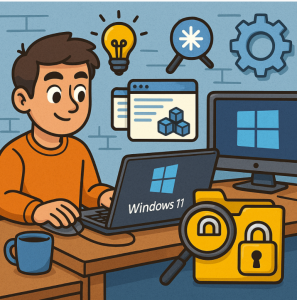
Windows 11 ships with a sleek design and several productivity-focused enhancements, but beneath the surface lie features and settings that Microsoft doesn’t always make obvious. Many of these can be unlocked or fine-tuned using the Windows Registry — a powerful database that controls system behavior.
⚠️ Warning: Editing the Windows Registry incorrectly can cause system instability. Always back up your registry (via File > Export in Registry Editor) or create a System Restore point before making changes.
1. Bring Back the Classic Right-Click Context Menu
Windows 11 replaced the traditional right-click menu with a simplified version, hiding many options under “Show more options.” If you prefer the classic menu:
- Open Registry Editor (
regedit). - Navigate to:
HKEY_CURRENT_USER\Software\Classes\CLSID - Right-click CLSID, choose New > Key, and rename it:
{86ca1aa0-34aa-4e8b-a509-50c905bae2a2} - Inside that, create another key called InprocServer32.
- Double-click the (Default) value inside it, leave the field blank, and press OK.
- Restart your PC.
Now, right-click menus will default to the old style.
2. Disable Lock Screen Background Blur
If you dislike the frosted glass effect on the lock screen:
- Go to:
HKEY_LOCAL_MACHINE\SOFTWARE\Policies\Microsoft\Windows\System - Create a new DWORD (32-bit) value named:
DisableAcrylicBackgroundOnLogon - Set its value to 1.
This removes the blur effect, giving you a crisp lock screen.
3. Add “Take Ownership” to Right-Click Menu
Taking ownership of files and folders can be tedious. You can add a quick option:
- Navigate to:
HKEY_CLASSES_ROOT\*\shell - Create a new key named runas.
- Set its (Default) value to:
Take Ownership - Create a new string value named HasLUAShield.
- Inside runas, create a new key command and set its (Default) value to:
cmd.exe /c takeown /f "%1" && icacls "%1" /grant administrators:F
Now you can right-click any file and instantly take ownership.
4. Customize Taskbar Size
Windows 11 doesn’t offer built-in taskbar resizing, but you can tweak it:
- Go to:
HKEY_CURRENT_USER\Software\Microsoft\Windows\CurrentVersion\Explorer\Advanced - Create a DWORD (32-bit) value named:
TaskbarSi - Assign:
- 0 = Small
- 1 = Medium (default)
- 2 = Large
Restart Windows Explorer or reboot your system to see the change.
5. Speed Up Context Menus
If right-click menus feel sluggish:
- Navigate to:
HKEY_CURRENT_USER\Control Panel\Desktop - Find the entry MenuShowDelay.
- Change its value (default is 400 ms). Setting it to 200 makes menus feel snappier.
6. Enable Detailed Startup and Shutdown Messages
For power users who want to see what’s happening during boot/shutdown:
- Go to:
HKEY_LOCAL_MACHINE\SOFTWARE\Microsoft\Windows\CurrentVersion\Policies\System - Create or modify a DWORD (32-bit) value named:
verbosestatus - Set it to 1.
Your PC will now show detailed system messages during startup and shutdown.
These registry tweaks allow you to unlock hidden features and reclaim some control over your Windows 11 experience. Just remember to proceed carefully and document the changes you make. With the right tweaks, you can tailor Windows 11 to feel more responsive, functional, and personal.
Extra posts:
 How to Reconfigure the Hidden Context Menu and Unlock Power Tweaks in Windows
  24 Hidden Windows 11 Features You’ll Wish You Found Sooner
  Xbox Game Pass Integration and Hidden Features
  Hidden Settings That Make Multitasking Easier in Windows 11
  Unlocking Hidden Superpowers in Windows 11 Speech, Eye, and Voice Access Tools You Didn’t Know You Had
  Exploring the Top Features of Windows 11 What’s New and What’s Improved