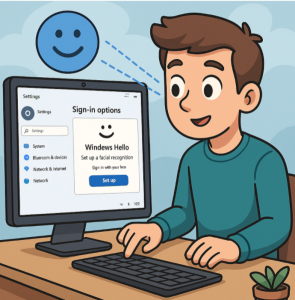
Logging into your computer should be quick, secure, and seamless. With Windows Hello in Windows 11, you can say goodbye to typing passwords every time you sign in. Instead, you can use biometric authentication like facial recognition, fingerprint scanning, or even a secure PIN. Not only is it faster, but it also adds an extra layer of protection compared to traditional passwords.
In this guide, we’ll walk you through everything you need to know about setting up Windows Hello on your Windows 11 PC.
What is Windows Hello?
Windows Hello is Microsoft’s biometric authentication system that allows you to log into your PC using facial recognition, fingerprints, or a PIN. It leverages hardware security features like Trusted Platform Module (TPM) chips and biometric sensors to ensure your credentials stay safe.
Key Benefits:
- Faster logins — Skip typing long, complex passwords.
- Enhanced security — Biometrics are unique to you.
- Convenience — Works across supported apps and websites.
Requirements for Windows Hello
Before setting up, make sure your device supports Windows Hello features:
- Facial Recognition: Requires an infrared (IR) camera or Windows Hello–compatible webcam.
- Fingerprint Recognition: Requires a fingerprint reader built into your device or connected via USB.
- PIN: Works on any Windows 11 device, even if you don’t have biometric hardware.
How to Set Up Windows Hello in Windows 11
Follow these steps to configure Windows Hello on your PC:
Step 1: Open Settings
- Click Start → select Settings (gear icon).
- Navigate to Accounts → Sign-in options.
Step 2: Choose a Windows Hello Option
Under Ways to sign in, you’ll see options such as:
- Windows Hello Face
- Windows Hello Fingerprint
- Windows Hello PIN
Click the option that matches your hardware.
Step 3: Set Up Windows Hello
- For Face: Select Set up, then follow the on-screen instructions to position your face in front of the camera.
- For Fingerprint: Select Set up, then repeatedly place your finger on the fingerprint sensor until it registers fully.
- For PIN: Select Set up, then create a secure PIN (minimum of 4 digits, but longer is recommended).
Step 4: Test Your Setup
Lock your PC (Windows Key + L) and try logging in using your new Windows Hello method. You should be able to access your desktop almost instantly.
Managing Windows Hello Settings
You can always return to Settings → Accounts → Sign-in options to:
- Add another fingerprint.
- Improve face recognition by re-scanning in different lighting.
- Change or reset your PIN.
Troubleshooting Windows Hello
If Windows Hello isn’t working:
- Ensure your device drivers (camera, fingerprint sensor) are up to date.
- Check Windows Update for system updates.
- Re-run setup under Sign-in options.
- Verify that your device supports the feature you’re trying to use.
Windows Hello makes signing into Windows 11 faster, safer, and more convenient. Whether you use your face, fingerprint, or PIN, it’s a significant upgrade from traditional password logins. If you haven’t set it up yet, now’s the perfect time to do so and enjoy hassle-free access to your PC.
Extra posts:
 Setting Up Windows 11 for the First Time 15 Things You Should Do
  Windows 11 Setting Up Virtual Desktops for Better Multitasking
  Advanced File Explorer Tips for Faster Navigation in Windows 11
  Advanced File Explorer Tips for Faster Navigation in Windows 11
  Setting Up Ransomware Protection in Windows 11 – A Simple and Complete Guide
  Setting Up Windows Hello Face and Fingerprint Sign-In A Step-by-Step Guide