
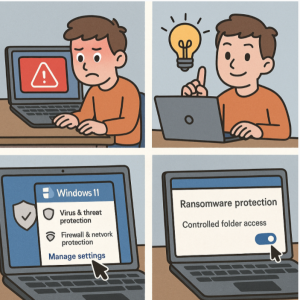
Ransomware attacks are one of the biggest cybersecurity threats today. These malicious programs lock or encrypt your files and demand a ransom for restoring access. Thankfully, Windows 11 comes with built-in ransomware protection through Microsoft Defender Antivirus. However, this feature isn’t always turned on by default, so enabling it manually is a smart step to keep your data safe.
In this guide, we’ll walk you through how to enable ransomware protection on Windows 11.
Step 1: Open Windows Security
- Click on the Start Menu and type Windows Security.
- Select the Windows Security app from the search results.
Step 2: Navigate to Virus & Threat Protection
- In the Windows Security window, click on Virus & threat protection from the left-hand panel.
- Scroll down until you see the Ransomware protection section.
Step 3: Enable Controlled Folder Access
- Under Ransomware protection, click on Manage ransomware protection.
- Toggle Controlled folder access to On.
This feature blocks unauthorized apps from making changes to important files and folders.
Step 4: Configure Protected Folders (Optional but Recommended)
- By default, Windows protects common folders like Documents, Pictures, Videos, and Desktop.
- You can add more folders by clicking Protected folders and selecting Add a protected folder.
- This ensures that your personal or work-related files in custom locations are also safe.
Step 5: Allow Trusted Apps (If Necessary)
Sometimes, legitimate apps may be blocked by ransomware protection.
- To fix this, click Allow an app through Controlled folder access.
- Add the trusted program you want to allow.
Extra Security Tip: Enable OneDrive File Recovery
Microsoft also integrates OneDrive file recovery with ransomware protection. If files are compromised, you can restore them from a previous backup in OneDrive—adding another layer of defense.
Ransomware can cause devastating data loss, but Windows 11 gives you powerful tools to prevent it. By enabling Ransomware Protection and Controlled Folder Access, you ensure that only trusted applications can modify your files. Take a few minutes today to set it up and give yourself peace of mind.
Extra posts:
 Setting Up Ransomware Protection in Windows 11 – A Simple and Complete Guide
  How to Enable Tabs in File Explorer in Windows 11
  How to Enable Two-Factor Authentication (2FA) in Windows 11
  Microsoft Defender Advanced Protection Tips for Windows 11
  How to enable Hyper V on Windows 10
  How to Enable and Customize Dark Mode