
Microsoft OneNote is one of the most powerful digital note-taking tools, offering a flexible canvas for jotting down ideas, capturing meeting notes, organizing research, or managing personal tasks. But to truly unlock its full potential, you need to make OneNote available seamlessly across all your devices—desktop, laptop, tablet, and mobile.
In this blog, we’ll walk you through how to set up OneNote for universal access, ensuring your notes are always with you, no matter where you are or what device you’re using.
💡 Why Sync OneNote Across Devices?
Having OneNote on all your devices enables:
- Real-time access to your notes anytime, anywhere.
- Seamless updates and synchronization between your PC, phone, and tablet.
- Enhanced productivity, whether you’re in the office, on the go, or working remotely.
- Better collaboration when sharing notebooks with colleagues or family.
✅ Step-by-Step: Set Up OneNote on All Your Devices
1. Use a Microsoft Account
To sync your notebooks across devices, you must use a Microsoft account (e.g., Outlook.com, Hotmail, or Microsoft 365 work/school account).
- If you don’t have one, sign up at account.microsoft.com.
- Use this account to sign in to OneNote on all devices.
2. Install OneNote on All Devices
For Windows/Mac:
- Download the free OneNote app from the Microsoft Store (Windows) or Mac App Store.
- Sign in using your Microsoft account.
For iOS/Android:
- Go to the App Store or Google Play Store.
- Search for Microsoft OneNote, install it, and sign in.
Tip: Prefer using the same version of OneNote across devices for a consistent experience. Microsoft now recommends OneNote for Windows 10 or the newer OneNote (Microsoft 365) app.
3. Store Notebooks in OneDrive
To enable synchronization:
- Create or move your notebooks to OneDrive.
- In OneNote, go to File > Share and select OneDrive to move local notebooks to the cloud.
Once stored in OneDrive, changes made from any device will be automatically synced.
4. Enable Sync Settings
To ensure syncing is working:
- On desktop, go to File > Info > View Sync Status.
- On mobile, open Settings > Sync, and make sure automatic sync is enabled.
If using OneNote with a Microsoft 365 work or school account, make sure your organization’s policies allow syncing.
5. Access OneNote on the Web
For quick access from any browser:
- Visit onenote.com.
- Sign in to access your notebooks without installing any app.
This is useful when using shared or public computers.
🔄 Common Sync Issues & Fixes
- Notebook won’t sync: Check internet connection, OneDrive availability, and that you’re signed in with the same account.
- Conflicting changes: OneNote will notify you. Review the conflict and manually merge content if needed.
- Stuck sync: Restart the app or use File > View Sync Status to troubleshoot.
🌍 Bonus Tips
- Use tags and sections to keep your notes organized.
- Enable offline access on mobile apps so you can edit notes even without internet.
- Pin OneNote to your taskbar or home screen for quicker access.
Making OneNote available across all your devices turns it into a powerful, always-ready companion for personal and professional productivity. With your notebooks stored in OneDrive and syncing turned on, your information is never out of reach—whether you’re brainstorming on your phone, attending a meeting on your laptop, or reviewing notes from your tablet in bed.
Extra posts:
 Smarter Note-Taking and Better Organization with Microsoft OneNote and Copilot
  Using Microsoft 365 on Mobile Devices Effectively
  The Future of SharePoint AI, Agents, and Smarter Collaboration (2025 Update)
  Create Learning Journals with Copilot in OneNote
 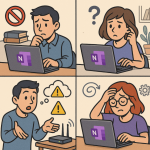 How to Fix Common OneNote Issues A Complete Troubleshooting Guide
  Boost Your Productivity with OneNote Transcribe, Record, and Summarize Meeting Audio Like a Pro