
Windows 11 has been steadily gaining adoption across enterprise environments, offering a fresh UI, enhanced security, and seamless integration with cloud services like Microsoft 365. But like any operating system, it comes with its quirks.
As IT professionals, we’re often the first responders to end-user issues. In this post, I’ll walk through a structured approach to troubleshooting common Windows 11 problems, including real-world tips that can save hours of guesswork.
📋 Step 1: Identify the Symptoms Clearly
Start by gathering specifics:
- When did the issue start?
- Is it isolated to one user/device?
- Any recent updates, driver installations, or software changes?
Use Reliability Monitor (perfmon /rel) as your timeline view — it offers a great graphical summary of system events, crashes, and warnings.
⚙️ Step 2: System Performance & Compatibility Issues
🧠 Common Problems:
- Slow boot times
- Unresponsive UI
- App crashes post-upgrade
🧰 Troubleshooting Tips:
- Use Task Manager > Startup to disable non-essential startup apps.
- Check for outdated drivers via Device Manager. Windows 11 is picky with legacy drivers.
- Run SFC and DISM: bashCopyEdit
sfc /scannow dism /online /cleanup-image /restorehealth
These commands fix corrupted system files and restore Windows image health — a must-do before deeper dives.
🔒 Step 3: Security & Access Issues
🔐 Common Scenarios:
- BitLocker not recognizing recovery keys
- Windows Hello failures
- User permission errors post-enrollment
🛠️ Fixes:
- Use Settings > Accounts > Sign-in options to reset biometrics or switch authentication modes.
- BitLocker recovery issues? Pull recovery keys from Microsoft Account or Azure AD portal (for domain-joined devices).
- Audit Group Policy (run
gpresult /h report.html) if access issues emerge after a policy push.
🌐 Step 4: Network & Connectivity
🌍 Typical Challenges:
- Wi-Fi not connecting
- VPN failures
- Microsoft Teams/Outlook not syncing
🔍 Diagnosis:
- Use
ipconfig /allandpingto validate IP/DNS configurations. - Check VPN logs (especially with Always On VPN or Intune-managed profiles).
- Reset network stack: bashCopyEdit
netsh winsock reset netsh int ip reset
For Microsoft 365 apps, sign-out/sign-in often re-authenticates the token cache and solves sync glitches.
🔁 Step 5: Updates & Patch Issues
🚫 Examples:
- Update stuck at certain %
- Post-update bluescreen or rollback
🧹 Solutions:
- Use Windows Update Troubleshooter under
Settings > Troubleshoot. - Delete contents of
C:\Windows\SoftwareDistribution\Download. - For persistent failures, use the Windows Update Assistant tool.
If enterprise-managed, verify that WSUS or Intune Update Rings are properly scoped.
🛡️ Bonus: Use Windows Event Viewer Like a Pro
Event Viewer (eventvwr.msc) is your forensic toolbox. Filter by:
- Event ID 1000: App crashes
- Event ID 41: Unexpected shutdown
- Event ID 6008: Improper shutdown (could indicate BSOD or power loss)
Always cross-reference with the Reliability Monitor for better context.
Extra posts:
 Troubleshooting Microsoft Intune Issues A Practical Guide for IT Admins
  How to Troubleshoot Windows 11 Upgrade Issues A Practical Guide
 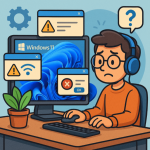 Troubleshooting Common Windows 11 Issues
  How to Fix Common OneNote Issues A Complete Troubleshooting Guide
  Microsoft 365 Connectivity Troubleshooting A Practical Guide
  Troubleshooting OneDrive Sync Issues: A Step-by-Step Guide