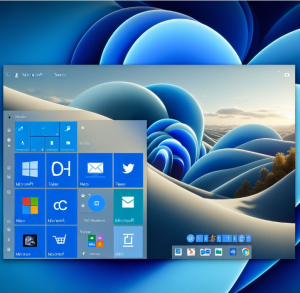
Windows 11 brought a sleek new interface and, with it, the Widgets panel—a customizable space for at-a-glance information. While many people ignore it, widgets can actually serve as your personal productivity dashboard. Instead of opening multiple apps, you can check your tasks, schedule, and even the weather in one place. Here’s how to set it up.
Step 1: Open the Widgets Panel
- On your taskbar, click the Widgets button (the icon that looks like a square divided into sections).
- Or press Win + W on your keyboard for a quick shortcut.
This opens the Widgets panel on the left side of your screen.
Step 2: Add or Remove Widgets
- At the top-right of the panel, click the “+” (Add widgets) button.
- You’ll see a list of available widgets such as Calendar, To Do, Outlook Mail, Weather, Sports, and more.
- Click “+” next to any widget you want to add.
- To remove one, hover over it, click the three dots (…), then choose Remove widget.
Tip: Focus only on widgets that help your productivity—leave out the ones that are distracting (like news or entertainment).
Step 3: Resize and Rearrange Widgets
- Hover over a widget and click the three dots (…) menu.
- Choose Small, Medium, or Large depending on how much detail you want.
- Drag and drop widgets to rearrange them into an order that makes sense for your workflow.
Suggested Layout:
- Top row: Calendar + To Do (for daily priorities).
- Middle row: Outlook Mail or Teams for quick communication.
- Bottom row: Weather + Stocks (if relevant).
Step 4: Use Microsoft To Do for Task Management
One of the most powerful widgets for productivity is Microsoft To Do.
- Add it as a widget to keep your priority tasks visible.
- Create lists like “Work,” “Personal,” and “Today.”
- The widget will always show your next steps without needing to open the full app.
Step 5: Integrate Outlook Calendar & Mail
If you use Outlook, add the Calendar and Outlook Mail widgets.
- The Calendar widget shows your upcoming meetings and reminders.
- The Mail widget previews important emails so you can stay on top without constant inbox-checking.
Step 6: Customize with Interests (Optional)
If you want your dashboard to also include useful updates:
- Click your profile picture in the top-right corner of the Widgets panel.
- Select Manage your news and interests.
- From there, you can personalize what shows up—finance, technology, or health instead of random trending topics.
Step 7: Pin the Dashboard for Quick Access
The Widgets panel isn’t permanently visible, but you can:
- Pin it to the taskbar so it’s always one click away.
- Or get into the habit of using Win + W to pull it up quickly.
Pro Tips for a Smarter Dashboard
- Declutter: Too many widgets = chaos. Stick to 4–6 essentials.
- Think Work + Life: Mix professional widgets (To Do, Calendar, Mail) with personal ones (Weather, Fitness, Traffic).
- Experiment Weekly: Try different layouts until it feels natural.
With a little customization, the Windows 11 Widgets panel can become much more than a news feed—it can be your personal productivity dashboard. By surfacing tasks, calendars, emails, and essentials in one glance, you’ll spend less time switching apps and more time getting things done.
Extra posts:
 Best Windows 11 Widgets (and How to Add Them)
  Using Widgets Effectively in Windows 11
  The Complete Guide to Widgets in Windows 11
  From Start Menu to Widgets Customizing Windows 11 Like a Pro
  Unlocking the Future of Productivity Unique Copilot+ PC Features in Windows 11
  Unlocking Productivity A Deep Dive into Notepad and Copilot in Windows 11