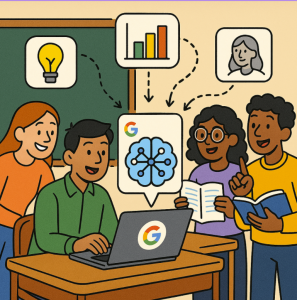
In the rapidly evolving world of educational technology, artificial intelligence (AI) is becoming more than just a buzzword. Google’s NotebookLM (sometimes called “AI notebook”) is one of the newer tools aiming to bring AI into research, learning, and knowledge work in a more grounded, useful way. Below, we explore what NotebookLM is, why it matters in education, and how students and teachers can start using it effectively.
What Is NotebookLM?
At its core, NotebookLM is an AI-powered notebook and research assistant built by Google Labs. Rather than being a general-purpose chatbot, NotebookLM is designed to work with source materials you provide (documents, PDFs, slides, web links, etc.), which helps it produce answers, summaries, or insights that are “grounded” in your content.
Some key features and facts:
- You can upload or link “source” materials: Google Docs, Slides, PDFs, web pages, and even YouTube videos (if they have transcripts).
- It can generate summaries, explanations, or answers based on those source materials.
- It includes Audio Overviews — podcast-style or conversational summaries of your content.
- Google has added the ability to make flashcards, quizzes, and “professional report” outputs from source content.
- It’s integrated with Google Workspace for Education: for work/school accounts, NotebookLM is now a “core service” (similar to Gmail, Docs).
- Recent updates include video overviews (turning content into narrated slides/videos) and improved multilingual support.
- Some advanced features (higher limits, advanced sharing) are tied to upgraded Google Workspace licenses or premium NotebookLM tiers.
Because it is grounded in your content, NotebookLM is better suited to help with research tasks, understanding dense materials, and scaffolding deeper learning — rather than generic chat or open-internet queries.
Why It Matters for Education
When used thoughtfully, NotebookLM offers several advantages in teaching and learning contexts:
- Information Overload Management: Helps synthesize, summarize, and make sense of dense material more quickly.
- Grounded, Transparent Responses: Answers are tied to uploaded sources, making it easier to trace origins and reducing hallucination risks.
- Active Learning Support: Quizzes, flashcards, and alternative summaries help students engage more actively with content.
- Scaffolding for Diverse Learners: Audio and video overviews provide alternate access modes for different learning needs.
- Teacher Productivity & Planning: Generate lesson-plan summaries, question banks, or simplified versions of complex texts.
- Collaboration & Sharing: Notebooks can be shared publicly or selectively, allowing interactive exploration.
That said, it’s not a silver bullet. The tool is strongest when used in conjunction with teacher oversight, critical thinking scaffolds, and thoughtful learning design.
How to Use NotebookLM for Education — Step by Step
1. Getting Access & Logging In
- Visit notebooklm.google.com and sign in with your Google account.
- Work/school accounts may already include NotebookLM, depending on your institution’s settings.
- Optional premium plans unlock higher limits and more features.
2. Create a New Notebook and Upload Sources
- Start a new notebook.
- Upload or import source materials (PDFs, Docs, Slides, web pages, YouTube transcripts, or text).
- Organize and label sources clearly for easier management.
3. Ask Questions & Generate Outputs
Once the sources are loaded, you can:
- Ask questions in natural language.
- Generate summaries of notebooks or sections.
- Create study aids like flashcards, quizzes, and key term lists.
- Use Audio Overviews or Video Overviews to turn content into listenable or watchable summaries.
- Save or “pin” useful outputs for later.
4. Integrate Into Teaching & Learning Workflows
| Role | Use Case | Example Workflow |
|---|---|---|
| Student | Exam preparation | Upload class notes, readings, and articles → generate quizzes/flashcards → review |
| Student | Research project | Upload sources → ask comparative/thematic questions → draft outlines or reports |
| Teacher | Lesson planning | Upload curriculum materials → generate simplified versions or discussion prompts |
| Teacher | Sharing | Create topic notebooks → share with students for exploration |
5. Reflection & Critical Use
- Encourage students to compare AI answers with source texts.
- Ask for source citations in outputs.
- Use errors as teachable moments for AI literacy.
6. Sharing & Collaboration
- Share notebooks via links, similar to Google Docs.
- Choose viewer or editor permissions for collaboration.
Tips & Best Practices
- Start small with one unit or article.
- Be explicit with prompts for better results.
- Always verify AI answers against sources.
- Teach AI literacy alongside use.
- Respect copyright and permissions when uploading.
- Ensure equitable access for students.
Challenges & Limitations
- Hallucinations: Still possible — verify carefully.
- Transcript dependence: Videos need accurate transcripts.
- Limits: Source size/number may be capped.
- Not a substitute for teaching: Works best as a support tool.
- Privacy: Content is not used to train models, but data practices should be reviewed.
- Access disparity: Premium features may not be equally available.
Example: A History Unit with NotebookLM
- Upload textbook chapters, primary documents, and articles about the Industrial Revolution.
- Ask NotebookLM to summarize causes and impacts.
- Generate quizzes and flashcards for study.
- Create an audio or video overview for students to review outside class.
- Share the notebook so students can explore and ask questions.
- Discuss differences between AI outputs and original sources in class.
Future Directions
NotebookLM is evolving rapidly. Expected improvements include:
- More powerful video and multimodal summaries.
- Expanded language support.
- Integration with learning management systems.
- Richer sharing options and customizable outputs.
- More collaborative, tutoring-style features.
Google’s NotebookLM is a powerful new AI assistant designed to help students and teachers work smarter with information. By grounding its responses in your own sources, it offers a safer, more transparent way to use AI in education. When paired with critical thinking and thoughtful instruction, it can boost productivity, deepen engagement, and make learning more accessible.
Extra posts:
 Exploring the Synergy Between Microsoft Fabric and Azure Machine Learning Studio
  Machine Learning in Azure A Beginner’s Guide to Building Intelligent Solutions
  Google’s Veo 3: The Next Generation AI Video Tool for Media Creators
  Unlocking Smarter Search How to Use Azure AI Search & Azure OpenAI Service Together
  Using Microsoft Copilot in Word to Write Faster and Smarter
  The Future of SharePoint AI, Agents, and Smarter Collaboration (2025 Update)