
Technology has become a cornerstone of modern education. Platforms like Microsoft 365 (M365) offer powerful tools to enhance teaching, streamline workflows, and foster collaboration. But with so many apps and features, the risk is real: teachers can feel overwhelmed rather than supported. The key lies in using M365 intentionally—focusing on what makes teaching easier, not harder.
1. Start with Purpose, Not Tools
Instead of introducing every app at once, begin by identifying pain points:
- Too much time spent marking? → Try Forms for auto-graded quizzes.
- Difficulties sharing resources? → Use OneDrive or SharePoint for centralized access.
- Communication overload? → Consolidate messages in Teams rather than juggling multiple platforms.
Framing M365 around real needs prevents “tool fatigue.”
2. Streamline Communication with Teams
Microsoft Teams is the hub that ties everything together, but it works best when expectations are clear:
- Create a class team to house assignments, announcements, and discussions.
- Keep channels structured (e.g., “Resources,” “Assignments,” “General”) to reduce clutter.
- Use chat for quick questions, but avoid relying on it for major updates—pin important posts instead.
This helps teachers manage fewer email chains while giving students a single space to stay organized.
3. Save Time with Automation
Some of M365’s most powerful features are also its simplest:
- Forms: Self-marking quizzes free up hours of grading.
- Power Automate: Automate repetitive tasks, like sending reminders for missing work.
- Calendar integration: Sync assignments and deadlines so students stay on track without extra reminders from teachers.
These small automations reduce administrative burden and let teachers focus on instruction.
4. Encourage Student Ownership
M365 tools can empower students to take more responsibility:
- Use OneNote Class Notebook so students organize their notes and resources independently.
- Assign collaborative projects in Word or PowerPoint online, where students track their own contributions.
- Have students submit work through Assignments in Teams, ensuring everything is in one place—no lost emails or attachments.
When students take charge, teachers spend less time chasing logistics.
5. Provide Training and Ongoing Support
Technology only reduces workload if teachers feel confident using it. Consider:
- Short, focused training sessions (10–15 minutes) instead of overwhelming half-day workshops.
- Peer champions who can model best practices and share quick tips.
- A “less is more” approach—rolling out features gradually instead of all at once.
Support prevents tech from feeling like “one more thing” and instead makes it a natural part of daily teaching.
6. Protect Teacher Wellbeing
Boundaries matter. M365 can blur work and home life if not managed carefully:
- Encourage use of Quiet Hours in Teams to mute notifications after school.
- Use scheduled posts for announcements, so teachers don’t feel pressure to be online 24/7.
- Normalize asynchronous communication—responses don’t need to be immediate.
This ensures technology works for teachers, not the other way around.
Microsoft 365 has the potential to reduce teacher workload, enhance learning, and create smoother communication. The secret isn’t in using every tool—it’s in choosing the right ones for the right purpose. By starting small, supporting staff, and keeping wellbeing in mind, schools can unlock the benefits of M365 without overwhelming the very people it’s meant to help.
Extra posts:
 Microsoft 365 for Education Best Practices for Teachers
  Using Microsoft 365 on Mobile Devices Effectively
 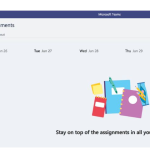 Microsoft Teams has Assignments app in Office 365 for Education License
  Managing Microsoft 365 on the Go The Power of the Microsoft 365 Admin Mobile App
  Microsoft 365 vs Azure vs Dynamics 365 – What’s the Difference?
  Data Residency and Compliance in the Microsoft Cloud with Microsoft 365