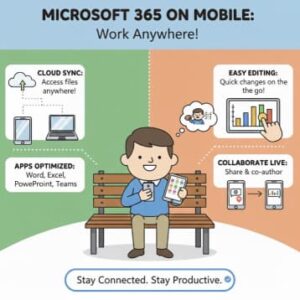
In today’s mobile-first digital world, productivity no longer happens only at a desk. Professionals, students, and business owners are increasingly relying on mobile devices to manage email, collaborate with teams, edit documents, attend meetings, and stay organized on the go. Microsoft 365 has evolved into one of the most powerful collaboration platforms for mobile users, delivering seamless access to apps like Outlook, Teams, Word, Excel, OneNote, SharePoint, and OneDrive from virtually any smartphone or tablet.
But owning the apps is only the first step. To benefit fully, users must understand how to use Microsoft 365 on mobile devices efficiently and strategically. This guide explores best practices, features, tips, and tools to get the most productivity out of Microsoft 365—wherever you are.
Why Mobile Microsoft 365 Matters
A decade ago, mobile productivity was limited and often clunky. Today, Microsoft’s mobile suite offers robust versions of its desktop applications, all optimized for touch screens and smaller displays.
Using Microsoft 365 on mobile devices matters because:
- Workforces are more mobile and distributed than ever.
- Users increasingly switch between devices throughout the day.
- Clients and teams need faster response times.
- Businesses demand flexibility and real-time collaboration.
- Hybrid and remote workplaces rely on cloud-based tools.
With the right approach, you can work just as effectively from a smartphone or tablet as you would from a laptop.
Start With the Right Mobile Apps
Microsoft 365 offers many mobile apps, but some are essential for everyday productivity:
Outlook
Ideal for email, calendaring, scheduling, and meeting booking. It also integrates with Teams and OneDrive for file attachments and communication.
Teams
The flagship collaboration tool for messaging, video conferencing, file sharing, and project organization.
Word, Excel & PowerPoint
Create, edit, view, and share documents directly from your mobile device. These apps support cloud autosave and real-time editing.
OneDrive
The center of cloud file management. Upload, sync, scan documents, and access files from anywhere.
OneNote
Perfect for organizing notes, meeting minutes, study material, and brainstorming with multimedia support.
SharePoint
Access company intranet, employee portals, shared resource libraries, and document repositories.
Microsoft Lens
Scan documents, whiteboards, handwritten notes, or receipts and store them into OneDrive, OneNote, or even Word.
With this toolkit installed, your mobile device becomes a fully functional productivity workstation.
Sync Across Devices Automatically
One of the biggest advantages of Microsoft 365 is cloud syncing. You can:
- Start writing a report on your laptop.
- Edit it later on your phone.
- Finalize it on a tablet.
Autosave ensures your work is continuously backed up and accessible from any device. This removes the need to email files to yourself or track multiple versions of the same document.
To maximize efficiency:
- Ensure you’re signed into the same account on all devices.
- Use OneDrive or SharePoint as your default save location.
- Turn on cellular data syncing if you work outside Wi-Fi zones.
Use Templates for Faster Work on Mobile
Typing or formatting long documents on a mobile device can be challenging. Microsoft 365 solves this with professionally designed templates for:
- Resumes
- Invoices
- Presentations
- Meeting notes
- Reports
- Planning calendars
- Budgets
Templates reduce setup time and help you focus more on content than formatting.
Master Voice and Touch Productivity
Mobile devices enable faster interaction through tools not available on desktops.
Voice Typing
Word, OneNote, and Outlook support speech-to-text input. This is perfect when you are:
- Walking
- Travelling
- Multi-tasking
- Taking hands-free notes in a meeting
Gesture and Touch Editing
Apps now support intuitive interactions such as:
- Drag and drop text
- Pinch to zoom
- Finger swipes to delete or move words
- Annotation with digital ink
This improves your workflow and makes document editing less tedious.
Use Microsoft Teams for All Communication
Instead of splitting communication between email, SMS, and third-party chat tools, Teams centralizes it in one platform.
With the mobile version of Teams, you can:
- Join video calls with one tap.
- Share screen or documents in a meeting.
- Send chat updates instantly.
- Access shared team files.
- Use channels to organize projects and departments.
Teams reduces communication overload by keeping messages, files, notes, and meetings together.
Work Offline When Needed
Not every environment has strong internet access, especially when traveling. Most Microsoft 365 mobile apps allow offline work.
You can:
- Download files to your device ahead of time.
- Edit documents offline.
- Sync changes when you reconnect.
This is ideal for airplane travel, remote job sites, and areas with poor connectivity.
Strengthen Security on Mobile Devices
Security matters—even more on mobile, where devices can be lost or stolen. Microsoft 365 offers powerful protections, including:
- Multi-factor authentication
- Device-level PIN or face/fingerprint unlock
- Encrypted OneDrive storage
- Remote wipe for company-managed accounts
- Mobile Application Management (MAM)
If you use Microsoft 365 for business, enable Intune or your organization’s mobile device management (MDM) policies to protect sensitive data.
Use the Microsoft 365 Mobile Hub App
Microsoft provides a unified mobile app that combines:
- Word
- Excel
- PowerPoint
- PDF tools
- File management
- Scanning features
This reduces app clutter and provides all the essentials under one interface, perfect for everyday use.
Keep Notifications Smart (Not Overwhelming)
Mobile alerts can help productivity—or ruin it. To stay focused:
- Configure only important notifications.
- Mute after-hours alerts.
- Use Focus Assist or Do Not Disturb mode.
- Pause Teams notifications during meetings.
This helps you stay reachable without drowning in constant interruptions.
Microsoft 365 has moved far beyond desktop computing. Today, smartphones and tablets can handle nearly every workflow—from editing documents to running meetings and accessing business files securely. With cloud syncing, mobile-friendly interfaces, offline access, and powerful collaboration tools like Teams and OneDrive, users can stay productive anywhere.
By installing the right apps, optimizing settings, and learning the mobile-focused features available, you can transform your mobile device into a complete professional toolkit—and work smarter, faster, and more flexibly.
Extra posts:
 How to Use Microsoft 365 on Mobile Devices
  New Microsoft Surface coming a new category of dual-screen devices built for mobile
  Using Microsoft 365 Effectively in Education Without Overloading Teachers
  Managing Microsoft 365 on the Go The Power of the Microsoft 365 Admin Mobile App
 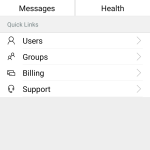 Office 365 Admin Mobile app
  Microsoft 365 vs Azure vs Dynamics 365 – What’s the Difference?