
When you power on a new Windows 11 PC for the first time—or after a clean installation—you’ll go through what Microsoft calls the Out-of-Box Experience (OOBE). This process helps you set up your device, personalize your settings, and connect your Microsoft account before you reach the desktop.
In this guide, we’ll walk you through every step of the Windows 11 OOBE process, explain what each screen means, and share some tips to make your setup faster and smoother.
What Is the Windows 11 OOBE?
The Out-of-Box Experience is the interactive setup that appears right after installing or resetting Windows 11. It’s designed to get your system ready for use by configuring essential preferences like:
- Region and language
- Network connectivity
- Privacy and security options
- User account sign-in
- Device personalization
Step-by-Step Setup Process
1. Welcome & Language Selection
The first screen asks you to choose your language, time zone, and keyboard layout. Select your preferences carefully—these determine how Windows displays dates, times, and your default input method.
💡 Tip: You can add or change keyboard layouts later under Settings → Time & Language → Language & region.
2. Connect to a Network
Next, Windows 11 will prompt you to connect to Wi-Fi or Ethernet.
A network connection allows the setup process to download updates and verify your Microsoft account.
⚠️ If you’re setting up Windows 11 Home, internet access is required to proceed.
3. Sign In or Create a Microsoft Account
Windows 11 strongly encourages signing in with a Microsoft account. Doing so enables:
- OneDrive cloud backup
- Microsoft Store access
- Device syncing across PCs
If you prefer to use a local account, this option is easier to find in Windows 11 Pro editions.
📝 Tip: Press Shift + F10 to open Command Prompt during OOBE if you need to troubleshoot network issues.
4. Create a PIN
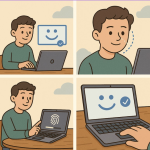
After signing in, you’ll be asked to create a Windows Hello PIN—a quick and secure way to log in without typing your password each time.
You can also set up facial recognition or fingerprint unlock if your device supports it.
5. Device Customization
Here, you’ll select how you plan to use the device:
- Personal use
- Work or school account
Choosing the correct option ensures Windows sets up the right apps and access controls.
6. Privacy Settings
Windows 11 will show several privacy options covering:
- Location tracking
- Diagnostic data
- Advertising personalization
- Inking and typing recognition
You can toggle these based on your preferences. Turning off unnecessary ones can improve privacy.
7. OneDrive Setup
You’ll be asked whether you want to back up your desktop, documents, and pictures to OneDrive.
This is convenient for seamless cloud sync, but if you prefer local storage, you can skip it.
8. Finalizing & First Boot
Windows will take a few minutes to apply your settings, install updates, and prepare your desktop environment.
Once complete, you’ll land on the Windows 11 desktop—ready to explore.
Pro Tips for a Smooth Setup
- Keep your Microsoft account credentials handy.
- Plug in your charger if using a laptop to prevent interruptions.
- For business or education use, prepare your organization’s login info.
- Use Ethernet for faster updates during OOBE if available.
After Setup: What’s Next?
Once you’re at the desktop:
- Check for updates via Settings → Windows Update
- Install your preferred browser
- Customize your Start menu and taskbar
- Enable BitLocker (Windows 11 Pro) for data protection
The Windows 11 Out-of-Box Experience (OOBE) has been designed to make the setup process intuitive and secure. Whether you’re setting up a new laptop or reinstalling Windows, following the steps above ensures your system is configured correctly right from the start.
By understanding what each OOBE screen does, you can tailor your setup to match your personal or professional needs—and get to enjoying Windows 11 faster.
Extra posts:
 Complete Guide to Windows 11 Themes and Wallpapers
  Elevating Employee Experience with Microsoft Viva Insights
  Unleash the Power of Windows Security: A Simple Guide to Using Defender Effectively
  Microsoft Launcher Elevate Your Android Experience with Productivity and Personalization
  How to Clean Install Windows 11 — Step-by-Step (The Friendly, No-Nonsense Guide)
  Setting Up Windows Hello Face and Fingerprint Sign-In A Step-by-Step Guide