
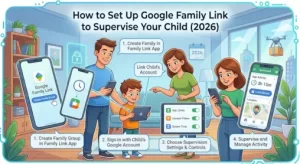
Setting up Google Family Link gives parents a practical way to manage a child’s Google Account and supported devices. You can use it to set screen-time limits, manage apps, control certain content settings, and check the location of compatible devices.
The setup depends on your child’s situation. If they don’t have a Google Account yet, you can create one and manage it with Family Link. If they already have an account, you can add supervision to that existing account instead. Google also has different requirements depending on the devices involved and the child’s age and country.
Here’s how to get Family Link configured without getting lost in the settings.
What You Need Before Setting Up Google Family Link
Before you start, check a few basics.
As a parent, you need a Google Account. Google also requires the parent to be 18 or the appropriate age in their country and generally requires the parent and child to live in the same country for account supervision. The Family Link app can be used from supported Android devices, iPhones or iPads, and compatible Chromebooks.
For device supervision, your child needs a Google Account and a supported device. Google currently lists Android devices and Chromebooks among the supported platforms. iPhones and iPads cannot themselves be supervised as a child’s device through Family Link, and computers other than Chromebooks aren’t supported for device supervision.
Before you begin, check:
- You have your own Google Account.
- Your child has a Google Account or needs one created.
- You have access to the child’s device.
- Both devices meet Google’s current compatibility requirements.
- You know which parental controls you want to use.
Create a Google Account for Your Child
If your child doesn’t have a Google Account, you can create one through Family Link.
Google allows parents to create an account for a child under 13, or the applicable age in their country, and then manage that account with Family Link. During setup, you’ll provide information such as the child’s name and birthday and provide the required parental consent.
You can start the process from the Family Link app:
- Open Family Link on the parent’s device.
- Select the option to add your child.
- Follow the on-screen instructions.
- Enter your child’s information.
- Provide parental consent when requested.
- Finish the account setup.
The exact screens can change as Google updates Family Link, so follow the labels shown in the current version of the app rather than relying on an old screenshot or setup code.
Add Supervision to an Existing Google Account
Your child may already have a Google Account. You don’t necessarily need to create a new one.
Google provides a separate process for adding supervision to an existing account. The parent needs their own Google Account, and the child must agree to the supervision process when applicable. Google also requires the parent and child to live in the same country for this type of supervision.
The general process is:
- Start the supervision setup from the child’s account or device.
- Choose Set up supervision.
- Sign in with the parent’s Google Account.
- Review the supervision information with your child.
- Confirm the child’s account password when requested.
- Review and accept the relevant notices and permissions.
- Complete the account-linking process.
- Finish configuring supervision through Family Link.
If the child is using an Android device and the setup reports that the account can’t be used, Google may require other accounts to be removed from the device before supervision can be completed. Be careful when removing accounts because associated email, contacts, and settings can also be removed from the device.
Sign Your Child In on a Supported Device
Once the child’s account is ready and supervision is configured, sign the child into their supported device with that Google Account.
On Android, you can do this during initial device setup or later through the device’s account settings. Google notes that supervised settings can include Google Search filters, Google Play controls, Chrome restrictions, screen-time limits, app controls, and device location where supported.
Chromebooks can also be configured with a supervised child’s Google Account.
One important limitation: simply signing a child into Google websites through a browser does not provide the same level of device supervision. Google notes that several Family Link controls—including screen-time limits, device location, app activity, app blocking, and some Chrome restrictions—don’t work in the same way when the child is only using Google websites through a browser.
Configure Screen-Time Limits
After setup, screen time is one of the first settings worth reviewing.
Family Link lets parents manage daily screen-time limits and set schedules such as bedtime or downtime on supported supervised devices. You can also see how much time certain apps are being used.
A sensible approach is to start with limits that match your child’s normal routine rather than locking down everything immediately.
For example, you might establish different expectations for:
- School days
- Weekends
- Homework periods
- Bedtime
- Educational apps
- Entertainment apps
You can adjust these settings later as your child’s needs change.
Manage Apps and Google Play Content
Family Link can help you decide which apps your child can download or use. Parents can approve app requests, block apps, and manage certain app permissions on supervised devices. Google Play content restrictions can also be used to limit what content can be downloaded or purchased based on maturity settings.
This is particularly useful when you’re setting up a new device because you can review the apps before they become part of your child’s regular routine.
Keep in mind that Google’s purchase approval settings apply to purchases made through Google Play’s billing system.
Manage Web and Search Settings
Family Link also provides controls for parts of your child’s web and search experience.
Depending on the device and service, parents can manage settings such as SafeSearch and Chrome website restrictions. Google also provides controls for Google Play content.
These controls are useful, but they shouldn’t be treated as a substitute for talking with children about safe browsing, privacy, scams, inappropriate content, and responsible use of technology.
Use Location Sharing When Appropriate
Family Link can show the location of a child’s compatible Android device, provided the relevant location features are available and enabled. Google also supports location information for certain compatible Fitbit devices.
Location sharing can be useful for everyday situations such as checking whether your child has arrived at school or is on the way home.
Before relying on it, make sure you understand which device is being tracked and whether location services are working correctly.
Know What Family Link Can and Can’t Do
Family Link provides useful parental controls, but it isn’t a remote surveillance system.
Parents can manage things such as apps, screen time, certain content settings, and location on supported devices.
However, Google states that Family Link does not let parents remotely listen to phone calls or remotely see what’s on the child’s screen.
Google also documents additional limitations around viewing searches, browsing history, messages and other account activity, particularly when supervision is added to an existing account.
Understanding these limits is important. It prevents parents from assuming that Family Link provides access to information it isn’t designed to expose.
What Happens as Your Child Gets Older?
Family Link supervision changes as children reach the applicable age for managing their own Google Account.
The relevant age isn’t necessarily the same in every country. Google states that children who reach the applicable age can manage their own account, and supervision may be stopped depending on the account and country requirements.
That means you shouldn’t build your setup around a blanket “age 13” rule. Check Google’s current requirements for your country.
A Simple Family Link Setup Checklist
Before considering the setup finished, check the following:
- Parent’s Google Account is ready.
- Child has a Google Account.
- The correct supervision method has been used.
- Child’s supported device is connected to the supervised account.
- Screen-time limits are configured.
- App permissions and downloads have been reviewed.
- Google Play content restrictions are appropriate.
- Search and web settings have been reviewed.
- Location sharing is configured if needed.
- Your child understands the rules and expectations.
Make Family Link Part of a Larger Safety Plan
Google Family Link works best as one part of a broader approach to digital safety.
The technical settings handle restrictions and account management. Conversations handle everything else: what information your child should keep private, which websites and apps are appropriate, how to respond to suspicious messages, and what to do when something online makes them uncomfortable.
Review the settings periodically rather than treating setup as a one-time job. Google changes its products, children gain independence, and the controls that make sense for a seven-year-old may not make sense for a teenager.
For the latest setup requirements and available controls, check Google’s official Family Link documentation before making major changes to your child’s account or device.
Extra posts:
 Google Family Link Settings: A Comprehensive Guide
  Understanding Google Family Guide to Keep Connected and Safe
  How to Use Google Forms and Sheets to Manage Your Business
 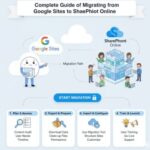 A Complete Guide to Migrating from Google Sites to SharePoint Online
  Enhance Productivity with the Link to Windows Mobile App
  Microsoft Teams and Google Calendar Sync Is Retiring: What Businesses Need to Know Before October 2026