
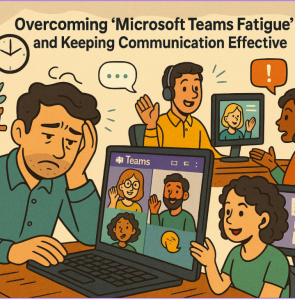
The rise of hybrid and remote work has made Microsoft Teams an essential tool for collaboration. But with constant pings, endless meetings, and a stream of notifications, many employees are experiencing what’s often called “Teams fatigue.”
While Teams (or any collaboration platform) is meant to increase productivity, without mindful practices, it can lead to burnout, reduced engagement, and even miscommunication. The good news? With the right strategies, you can overcome Teams fatigue and keep communication effective.
What Causes “Teams Fatigue”?
- Too many meetings: Back-to-back video calls leave little room for focused work.
- Notification overload: Chat messages, mentions, and alerts can feel never-ending.
- Blurred boundaries: Working remotely often makes it harder to “log off.”
- Ineffective communication: Overusing chat for long discussions or underusing features like channels leads to confusion.
6 Ways to Beat Teams Fatigue (with How-To Steps)
1. Rethink Your Meetings
- How to do it:
- Before scheduling, ask: Can this update be shared in a channel post instead?
- When creating a meeting in Teams, manually adjust the duration (e.g., set it to 25 or 45 minutes instead of the default 30/60).
- Use the “Record” option so those who can’t attend can catch up asynchronously.
2. Use Channels Effectively
- How to do it:
- Click “… > Pin” on important channels so they stay at the top of your list.
- Use “Manage Channel” to set permissions (e.g., only owners can post important updates).
- Encourage your team to post updates in the relevant channel rather than DM—this keeps info visible to all.
3. Manage Notifications Proactively
- How to do it:
- Go to Settings > Notifications and choose what deserves a banner notification vs. just showing up in the activity feed.
- Use “Do Not Disturb” (click your profile picture > Status > Do Not Disturb) when you need focus.
- Set quiet hours on mobile: Settings > Notifications > Quiet hours/Quiet days.
4. Leverage Collaboration Features
- How to do it:
- Use @mentions only for people who need to take action, not the whole team.
- Share files via “Attach” > OneDrive/Upload from My Computer so everyone edits the same version.
- Use the Search bar (Ctrl+E) to find messages, files, or people quickly.
5. Set Boundaries and Encourage Balance
- How to do it:
- Update your working hours in Outlook/Teams calendar so colleagues see when you’re available.
- Change your Teams status manually to Away or Offline outside work hours.
- Leaders: set the tone by scheduling messages to send during work hours (use the “Schedule send” feature in Outlook/Teams).
6. Prioritize Clarity and Simplicity
- How to do it:
- Break long posts into short paragraphs or bullet points.
- Use bold or italics to highlight key information (Ctrl+B or Ctrl+I).
- Agree on a simple team guideline—for example:
- Urgent = call.
- Important but not urgent = @mention in channel.
- Informational = post without @mention.
Microsoft Teams is a powerful tool, but like any tool, how you use it matters. Over-communication can be just as harmful as under-communication. By setting boundaries, using features intentionally, and adopting team-wide best practices, organizations can overcome “Teams fatigue” while keeping collaboration strong, efficient, and human-centered.
Extra posts:
 Best Practices for Running Effective Microsoft Teams Meetings
  Boost Team Productivity & Communication: How to Use Prompt Coach in Microsoft Teams with Detailed Steps!
  What’s New in Microsoft Teams – May 2025 Update (With How-To Guide)
  Telling Your Story with Microsoft Teams Storyline
  How to Fix Common Microsoft Teams Connection Problems
  Creating Custom Microsoft Teams Apps and Tabs