
Artificial intelligence is changing the way businesses work, and AI assistants are becoming a regular part of everyday productivity. Microsoft Copilot Studio makes it easier for organizations to create custom AI agents that can answer questions, automate tasks, and connect with the tools employees already use.
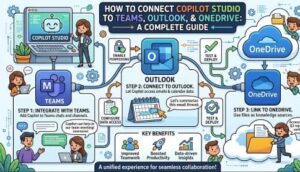
Three of the most valuable integrations for a Copilot Studio agent are Microsoft Teams, Outlook, and OneDrive. By connecting these platforms, businesses can create an AI assistant that communicates with teams, helps manage emails, and retrieves important files without forcing users to switch between different applications.
In this guide, we will explore how to connect Copilot Studio to Teams, Outlook, and OneDrive and explain how these integrations can improve workplace productivity.
Connecting Copilot Studio to Microsoft Teams
Microsoft Teams is one of the most common places where employees collaborate. Adding your Copilot Studio agent to Teams allows users to interact with AI directly inside their daily communication workspace.
Step 1: Create Your Copilot Agent
Start by opening Copilot Studio and creating a new copilot.
You can define:
- The purpose of the assistant
- Conversation topics
- Instructions
- Knowledge sources
- Actions it can perform
For example, you might create an HR assistant that answers employee questions or a sales assistant that helps representatives find customer information.
Step 2: Configure the Teams Channel
After creating your agent:
- Open your copilot project.
- Go to the publishing section.
- Select Microsoft Teams as a channel.
- Configure the connection settings.
- Publish your copilot.
Once enabled, users can access the AI assistant directly inside Teams.
Step 3: Test the Teams Experience
After publishing, test the agent by asking common questions.
Examples:
- “What is our vacation policy?”
- “Show me the latest sales update.”
- “Help me create a meeting summary.”
Testing helps identify missing information and improves the quality of responses.
Connecting Copilot Studio to Outlook
Email remains a major part of business communication. Connecting Copilot Studio with Outlook can help users save time by assisting with email-related tasks.
The Outlook integration is usually powered through Microsoft connectors and automation tools such as Power Automate.
Using Outlook with Copilot Studio
Common Outlook-based scenarios include:
Email Summaries
An AI assistant can help users understand important messages by summarizing conversations and highlighting key points.
Email Drafting
Users can ask the copilot to help write:
- Customer replies
- Follow-up messages
- Meeting confirmations
- Internal updates
Automated Email Workflows
Copilot Studio can work with Outlook actions to trigger workflows.
For example:
A user says:
“Send a reminder email to the project team.”
The copilot can trigger an automated process that prepares and sends the message.
Steps to Connect Outlook
- Open Copilot Studio.
- Create or edit an action.
- Add a Microsoft connector.
- Select Outlook-related actions.
- Authenticate your account.
- Configure permissions.
- Test the workflow.
Always review permissions carefully because email access involves sensitive business communication.
Connecting Copilot Studio to OneDrive
OneDrive is where many organizations store documents, presentations, spreadsheets, and important files.
By connecting Copilot Studio to OneDrive, your AI agent can help users find information faster.
Benefits of OneDrive Integration
A connected copilot can help with:
- Searching documents
- Finding files
- Answering questions from stored information
- Improving knowledge sharing
- Reducing manual searches
Instead of spending several minutes looking through folders, employees can simply ask the AI assistant.
Example:
“Find the latest marketing strategy document.”
The copilot can help locate the correct file.
Steps to Connect OneDrive
To connect OneDrive:
- Open your Copilot Studio environment.
- Add a knowledge source.
- Choose OneDrive or connected Microsoft data sources.
- Sign in with the required account.
- Select the files or locations.
- Save and test the connection.
Make sure your OneDrive permissions are organized properly. The copilot should only access information users are allowed to view.
Best Practices for Copilot Studio Integrations
Connecting services is only the first step. To create a useful AI assistant, follow these best practices.
1. Define a Clear Purpose
Avoid creating a copilot that tries to do everything.
A focused assistant usually performs better.
Examples:
- Customer support assistant
- Internal knowledge assistant
- Sales helper
- HR assistant
2. Manage Permissions Carefully
Teams, Outlook, and OneDrive may contain private company information.
Always:
- Limit access
- Review user permissions
- Protect sensitive data
- Test different user scenarios
3. Keep Knowledge Updated
AI assistants are only useful when information is accurate.
Regularly review:
- Documents
- Policies
- Workflows
- Data sources
4. Improve Through Testing
Monitor how people use the copilot.
Look for:
- Common questions
- Failed responses
- Missing information
- New automation opportunities
Continuous improvement makes the assistant more valuable over time.
Why Connect Copilot Studio to Teams, Outlook, and OneDrive?
The biggest advantage is bringing AI into the tools employees already use.
Instead of opening multiple applications, searching folders, and reading long email threads, users can interact with one intelligent assistant.
These integrations create a smoother workflow:
- Teams becomes the communication hub
- Outlook becomes easier to manage
- OneDrive becomes easier to search
- Copilot becomes the intelligent layer connecting everything

For organizations adopting AI, these connections can improve productivity, reduce repetitive work, and help employees focus on higher-value tasks.
Copilot Studio becomes much more powerful when connected to Microsoft Teams, Outlook, and OneDrive. These integrations allow businesses to build AI assistants that are practical, accessible, and connected to everyday workflows.
Whether you are creating an internal chatbot, automating business processes, or improving information access, combining Copilot Studio with Microsoft 365 tools can transform the way teams work.
The future of workplace productivity is not just about using AI it is about connecting AI with the systems people already depend on.
Extra posts:
 Building an Enterprise ServiceNow AI Copilot Agent with Microsoft Copilot Studio: A Complete Guide to IT Operations Automation, Ticket Auditing, and Engineer Performance Intelligence
  Best Copilot Studio Agents for HR Teams: Transforming the Future of Human Resources
  10 Real-World Copilot Studio Use Cases That Save Teams Hundreds of Hours
  What Is Microsoft Copilot Studio? A Beginner’s Guide
  Publishing and Sharing Your Agent Across Microsoft Teams: A Complete Step-by-Step Guide
  Microsoft Copilot for IT Administrators: The Complete Enterprise Deployment Guide