
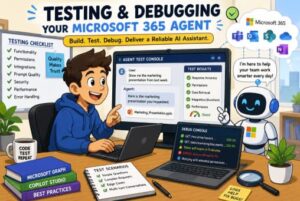
Artificial intelligence is transforming the way businesses work, and Microsoft 365 Agents are leading this change. These intelligent assistants can automate repetitive tasks, answer employee questions, summarize meetings, retrieve documents, and improve collaboration across Microsoft 365 applications. However, creating an agent is only the first step. The real challenge begins when it’s time to test and debug it.
Many developers spend weeks designing an AI-powered Microsoft 365 Agent only to discover unexpected issues after deployment. Responses may be inaccurate, permissions may fail, workflows might break, or the agent may behave differently in production than during development. That’s why testing and debugging are essential parts of the development lifecycle.
In this guide, you’ll learn practical methods for testing and debugging your Microsoft 365 Agent, common issues you may encounter, and best practices to ensure your AI assistant delivers accurate, secure, and reliable results.
Why Testing Matters for Microsoft 365 Agents
Unlike traditional applications that follow fixed logic, AI-powered agents generate responses based on user input, context, and connected data sources. This makes them much more dynamic—and therefore more challenging to test.
Proper testing helps you:
- Ensure the agent provides accurate responses.
- Detect prompt-related issues.
- Validate Microsoft Graph permissions.
- Verify integrations with SharePoint, Teams, Outlook, and OneDrive.
- Improve user experience.
- Reduce security and compliance risks.
- Increase confidence before production deployment.
Skipping testing often results in poor user trust and increased support requests after launch.
Understand the Different Types of Testing
Testing a Microsoft 365 Agent isn’t limited to checking whether it responds correctly. Multiple testing approaches are needed to validate different parts of the solution.
Functional Testing
Functional testing verifies that every feature performs as expected.
Examples include:
- Answering employee questions
- Retrieving SharePoint documents
- Summarizing Teams meetings
- Creating Outlook calendar events
- Searching organizational knowledge
Every user interaction should produce predictable and meaningful results.
Integration Testing
Microsoft 365 Agents usually interact with multiple Microsoft services.
Verify integrations with:
- Microsoft Teams
- SharePoint Online
- OneDrive
- Outlook
- Microsoft Graph
- Power Automate
- Dataverse (if applicable)
A single authentication or API issue can affect the overall user experience.
Permission Testing
Permissions are among the most common sources of bugs.
Test scenarios such as:
- Standard user access
- Manager access
- Administrator access
- Guest users
- External collaborators
Ensure users only receive information they are authorized to access.
Performance Testing
Measure how your agent behaves under different workloads.
Evaluate:
- Response time
- API latency
- Memory usage
- Token consumption
- Concurrent users
A fast and responsive agent improves adoption across the organization.
Test Prompt Quality Thoroughly
The intelligence of your Microsoft 365 Agent depends heavily on prompt engineering.
Poor prompts often lead to:
- Incorrect answers
- Hallucinations
- Inconsistent formatting
- Missing information
- Confusing responses
Create a diverse set of test prompts, including:
- Simple questions
- Complex requests
- Ambiguous queries
- Misspelled words
- Long conversations
- Follow-up questions
For example:
Instead of testing only:
“Show my latest files.”
Also test:
- “Can you find the presentation I edited last week?”
- “What files did John share with me yesterday?”
- “Locate the financial spreadsheet from April.”
These real-world scenarios expose weaknesses that basic testing may miss.
Verify Microsoft Graph API Calls
Most Microsoft 365 Agents rely on Microsoft Graph to access organizational data.
Common debugging areas include:
- Authentication failures
- Expired tokens
- Missing permissions
- Incorrect endpoints
- Invalid query parameters
- Rate limiting
Log every Graph request during testing.
Monitor:
- Request URL
- Response status
- Response time
- Error messages
- Permission scopes
This information dramatically reduces debugging time.
Validate Security and Compliance
Enterprise AI assistants must follow organizational security policies.
Test:
- Unauthorized access attempts
- Sensitive document requests
- Personally identifiable information (PII)
- Confidential files
- Role-based permissions
Never assume permissions are configured correctly.
Attempt to access restricted resources using lower-privileged accounts to ensure security boundaries remain intact.
Debug Conversation Context
Conversation context is one of the most important aspects of AI agents.
Users expect the assistant to remember previous questions.
For example:
User:
Show my project documents.
Agent:
Here are your project files.
User:
Which one was updated yesterday?
If context handling fails, the agent may not understand what “Which one” refers to.
Test multi-turn conversations extensively.
Check whether:
- Context is preserved
- Previous references remain accurate
- Memory resets correctly
- Sessions expire appropriately
Use Logging Everywhere
One of the biggest mistakes developers make is insufficient logging.
Useful logs include:
- User prompts
- Agent responses
- API requests
- Authentication events
- Workflow execution
- Errors
- Exceptions
- Response times
Well-designed logging makes debugging significantly easier.
Avoid logging confidential user information unless organizational policies permit it.
Test Error Handling
No application is perfect.
Your Microsoft 365 Agent should gracefully handle failures.
Examples include:
- Microsoft Graph unavailable
- SharePoint offline
- Authentication expired
- Missing permissions
- Network timeout
- Large document processing failures
Instead of displaying technical errors like:
“500 Internal Server Error”
Provide user-friendly messages such as:
“I couldn’t retrieve your files right now. Please try again in a few moments.”
A better user experience reduces frustration.
Evaluate AI Response Accuracy
Unlike traditional software, AI-generated responses require qualitative evaluation.
Review responses for:
- Accuracy
- Completeness
- Relevance
- Tone
- Hallucinations
- Formatting
Create a benchmark dataset with expected answers.
Compare future versions of your agent against this benchmark to ensure updates do not reduce response quality.
Test Edge Cases
Edge cases often reveal hidden bugs.
Examples include:
- Empty questions
- Extremely long prompts
- Unsupported languages
- Emoji-only input
- Special characters
- Very large documents
- Missing files
- Duplicate document names
Testing only ideal scenarios leaves important issues undiscovered.
Monitor Token Usage
Large Language Models consume tokens for every interaction.
Monitor:
- Prompt size
- Response size
- Conversation history
- Token limits
- API costs
Excessively long prompts increase latency and operational expenses.
Optimize prompts wherever possible.
Gather Feedback from Real Users
Developers and end users often interact with AI systems differently.
Conduct pilot testing with:
- HR teams
- Sales teams
- IT administrators
- Customer support
- Project managers
Collect feedback on:
- Accuracy
- Speed
- Ease of use
- Missing capabilities
- Confusing responses
Real-world feedback often uncovers issues automated testing cannot.
Use Automated Regression Testing
As your Microsoft 365 Agent evolves, previously working features may unintentionally break.
Regression testing ensures updates don’t introduce new issues.
Automate testing for:
- Frequently asked questions
- Document retrieval
- Calendar actions
- Teams integrations
- SharePoint searches
- Power Automate workflows
Automation speeds up release cycles while maintaining quality.
Monitor Production Performance
Testing doesn’t stop after deployment.
Monitor production metrics such as:
- Average response time
- Error rates
- API failures
- User satisfaction
- Conversation success rate
- Escalation frequency
Continuous monitoring helps identify problems before they impact a large number of users.
Best Practices for Testing and Debugging Microsoft 365 Agents
To build a dependable AI assistant, follow these proven practices:
- Test with real business scenarios rather than artificial examples.
- Validate permissions for every user role.
- Log API calls and errors for easier troubleshooting.
- Review AI-generated responses regularly.
- Test multi-turn conversations and context retention.
- Perform load testing before enterprise rollout.
- Automate regression tests for critical workflows.
- Monitor production continuously and act on user feedback.
These practices help create an agent that users can trust and rely on daily.

Building a Microsoft 365 Agent is an exciting step toward workplace automation, but success depends on more than intelligent prompts and powerful integrations. Thorough testing and careful debugging are what transform a functional prototype into a dependable business tool.
By validating permissions, monitoring Microsoft Graph interactions, testing conversational context, evaluating AI responses, and collecting feedback from real users, you can significantly improve the quality and reliability of your Microsoft 365 Agent. Regular monitoring and continuous refinement ensure your agent keeps delivering value as your organization’s needs evolve.
Investing time in testing today saves countless hours of troubleshooting tomorrow. A well-tested Microsoft 365 Agent not only performs better but also builds user confidence, supports productivity, and becomes a trusted digital assistant across your organization.
Extra posts:
 Building an Enterprise ServiceNow AI Copilot Agent with Microsoft Copilot Studio: A Complete Guide to IT Operations Automation, Ticket Auditing, and Engineer Performance Intelligence
  What Is Microsoft 365 Agent Builder? A Beginner’s Guide
  Building Copilot Usage Dashboards in Power BI A Complete Guide
  Debugging and Testing Your Copilot Studio Bots Efficiently
  Microsoft 365 E7 and Agent 365 Are Now Generally Available: The Future of AI-Powered Work Has Arrived
  The Architecture of Copilot Agents: Building Intelligent Assistants for the Modern Era