
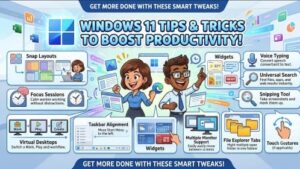
Windows 11 is more than just a fresh-looking operating system. It comes packed with features that can help you work smarter, stay organized, and save valuable time throughout your day. Whether you’re a student, a remote worker, a business professional, or someone who simply wants a smoother computing experience, learning a few hidden tricks can make a noticeable difference.
Instead of relying on third-party software for every task, Windows 11 already includes many productivity tools that most users never fully explore. From Snap Layouts and Virtual Desktops to Focus Sessions and powerful keyboard shortcuts, these built-in features can streamline your workflow and reduce distractions.
In this guide, we’ll explore the best Windows 11 tips and tricks to boost productivity and help you get the most out of your PC.
1. Master Snap Layouts for Better Multitasking
One of the standout features of Windows 11 is Snap Layouts. If you regularly work with multiple applications, this feature is a game-changer.
Hover your mouse over the maximize button on any window, and you’ll see several layout options. You can instantly arrange two, three, or even four windows neatly on your screen.
Benefits:
- Compare documents side by side
- Research while writing
- Monitor emails while working
- Keep your workspace organized
Instead of manually resizing windows, Snap Layouts does the work in seconds.
2. Use Virtual Desktops for Different Projects
Virtual Desktops help separate your work into different spaces.
For example:
- Desktop 1: Office work
- Desktop 2: Personal browsing
- Desktop 3: Graphic design
- Desktop 4: Entertainment
Press Windows + Tab to create and manage desktops.
This reduces clutter and helps you stay focused on one project at a time.
3. Learn Essential Keyboard Shortcuts
The fastest Windows users rarely reach for the mouse.
Some of the most useful shortcuts include:
- Windows + D – Show Desktop
- Windows + E – Open File Explorer
- Windows + L – Lock your computer
- Windows + V – Clipboard History
- Windows + Shift + S – Screenshot Tool
- Alt + Tab – Switch between apps
- Windows + Tab – Task View
- Windows + Arrow Keys – Snap windows
Learning just a handful of shortcuts can save hours over time.
4. Enable Clipboard History
Most users copy one thing at a time.
Windows 11 lets you copy multiple items and access them whenever needed.
Simply press:
Windows + V
If it’s your first time using it, enable Clipboard History.
You’ll be able to paste:
- Text
- Links
- Images
- Frequently used snippets
This is especially useful for writers, developers, marketers, and students.
5. Stay Focused with Focus Sessions
Distractions are everywhere.
Windows 11 includes Focus Sessions, which help you dedicate uninterrupted time to important work.
You can:
- Set work timers
- Schedule breaks
- Reduce notifications
- Track productivity
It’s perfect for deep work, studying, or completing deadlines.
6. Customize the Start Menu
The Windows 11 Start Menu is cleaner than previous versions.
Take a few minutes to personalize it.
Pin frequently used apps such as:
- Microsoft Word
- Excel
- Chrome
- Teams
- Photoshop
- Visual Studio Code
Removing unnecessary apps also makes navigation quicker.
7. Use Widgets for Quick Information
Widgets provide useful information without opening multiple websites.
You can quickly check:
- Weather
- Calendar
- News
- Traffic
- Sports
- Stock updates
Customize them to display only information relevant to your daily routine.
8. Organize Files with File Explorer Tabs
Windows 11 introduced tabs in File Explorer.
Instead of opening multiple File Explorer windows, you can keep several folders open in one window.
This is especially helpful when:
- Copying files
- Organizing projects
- Managing downloads
- Editing photos
It keeps your desktop much cleaner.
9. Turn on Storage Sense
Running out of storage slows down your PC.
Storage Sense automatically removes:
- Temporary files
- Recycle Bin contents
- Old downloads (optional)
- Cached files
Enable it by going to:
Settings → System → Storage → Storage Sense
It keeps your computer running efficiently without manual cleanup.
10. Use OneDrive Backup
Accidentally deleting files can be stressful.
Windows 11 integrates with OneDrive, making cloud backup easy.
Benefits include:
- Automatic backup
- File recovery
- Access from multiple devices
- Protection against hardware failure
Keeping important documents synced provides peace of mind.
11. Reduce Startup Apps
Too many startup applications can significantly increase boot time.
Go to:
Settings → Apps → Startup
Disable apps you don’t need immediately after turning on your computer.
This simple adjustment often results in noticeably faster startup performance.
12. Activate Dark Mode
Dark Mode isn’t just visually appealing.
It can reduce eye strain during long working hours and improve battery life on supported devices.
Enable it from:
Settings → Personalization → Colors
Many users find Dark Mode more comfortable for evening work sessions.
13. Improve Search with Windows Search
Instead of browsing through folders, use Windows Search effectively.
Press the Windows key and type:
- Documents
- Applications
- Settings
- Files
- Calculations
- Recent items
Using search efficiently can save several minutes every day.
14. Pin Frequently Used Folders
Right-click commonly used folders and choose:
Pin to Quick Access
Examples include:
- Documents
- Downloads
- Work Projects
- Images
- Client Files
This eliminates unnecessary navigation through multiple folders.
15. Keep Windows Updated
Updates aren’t just about security.
Microsoft regularly improves:
- Performance
- Stability
- Features
- Compatibility
- Productivity tools
Check for updates regularly under:
Settings → Windows Update
Keeping your system current ensures access to the latest improvements.
Bonus Productivity Tips
Here are a few extra habits that can improve your workflow even further:
- Restart your PC at least once a week.
- Remove unused applications.
- Use Microsoft PowerToys for advanced productivity features.
- Create folders for different projects.
- Keep your desktop clean.
- Use password managers.
- Enable automatic backups.
- Close unused browser tabs regularly.
Small habits often create the biggest productivity gains over time.
Common Mistakes to Avoid
Many Windows users unknowingly slow themselves down by:
- Keeping dozens of startup apps enabled
- Ignoring keyboard shortcuts
- Never organizing files
- Letting storage become full
- Working with too many browser tabs
- Skipping system updates
Avoiding these habits can lead to a faster and more enjoyable Windows experience.

Windows 11 includes a wide range of built-in productivity features that often go unnoticed. By taking advantage of Snap Layouts, Virtual Desktops, Clipboard History, Focus Sessions, File Explorer tabs, and Storage Sense, you can work more efficiently without installing extra software.
Productivity isn’t about working longer—it’s about working smarter. Even adopting a few of these Windows 11 tips can simplify your daily routine, reduce distractions, and help you accomplish more in less time.
Start with one or two features today, build them into your workflow, and gradually explore the rest. Before long, you’ll notice that your Windows 11 experience feels faster, more organized, and far more productive.
Extra posts:
 Boost Your Productivity with Microsoft PowerToys The Ultimate Toolbox for Windows Power Users
  How to Boost Performance with Built-In Tools in Windows 11
  Windows 11 for Gamers Settings That Actually Boost FPS
  Windows 11 Slow? 15 Fixes to Boost Performance (Expert Guide)
  Top 10 Windows 11 Tips Every Beginner Should Know
  Storage Sense and Disk Cleanup Tips in Windows 11