
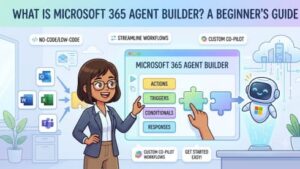
Artificial intelligence is changing how people work, communicate, and solve problems. Over the past few years, Microsoft has introduced several AI-powered tools to make everyday business tasks easier and more efficient. One of the newest additions to this growing ecosystem is Microsoft 365 Agent Builder, a feature designed to help users create intelligent AI agents without requiring advanced programming skills.
Whether you’re a business owner, IT administrator, marketer, customer support professional, or simply curious about AI, Microsoft 365 Agent Builder offers an easy way to automate repetitive work and create personalized assistants that understand your organization’s knowledge.
In this beginner’s guide, we’ll explain what Microsoft 365 Agent Builder is, how it works, its key features, benefits, use cases, and how you can start building your first AI agent.
What Is Microsoft 365 Agent Builder?
Microsoft 365 Agent Builder is a no-code and low-code tool that allows users to create custom AI agents inside the Microsoft 365 ecosystem. These AI agents can answer questions, automate workflows, retrieve company information, assist employees, and perform specific business tasks using organizational data.
Think of it as creating your own version of an AI assistant that understands your company’s documents, SharePoint sites, Teams conversations, and Microsoft 365 content.
Instead of relying only on general AI knowledge, these agents can use your organization’s trusted information to provide accurate, context-aware responses.
The biggest advantage is that users don’t need to be software developers. Microsoft designed Agent Builder so business users can create intelligent assistants through a simple visual interface
How Does Microsoft 365 Agent Builder Work?
Microsoft 365 Agent Builder works by combining several Microsoft technologies into one easy-to-use platform.
When creating an agent, users typically:
- Choose the purpose of the AI agent.
- Connect trusted knowledge sources.
- Define instructions and behavior.
- Configure permissions.
- Test conversations.
- Publish the agent for employees or teams.
The AI uses Microsoft’s large language models together with Microsoft Graph to understand organizational data while respecting user permissions.
This means employees only receive information they already have permission to access.
Key Features of Microsoft 365 Agent Builder
1. No-Code Agent Creation
One of the biggest advantages is that you don’t need coding knowledge.
Users can build AI agents using simple prompts and visual settings instead of writing complex code.
This makes AI automation accessible to everyone.
2. Integration with Microsoft 365
Agent Builder works seamlessly with Microsoft services including:
- Microsoft Teams
- SharePoint
- Outlook
- OneDrive
- Word
- Excel
- PowerPoint
- Microsoft Copilot
Because everything stays inside the Microsoft ecosystem, organizations don’t need multiple disconnected AI tools.
3. Organization Knowledge Access
Unlike public AI chatbots, Microsoft 365 Agent Builder allows AI agents to access internal knowledge such as:
- Company policies
- HR documents
- Training manuals
- Project files
- Knowledge bases
- FAQs
- Internal documentation
This helps employees receive answers based on official company information.
4. Secure by Design
Security is one of Microsoft’s strongest selling points.
Agent Builder follows Microsoft 365 security and compliance policies, including:
- User authentication
- Data protection
- Permission-based access
- Compliance standards
- Enterprise-grade security
The AI cannot expose information users are not authorized to view.
5. Easy Customization
Organizations can customize agents for different departments.
For example:
- HR Assistant
- IT Help Desk Agent
- Marketing Assistant
- Finance Assistant
- Sales Coach
- Customer Support Assistant
Each agent can have its own personality, instructions, knowledge sources, and responsibilities.
Benefits of Microsoft 365 Agent Builder
Saves Time
Employees often spend valuable time searching for information.
AI agents can answer common questions instantly, allowing employees to focus on more important work.
Improves Productivity
Instead of switching between multiple applications and documents, employees can ask one AI assistant for answers.
This reduces interruptions and improves workflow efficiency.
Better Employee Support
New employees often have many questions.
An HR AI agent can provide quick answers about:
- Leave policies
- Benefits
- Company guidelines
- Training materials
- Onboarding resources
This reduces the workload on HR teams.
Consistent Information
Different employees may provide different answers to the same question.
An AI agent always references approved company content, helping maintain consistency across the organization.
Reduced IT Workload
IT support teams receive countless repetitive requests every day.
Examples include:
- Password reset guidance
- VPN setup
- Software installation
- Device troubleshooting
An AI agent can resolve many of these requests before they reach the IT help desk.
Common Use Cases
HR Support
Employees can ask questions like:
- How many vacation days do I have?
- Where can I find the employee handbook?
- What are the parental leave policies?
The AI provides answers from official HR resources.
IT Help Desk
Instead of submitting support tickets immediately, employees can ask:
- How do I connect to the company VPN?
- How do I install Microsoft Teams?
- Why can’t I access SharePoint?
The AI can guide users through common solutions.
Sales Enablement
Sales teams can quickly retrieve:
- Product information
- Pricing documents
- Sales presentations
- Competitor comparisons
This helps representatives prepare for customer meetings faster.
Customer Service
Internal support teams can build agents that help employees find customer support procedures and troubleshooting guides.
Knowledge Management
Many organizations have thousands of documents spread across SharePoint and OneDrive.
Agent Builder makes this information easier to discover using natural language instead of manual searching.
Microsoft 365 Agent Builder vs Traditional Chatbots
Traditional chatbots often rely on predefined decision trees and scripted responses.
Microsoft 365 Agent Builder uses modern AI that understands natural language and context.
| Traditional Chatbot | Microsoft 365 Agent Builder |
|---|---|
| Rule-based | AI-powered |
| Limited conversations | Natural conversations |
| Fixed responses | Context-aware answers |
| Difficult to update | Easy to maintain |
| Often requires coding | No-code or low-code |
| Generic knowledge | Organization-specific knowledge |
This flexibility makes Agent Builder suitable for more complex workplace scenarios.
Who Should Use Microsoft 365 Agent Builder?
Microsoft 365 Agent Builder is suitable for organizations of all sizes.
It is particularly useful for:
- Small businesses
- Large enterprises
- HR departments
- IT teams
- Marketing departments
- Sales organizations
- Customer support teams
- Educational institutions
- Government organizations
Anyone looking to automate repetitive tasks or improve access to company knowledge can benefit from using it.
Tips for Building Your First AI Agent
If you’re just getting started, keep these best practices in mind:
Start Small
Begin with a simple use case rather than trying to solve every problem at once.
For example, create an FAQ assistant before expanding into workflow automation.
Use High-Quality Data
AI is only as good as the information it can access.
Keep your documents updated and organized.
Write Clear Instructions
Clearly define:
- What the agent should do
- What it should avoid
- Which sources it should use
- How it should respond
Good instructions lead to better AI performance.
Test Before Publishing
Ask realistic questions to ensure the agent provides accurate answers.
Gather feedback from a small group of users before rolling it out organization-wide.
Potential Limitations
While Microsoft 365 Agent Builder is powerful, it’s important to understand its limitations.
Like other AI systems, it depends on the quality of the information available. Outdated or incomplete documentation can lead to less useful responses. Some advanced business processes may still require custom development or integration with other Microsoft tools.
Organizations should also establish governance policies to define who can create agents, what data they can access, and how they should be monitored. Regular reviews help ensure agents remain accurate, secure, and aligned with business needs.
The Future of AI Agents in Microsoft 365
Microsoft is investing heavily in AI-powered productivity tools, and Agent Builder is likely to become even more capable over time. We can expect tighter integration with Microsoft Copilot, more advanced automation, richer collaboration features, and easier ways to connect with third-party applications.
As AI becomes a standard part of the modern workplace, organizations that embrace tools like Microsoft 365 Agent Builder can streamline operations, improve employee experiences, and unlock greater value from their existing Microsoft 365 environment.
Technical Steps: How to Build an AI Agent Using Microsoft 365 Agent Builder
One of the biggest advantages of Microsoft 365 Agent Builder is that you can create a functional AI agent in just a few minutes without writing code. The platform provides a guided interface where you define your agent’s purpose, connect knowledge sources, test its responses, and publish it for your organization.
Here’s a detailed walkthrough for beginners.
Prerequisites
Before creating your first agent, make sure you have:
- A Microsoft 365 account with the appropriate license
- Access to Microsoft 365 Copilot (if required by your organization)
- Permission to create agents from your Microsoft 365 administrator
- Access to the SharePoint sites, OneDrive folders, or documents you want the agent to use
- A modern web browser such as Microsoft Edge or Google Chrome
Depending on your organization’s setup, administrators may also need to enable agent creation through the Microsoft 365 admin center.
Step 1: Open Microsoft 365 Copilot
- Sign in to your Microsoft 365 account.
- Open the Microsoft 365 Copilot app from your browser or Microsoft Teams.
- Locate the Agents section in the navigation menu.
- Select Create Agent or New Agent.
This opens the Agent Builder interface, where you’ll configure your AI assistant.
Tip: If you don’t see the option to create agents, contact your Microsoft 365 administrator to confirm that Agent Builder is enabled for your account.
Step 2: Choose How to Create Your Agent
Microsoft 365 Agent Builder offers two common ways to start:
Option 1: Describe Your Agent
Simply type a natural language prompt, such as:
“Create an HR assistant that answers employee questions about leave policies, benefits, onboarding, and company guidelines.”
The AI automatically generates:
- Agent name
- Description
- Initial instructions
- Suggested conversation starters
This is the quickest way for beginners to get started.
Option 2: Build Manually
If you prefer more control, create the agent from scratch by manually configuring:
- Name
- Description
- Purpose
- Behavior
- Knowledge sources
- Permissions
Step 3: Give Your Agent a Name and Description
Choose a name that clearly reflects its purpose.
Examples:
- HR Assistant
- IT Help Desk
- Sales Knowledge Coach
- Marketing Content Assistant
- Employee FAQ Bot
Then add a short description explaining what the agent does.
Example:
“This AI assistant helps employees find HR policies, onboarding documents, benefits information, and workplace guidelines.”
Step 4: Define the Agent’s Instructions
The instruction section acts as your agent’s “system prompt.” It tells the AI how to behave.
For example:
You are an HR assistant.

Always answer using official company HR documents.

Keep responses professional and concise.

If the information is unavailable, tell the user to contact the HR department.

Do not make assumptions or invent policies.
The clearer your instructions, the more reliable your agent will be.
Step 5: Connect Knowledge Sources
Next, tell the agent where it should retrieve information.
Common Microsoft 365 knowledge sources include:
- SharePoint document libraries
- OneDrive folders
- Microsoft Teams files
- Word documents
- PDF files
- PowerPoint presentations
- Excel documentation
- Company knowledge bases
Select only trusted and up-to-date sources. The agent uses these documents to answer user questions while respecting Microsoft 365 permissions.
Step 6: Configure Permissions
Decide who can use the agent.
Typical options include:
- Only you
- A specific Microsoft Teams channel
- A department (such as HR or IT)
- The entire organization
Because the agent follows Microsoft 365 security permissions, users can only access content they are already authorized to view.
Step 7: Add Conversation Starters
Conversation starters help users understand what the agent can do.
Examples include:
- “How many vacation days do employees receive?”
- “Where can I find the employee handbook?”
- “Explain our remote work policy.”
- “Show me the onboarding checklist.”
- “What are the company holiday dates?”
These suggestions improve user adoption and reduce confusion.
Step 8: Test Your Agent
Before publishing, test the agent thoroughly.
Ask realistic questions such as:
- “How do I request annual leave?”
- “Where is the travel reimbursement policy?”
- “What benefits are available to new employees?”
Review whether the responses are:
- Accurate
- Complete
- Easy to understand
- Based on official documents
- Free from hallucinations or unsupported claims
If responses are incorrect, refine the instructions or update the connected knowledge sources.
Step 9: Refine and Improve
Agent Builder allows you to edit your agent at any time.
Common improvements include:
- Adding more knowledge sources
- Updating instructions
- Improving response formatting
- Restricting or expanding permissions
- Adding new conversation starters
AI agents should be reviewed regularly as company documentation changes.
Step 10: Publish Your Agent
Once you’re satisfied with testing:
- Click Publish.
- Choose where the agent will be available.
- Confirm deployment.
Employees can now interact with the agent through Microsoft 365 or Microsoft Teams, depending on your organization’s configuration.
Example: Building an HR Assistant
Here’s a simple real-world example.
Agent Name: HR Assistant
Purpose:
Answer employee questions related to HR policies.
Knowledge Sources:
- HR SharePoint site
- Employee handbook
- Benefits PDF
- Leave policy document
- Onboarding guide
Instructions:
Answer only using approved HR documentation.

Be professional.

Keep answers under 200 words.

If information cannot be found, direct employees to HR.

Never generate policy information that is not contained in the provided documents.
Sample User Question:
“How many sick days do employees receive?”
The agent searches the approved HR documents and responds with the relevant policy instead of relying on general AI knowledge.
Best Practices for Better Results
To build a more reliable and effective AI agent:
- Use clear, well-structured documents as knowledge sources.
- Regularly update content in SharePoint or OneDrive so the agent always references current information.
- Keep instructions specific and avoid vague prompts.
- Test with a variety of real-world questions before publishing.
- Monitor user feedback and refine the agent over time.
- Apply the principle of least privilege by granting access only to the users and content necessary for the agent’s purpose.
- Establish governance policies for who can create, modify, and publish agents within your organization.
By following these technical steps and best practices, you can create a Microsoft 365 Agent Builder assistant that delivers accurate, secure, and context-aware responses, helping your team save time and work more efficiently.

Microsoft 365 Agent Builder makes it easier than ever to create intelligent AI assistants tailored to your organization’s needs. By combining the power of AI with the trusted data already stored in Microsoft 365, businesses can automate repetitive tasks, improve knowledge sharing, and provide employees with quick, reliable answers.
For beginners, the platform’s no-code approach removes many of the traditional barriers to AI adoption. You don’t need to be a developer to build an agent that supports HR, IT, sales, or customer service teams. With thoughtful planning, quality data, and ongoing refinement, Microsoft 365 Agent Builder can become a valuable part of your organization’s digital workplace and help prepare your business for the next generation of AI-driven productivity.
Extra posts:
 Governance of AI Agents with Microsoft Entra & Agent 365
  Microsoft Launches Agent 365 to Bring Control, Security, and Visibility to the Age of AI Agents
  Microsoft 365 E7 and Agent 365 Are Now Generally Available: The Future of AI-Powered Work Has Arrived
  Microsoft 365 Copilot and the Future of Visual Agent Is It Deprecated or Replaced?
  The Small Business Owner’s Guide to Using AI 5 Immediate Wins with Microsoft 365
  Building an Enterprise ServiceNow AI Copilot Agent with Microsoft Copilot Studio: A Complete Guide to IT Operations Automation, Ticket Auditing, and Engineer Performance Intelligence