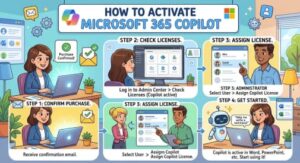
Buying Microsoft 365 Copilot is an exciting step if you want to use AI to work faster, create better content, analyze information, and get more done inside Microsoft 365. But after completing your purchase, you may wonder: How do I activate Microsoft 365 Copilot?
The good news is that activation is usually straightforward. However, the exact process depends on whether you purchased Copilot for personal use or your organization purchased a Copilot license for employees.
In this guide, we’ll walk through how to activate Microsoft 365 Copilot after purchase, explain what you need before getting started, and cover some common problems you may encounter along the way.
What Is Microsoft 365 Copilot?
Microsoft 365 Copilot is Microsoft’s AI assistant designed to work with Microsoft 365 and, depending on your license and account type, can provide Copilot experiences across applications such as Word, Excel, PowerPoint, Outlook, and other Microsoft services.
Your available Copilot features depend on your Microsoft 365 subscription, license, account type, and organization settings. Microsoft currently offers different Copilot licensing options for personal and business users, so purchasing a Copilot-related subscription does not necessarily mean every feature will appear in every Microsoft 365 application.
That is why checking your account and license is an important first step.
What You Need Before Activating Microsoft 365 Copilot
Before you begin the activation process, make sure you have:
- An active Microsoft 365 subscription that supports the Copilot experience you purchased.
- The Microsoft account or work/school account associated with your purchase.
- A stable internet connection.
- Updated Microsoft 365 applications if you plan to use Copilot inside desktop apps.
- The appropriate Copilot license assigned to your account if you’re using a business or school account.
For organizations, purchasing a Copilot license and assigning that license to a specific user are separate steps. Microsoft explains that administrators can purchase Copilot licenses through the Microsoft 365 admin center and then assign those licenses to users.
How to Activate Microsoft 365 Copilot After Purchase
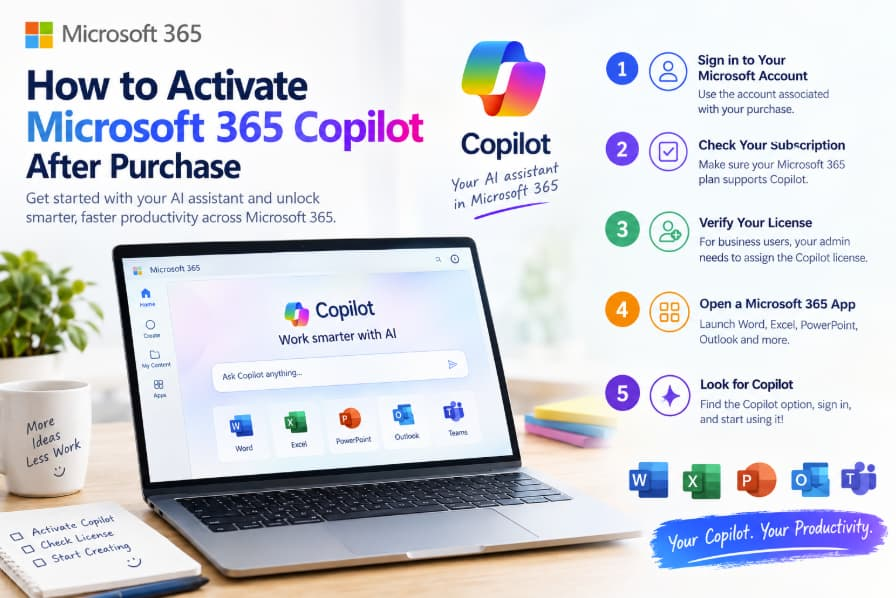
Step 1: Sign in to Your Microsoft Account
Start by signing in using the Microsoft account associated with your Microsoft 365 purchase.
For personal Microsoft 365 subscriptions, this is normally the account you used when purchasing the subscription.
For business or school accounts, use the work or school account provided by your organization.
This step is important because Microsoft associates your subscription and license with your account. Signing in with a different account can make it appear as though Copilot hasn’t been purchased or activated. Microsoft also notes that the account associated with your Microsoft 365 product is used to verify your license.
Step 2: Check Your Microsoft 365 Subscription
Once you’ve signed in, check your Microsoft 365 account to make sure your subscription is active.
If you recently purchased Microsoft 365 or Copilot, allow some time for the purchase and license information to become available on your account.
For personal users, Microsoft recommends checking the subscription associated with the Microsoft account.
If you purchased Microsoft 365 through a product key, you may need to redeem the key before the subscription becomes associated with your account. Microsoft says new Microsoft 365 product keys can be redeemed through its official setup page.
Step 3: Check Whether Copilot Is Included With Your License
One of the most common reasons users cannot find Copilot after purchasing Microsoft 365 is simply that their particular subscription does not provide the Copilot features they expect.
Microsoft has different licensing options, and Copilot availability varies by subscription and account type. For example, eligible Microsoft 365 business plans can support Microsoft Copilot as an add-on, while Microsoft also provides Copilot experiences for certain personal Microsoft 365 subscriptions.
Therefore, don’t assume that every Microsoft 365 subscription provides exactly the same Copilot functionality.
Step 4: Open a Microsoft 365 Application
After confirming your subscription and license, open an application where you expect Copilot to be available.
Depending on your license, this could include Word, Excel, PowerPoint, Outlook, or another supported Microsoft 365 experience.
If you don’t see Copilot immediately, close the application completely and reopen it.
You may also need to sign out of your Microsoft account and sign back in.
Microsoft specifically recommends signing out and signing back in after a Copilot license is assigned in some organizational setups.
Step 5: Look for the Copilot Option
After signing back in, check the Microsoft 365 application for the Copilot option.
The location and appearance of Copilot can vary depending on the application, subscription, account type, and current Microsoft 365 interface.
If Copilot appears, select it and try a simple prompt.
For example, in Word, you could ask Copilot to help create an outline for a document. In Excel, you might ask it to help analyze information in a supported workbook.
If the Copilot option is still missing, continue with the troubleshooting steps below.
How to Activate Microsoft 365 Copilot for a Business User
The process can be slightly different for businesses.
If your company purchased Microsoft 365 Copilot, an administrator generally needs to assign the Copilot license to your user account.
In the Microsoft 365 admin center, an administrator can go to the organization’s user management area, select the relevant user, manage their product licenses, enable Microsoft 365 Copilot, and save the changes.
After the license is assigned, the user may need to sign out and sign back in to Microsoft 365 applications.
This distinction is important: buying a Copilot license for an organization does not automatically mean every employee has been assigned a license.
If you’re an employee and Copilot isn’t available after your organization purchased it, contact your Microsoft 365 administrator and ask them to verify that the Copilot license has been assigned to your account.
What If You Purchased Microsoft 365 With a Product Key?
If you purchased Microsoft 365 from a retailer and received a product key, you generally need to redeem that key before using the subscription.
Microsoft’s current instructions direct users to its Microsoft 365 setup page to redeem a new product key. After redemption, the product becomes associated with the Microsoft account used during the process.
Keep in mind that you normally only need to redeem a new product key once. After the product is associated with your Microsoft account, that account is what you use to install and activate Microsoft 365 later.
Common Microsoft 365 Copilot Activation Problems
Copilot Isn’t Showing Up
First, check whether you’re signed in with the correct Microsoft account.
If you’re using a business account, ask your administrator to confirm that your Copilot license has been assigned to you.
Microsoft 365 Says You’re Not Licensed
This can happen when the wrong account is being used or when the required license has not yet been assigned.
Sign out, close your Microsoft 365 applications, and sign back in using the account associated with your purchase.
Copilot Works Online but Not in Desktop Apps
If Copilot is available online but doesn’t appear in your desktop Microsoft 365 applications, check that your apps are updated and that you’re signed in with the correct account.
Your available features can also vary according to your subscription and organization settings.
You Bought Copilot but Still Can’t Access It
If you’ve confirmed your purchase but Copilot isn’t available, check your license details before purchasing anything again.
For business users, Microsoft provides tools and guidance for administrators to verify Copilot licensing and readiness.
Activating Microsoft 365 Copilot after purchase is usually a matter of making sure your purchase is connected to the correct Microsoft account, confirming that your subscription supports the Copilot features you want, and signing in to your Microsoft 365 applications.
For personal users, the process is generally simple once the subscription is correctly associated with the Microsoft account.
For businesses, there is one additional step to remember: the Copilot license must be assigned to the appropriate users.
If Copilot doesn’t appear immediately, don’t assume that your purchase failed. Check your account, subscription, license assignment, and Microsoft 365 application updates first.
Once everything is correctly connected, you can start using Microsoft Copilot to assist with everyday tasks across your Microsoft 365 workflow.
Frequently Asked Questions
How long does it take to activate Microsoft 365 Copilot after purchase?
Activation can depend on the type of purchase and account. If your organization assigned the license to you, signing out and signing back in can help refresh your Microsoft 365 license information.
Do I need a product key to activate Microsoft 365 Copilot?
Not necessarily. If you purchased Microsoft 365 directly through Microsoft, your subscription is generally associated with the Microsoft account used during purchase. A product key may be required when your purchase came with a new key that needs to be redeemed.
Why can’t I see Copilot in Word?
Copilot availability depends on your Microsoft 365 subscription, Copilot license, account type, and organizational settings. Check that you’re signed in with the correct account and that your license provides access to Copilot in Word.
Can my Microsoft 365 administrator activate Copilot for me?
Yes. In an organization, an administrator can assign Microsoft 365 Copilot licenses to individual users through the Microsoft 365 admin center.
Do I need to reinstall Microsoft 365 after buying Copilot?
Usually, you should first check your account, license, and application updates rather than immediately reinstalling Microsoft 365. Signing out and signing back in may be enough to refresh the license information.
Extra posts:
 How to Activate and Use the Scrum Assistant Agent in GitHub Copilot
  Microsoft Makes Copilot Easier to Try: Free 30-Day Microsoft 365 Copilot Trial Arrives for SMBs Without Payment Details
  How to Fix Copilot With Multiple Microsoft 365 Accounts
  How to Use Microsoft 365 Copilot Cowork to Clean Up Your Inbox
  Comparing Copilot in Microsoft 365 vs. GitHub Copilot: Key Differences
  Microsoft 365 Copilot Gets an Outlook Upgrade: Draft Emails Right Inside Copilot Chat on Mobile