
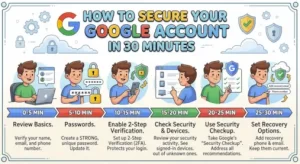
A compromised Google account is rarely just an email problem. For many professionals, it is a gateway to Google Drive, Calendar, Chrome-synced data, cloud consoles, source-code repositories, SaaS applications, and sensitive business conversations.
The good news: you can significantly improve your account security in about 30 minutes.
You do not need a security background or a collection of expensive tools. You need to review the right settings in the right order: authentication, recovery, active sessions, third-party access, and suspicious activity.
Here is a practical 30-minute checklist for securing a personal Google Account.
0–5 Minutes: Check Your Security Status
Start with Google’s Security Checkup. It brings several important account controls into one place and can surface issues that deserve immediate attention.
Look for:
- Recent security events you do not recognize
- Devices currently signed in
- Recovery phone numbers and email addresses
- Password problems
- Third-party applications with account access
Do not automatically dismiss an unfamiliar device or event. First, determine whether it belongs to you.
For example, a Windows PC might appear under a device name you do not recognize even though it is your machine. Likewise, a recent sign-in from another location could be legitimate if you are traveling or using a corporate VPN.
The goal is not to eliminate every unfamiliar label. It is to establish whether the activity is expected.
If you find an event you genuinely do not recognize, treat it seriously. Change your password and review your authentication methods before continuing with the rest of the checklist.
5–12 Minutes: Strengthen Your Authentication
Your password is only one layer of account security.
Google supports several stronger authentication options, including two-step verification and passkeys. For accounts containing business, financial, development, or sensitive personal information, enabling an additional authentication factor should be a baseline control.
Turn on 2-Step Verification
Two-step verification requires an additional verification step when Google needs to confirm your identity.
Depending on your account and configuration, available methods can include:
- Google prompts
- Authenticator-generated verification codes
- Security keys
- Passkeys
- Other supported verification methods
A practical approach is to avoid relying on a single authentication method. Keep a recovery method available in case your primary device is lost, replaced, or unavailable.
Consider a Passkey
Passkeys use cryptographic credentials rather than asking you to enter a traditional password each time.
They are designed to resist phishing because authentication is tied to the legitimate website or service rather than relying on a password that can be copied and reused.
For users with compatible devices, adding a passkey can reduce dependence on passwords while strengthening protection against common credential-theft attacks.
Do Not Reuse Your Google Password
If your Google password is used anywhere else, change that.
Password reuse creates a dangerous dependency: a breach at an unrelated website can expose credentials that attackers then try against your Google account.
For a unique password, use a reputable password manager rather than trying to invent and remember dozens of complex passwords.
12–17 Minutes: Verify Your Recovery Options
Strong authentication does not help much if your recovery information is outdated.
Open your Google Account’s recovery settings and verify that the available recovery methods actually belong to you.
Check:
- Recovery phone number
- Recovery email address
- Account contact information
- Devices you regularly use for authentication
A recovery email should be protected independently. If your recovery address uses the same compromised credentials or is otherwise inaccessible, it provides little practical protection.
This is particularly important for IT professionals and developers. A Google identity may be connected to GitHub, cloud services, vendor portals, monitoring systems, documentation, and internal collaboration platforms. Losing access can become an operational problem, not just a personal inconvenience.
Do not add a recovery method you cannot reliably access. The objective is controlled recovery, not simply having more information attached to the account.
17–22 Minutes: Review Signed-In Devices
Next, inspect the devices currently associated with your account.
Look for old:
- Laptops
- Smartphones
- Tablets
- Browsers
- Workstations
- Shared or borrowed computers
If you no longer use a device, sign it out where appropriate.
This is easy to overlook. People replace phones, upgrade laptops, reinstall browsers, or leave organizations without revisiting the sessions associated with their Google identity.
An old session represents unnecessary exposure.
If a device is unfamiliar and you cannot establish that it is yours, investigate it rather than assuming it is harmless.
For a work account, coordinate with your organization’s identity or security team when necessary. Google Workspace administrators may have additional controls and visibility that individual users do not.
22–26 Minutes: Remove Unnecessary Third-Party Access
OAuth makes it convenient to connect applications to your Google Account. It also creates another area worth auditing.
Open the section showing applications and services that have access to your account.
Ask three questions for every unfamiliar or unused integration:
- What application is this?
- Why did I grant it access?
- Does it still need that access?
If you stopped using an application months ago, revoke its access.
Pay particular attention to applications with broad permissions. An integration that can access Drive files, Gmail data, contacts, or other sensitive information deserves more scrutiny than a service with a narrow permission scope.
Revoking unused access is a simple form of attack-surface reduction.
It also has a useful operational benefit: your account becomes easier to understand. When an incident happens, fewer integrations mean fewer places to investigate.
26–30 Minutes: Review Recent Security Activity
Finish by checking recent security activity again.
Look for:
- Password changes you did not make
- New device sign-ins
- Changes to recovery information
- New authentication methods
- Unexpected application connections
- Suspicious login attempts
If something looks wrong, do not try to “clean it up” while leaving the underlying credentials unchanged.
Change the password, strengthen authentication, review sessions, and investigate connected applications.
What to Do If You Find a Suspicious Sign-In
If you believe someone else accessed the account, prioritize containment.
First, secure the account using Google’s account-security controls. Then review recent activity and connected services for additional changes.
If the account is used for work, involve your organization’s security or IT team. They may need to investigate related accounts, revoke sessions, review audit logs, or check for unauthorized access to business data.
For developers and cloud engineers, also consider whether the Google identity is associated with infrastructure or developer tooling. A compromised identity can have consequences well beyond Gmail.
A Simple 30-Minute Google Account Security Checklist
Save this checklist for your next security review:
- Run Google Security Checkup
- Review recent security events
- Enable or verify 2-Step Verification
- Add a passkey if appropriate
- Use a unique Google password
- Verify recovery email and phone
- Review signed-in devices
- Sign out of obsolete devices
- Audit third-party application access
- Remove unused integrations
- Review security activity again
The important part is not completing a giant security audit. It is eliminating obvious weaknesses before they become incidents.
The Next Step: Turn 30 Minutes Into a Routine
Account security should not be a one-time project.
Set a recurring reminder to review your Google Account every few months, particularly after changing phones, replacing computers, leaving a job, installing unfamiliar software, or responding to a suspected phishing attempt.
For organizations, take the same principle further. Individual account hygiene should sit alongside centralized identity controls, strong authentication policies, device management, least-privilege access, logging, and incident-response procedures.
For an individual Google Account, though, you can accomplish a surprising amount in half an hour.
Start with authentication. Verify recovery. Remove stale devices and integrations. Then investigate anything you cannot explain.
Thirty focused minutes can turn a neglected account into a significantly better-protected one.
Extra posts:
 How to Use Google Forms and Sheets to Manage Your Business
  Understanding Google Family Guide to Keep Connected and Safe
  A Complete Guide to Migrating from Google Sites to SharePoint Online
  How to Set Up Google Family Link to Supervise Your Child (2026)
  How to Build Your First AI Agent in Copilot Studio in 15 Minutes
  Verify Your account may be in risk logging to Microsoft Teams