
Artificial Intelligence is no longer reserved for data scientists and software developers. With tools like Microsoft Copilot Studio, anyone can create intelligent AI agents that automate tasks, answer questions, and improve productivity without writing complex code.
If you’ve been curious about building your own AI-powered assistant but thought it would take days or weeks to learn, you’ll be surprised to know that you can create your first AI agent in Copilot Studio in just 15 minutes.
In this blog, we’ll walk through the entire process step by step, from setting up your environment to testing and publishing your AI agent.
What is Microsoft Copilot Studio?
Microsoft Copilot Studio is a low-code platform that enables organizations and individuals to create custom AI agents and copilots. It combines conversational AI, automation, and business data integration into a user-friendly interface.
Whether you want to:
- Build a customer support chatbot
- Create an internal HR assistant
- Automate IT helpdesk requests
- Answer frequently asked questions
- Connect to business systems and workflows
Copilot Studio provides the tools needed to do it quickly and efficiently.
The best part? You don’t need extensive programming knowledge to get started.
Why Build an AI Agent?
AI agents are becoming essential in modern workplaces because they can:
Save Time
Instead of manually answering repetitive questions, an AI agent can provide instant responses 24/7.
Improve Productivity
Employees can focus on higher-value tasks while the AI handles routine requests.
Enhance Customer Experience
Customers receive immediate support and information without waiting for a human representative.
Scale Operations
An AI agent can interact with thousands of users simultaneously, making it highly scalable.
Prerequisites
Before you begin, make sure you have:
- A Microsoft account
- Access to Microsoft Copilot Studio
- Basic understanding of conversational workflows
- A use case for your AI agent
If you don’t already have access, you can sign up for a trial version through Microsoft’s platform.
Step 1: Open Copilot Studio
Start by launching Copilot Studio from your Microsoft environment.
Once logged in, you’ll see the main dashboard where all your copilots and agents are managed.
On the homepage, click:
Create → New Copilot
You will be prompted to provide basic information about your AI agent.
Step 2: Define Your Agent
Give your AI agent:
Name
Choose a descriptive name such as:
- IT Support Assistant
- HR Helper
- Customer Service Bot
- Employee Onboarding Agent
Description
Briefly explain what the agent does.
Example:
“This AI agent helps employees answer HR-related questions regarding benefits, leave policies, and onboarding procedures.”
This description helps Copilot Studio understand the intended purpose of the agent.
Step 3: Select a Knowledge Source
An AI agent is only as useful as the information it can access.
Copilot Studio allows you to connect knowledge sources such as:
- Company websites
- SharePoint sites
- Documents
- PDFs
- FAQs
- Internal knowledge bases
For your first project, choose a simple source such as a website or document containing frequently asked questions.
Upload the content or connect the data source.
The AI agent will automatically use this information to answer user questions.
Step 4: Create Topics
Topics define the conversations your AI agent can handle.
Think of topics as specific areas of expertise.
Examples include:
Leave Requests
Questions like:
- How many vacation days do I have?
- How do I request time off?
Benefits Information
Questions such as:
- What health insurance plans are available?
- How do I enroll in benefits?
IT Support
Questions like:
- How do I reset my password?
- Why can’t I access my email?
To create a topic:
- Navigate to Topics.
- Click New Topic.
- Add trigger phrases.
- Define responses.
The AI will learn to recognize similar questions and respond appropriately.
Step 5: Use Generative AI Responses
One of Copilot Studio’s most powerful capabilities is generative AI.
Instead of creating every response manually, you can allow the AI to generate answers using your connected knowledge sources.
Enable:
Generative Answers
This feature allows the AI agent to:
- Understand natural language
- Summarize information
- Provide conversational responses
- Adapt answers based on context
This dramatically reduces setup time and improves user experience.
Step 6: Test Your AI Agent
Before publishing, it’s important to test your agent.
Use the built-in testing panel and ask sample questions.
For example:
- How do I request annual leave?
- What are the company benefits?
- How can I reset my password?
Review the responses carefully.
Look for:
- Accuracy
- Clarity
- Relevance
- Tone
If necessary, adjust your topics, trigger phrases, or knowledge sources.
Testing helps ensure users receive helpful and reliable answers.
Step 7: Add Actions and Automations
Want your AI agent to do more than answer questions?
Copilot Studio integrates with Power Automate, allowing your agent to perform actions such as:
- Creating support tickets
- Sending emails
- Updating records
- Scheduling meetings
- Approving requests
For example, instead of simply explaining how to submit a leave request, your AI agent can initiate the request automatically.
This transforms your chatbot into a true AI-powered assistant.
Step 8: Publish Your Agent
Once you’re satisfied with testing:
- Click Publish.
- Review your configuration.
- Confirm deployment.
Your AI agent becomes available for users.
Depending on your environment, you can deploy it to:
- Microsoft Teams
- Websites
- Internal portals
- Business applications
- Customer-facing channels
Publishing takes only a few moments.
Best Practices for Building AI Agents
To maximize success, keep these recommendations in mind.
Start Small
Begin with a focused use case instead of trying to solve every problem at once.
Use Quality Data
Accurate and up-to-date knowledge sources improve response quality significantly.
Test Frequently
Regular testing helps identify gaps in knowledge and conversation flow.
Monitor User Interactions
Review conversations to understand what users are asking and where improvements are needed.
Continuously Improve
AI agents perform best when they evolve alongside business needs.
Common Mistakes to Avoid
Many first-time builders encounter similar challenges.
Too Many Topics
Creating dozens of topics initially can make management difficult.
Poor Knowledge Sources
Outdated documents lead to inaccurate responses.
Ignoring Testing
Skipping testing often results in poor user experiences after launch.
Overcomplicating Workflows
Keep your first AI agent simple and expand gradually.
What Can You Build Next?
After creating your first AI agent, consider expanding into:
- Customer service copilots
- Sales assistants
- IT service desk agents
- HR support bots
- Knowledge management assistants
- Employee onboarding copilots
As you become familiar with Copilot Studio, you’ll discover opportunities to automate countless business processes.
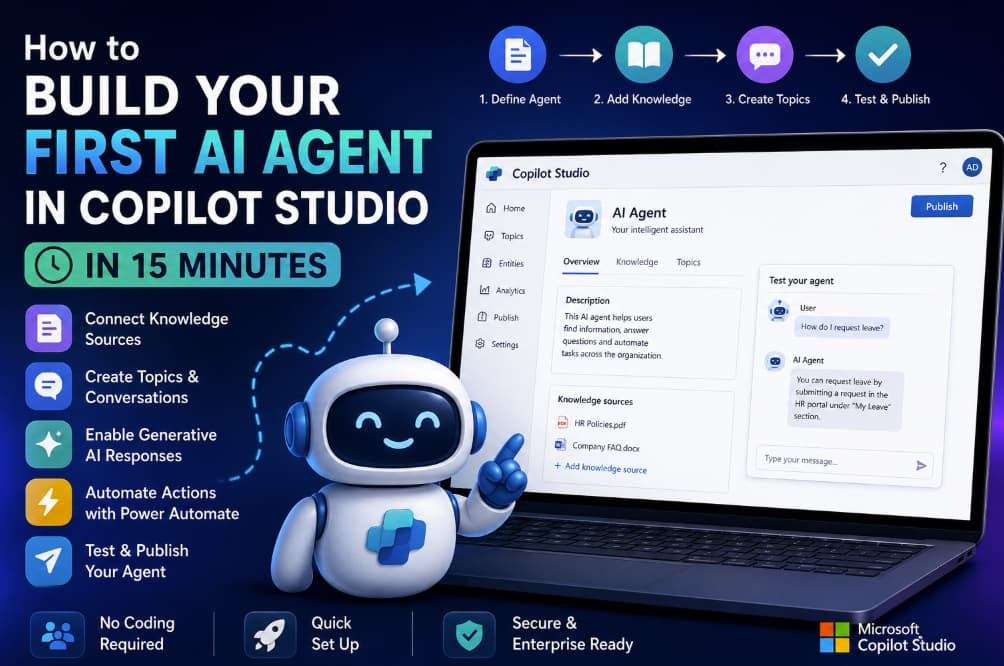
Building your first AI agent no longer requires advanced coding skills or months of development. Microsoft Copilot Studio provides an intuitive, low-code environment that allows anyone to create intelligent AI assistants in minutes.
By defining a purpose, connecting knowledge sources, enabling generative AI, and testing thoroughly, you can build a functional AI agent in as little as 15 minutes.
As organizations increasingly embrace AI-driven productivity, learning how to create custom copilots and AI agents is becoming a valuable skill for business users, IT professionals, and digital transformation leaders alike.
The best way to learn is by doing. Open Copilot Studio, create your first AI agent, and experience firsthand how quickly AI can transform everyday workflows.
Extra posts:
 25 Copilot Studio Agent Ideas You Can Build This Weekend
  Build Your First Autonomous Copilot Agent (Step-by-Step) Using Microsoft Copilot Studio (Almost No Code)
  Getting Started with Copilot Studio Build Your First AI-Powered Bot
  No-Code AI How Non-Developers Can Build Smart Chatbots with Copilot Studio
  No-Code AI: How Non-Developers Can Build Smart Chatbots with Copilot Studio
  Enterprise AI Agent Architecture Patterns Using Copilot Studio