
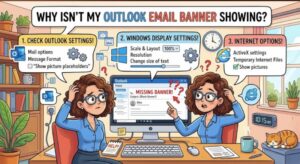
You receive a new email, but nothing pops up on your screen. No Outlook notification banner. No alert in the corner of Windows. Sometimes you only discover the new message when you open Outlook manually.
If Outlook is receiving emails normally but the email notification banner isn’t appearing, the problem is usually related to notification settings rather than email delivery.
Several settings can control whether Outlook displays an alert. Outlook has its own notification preferences, while Windows can independently block, suppress, or prioritize notifications. Features such as Do Not Disturb, Focus, notification permissions, and Windows notification settings can also prevent Outlook banners from appearing.
The good news is that you can usually diagnose the problem in a few minutes.
Start by checking Outlook notification settings
The first place to look is Outlook itself.
Depending on whether you’re using new Outlook for Windows or classic Outlook, the location and available options can differ. The important thing is to verify that Outlook is allowed to generate desktop notifications.
In Outlook, open Settings and look for the notification section. Make sure email notifications are enabled.
Depending on your Outlook version, you may see options related to:
- New email notifications
- Desktop notifications
- Sound alerts
- Notifications for focused or important messages
- Calendar notifications
- Notifications for specific accounts
If email notifications are disabled here, Windows won’t receive the notification from Outlook even if Windows notifications are enabled.
Check whether you’re using the correct Outlook account
This is easy to overlook when multiple accounts are configured.
For example, you may have:
- A Microsoft 365 work account
- A personal Outlook.com account
- A Gmail account connected to Outlook
- A shared mailbox
If notifications are enabled for one account but you’re waiting for an alert from another, the behavior can be confusing.
Send yourself a test email to the account you’re troubleshooting and confirm that the message appears in the expected Outlook inbox.
Check Windows notification settings
If Outlook is configured correctly but you still don’t see a banner, move to Windows.
Windows controls whether individual applications are allowed to display notifications. Outlook can therefore receive an email successfully while Windows prevents the visual notification from appearing.
Open:
Settings → System → Notifications
Make sure notifications are enabled.
Then find Outlook in the list of applications and verify that its notifications are allowed.
Pay particular attention to settings such as:
- Notifications being turned off for Outlook
- Notification banners being disabled
- Notifications being hidden on the lock screen
- Notification sounds being disabled
- Notifications being delivered through another notification configuration
The critical setting for a missing banner is the option that allows notifications to appear as banners.
If Outlook notifications are enabled but banners are disabled, Windows may still record the notification without displaying the pop-up you expect.
Make sure Do Not Disturb isn’t blocking Outlook
One of the most common reasons Outlook notifications suddenly disappear is Do Not Disturb.
Windows can suppress notifications when Do Not Disturb is enabled. This can happen intentionally or through automatic rules.
Open:
Settings → System → Notifications → Do not disturb
Check whether Do Not Disturb is currently enabled.
If it is, temporarily turn it off and send yourself a test email.
If the Outlook banner immediately returns, you’ve found the cause.
But don’t stop there. If Do Not Disturb keeps turning itself on, check its automatic rules.
Windows can automatically enable Do Not Disturb under certain circumstances, such as:
- During specific hours
- When using a full-screen application
- When playing a game
- When using a display in presentation mode
- Under other configured focus-related conditions
This explains a particularly confusing scenario: Outlook notifications work in the morning but disappear during meetings or presentations.
The Outlook configuration hasn’t necessarily changed. Windows may simply be suppressing notifications based on an automatic rule.
Check Focus sessions and related settings
Windows also includes Focus functionality designed to reduce distractions.
Focus can change how notifications are delivered while you’re concentrating on a task. If you’re expecting an Outlook banner while a Focus session is active, the notification may be suppressed or handled differently depending on your configuration.
Check:
Settings → System → Focus
If Focus is active, end the session temporarily and test Outlook again.
This is particularly important if the problem occurs only during certain periods of the day.
For example:
9:00 AM — Outlook notifications work
10:00 AM — Focus session starts
10:30 AM — New emails arrive, but no banners appear
That pattern points toward Windows notification behavior rather than an Outlook mail-receiving problem.
Check Windows notification priority
Windows allows some applications to receive priority treatment when notifications are being suppressed.
If your organization relies heavily on Outlook notifications, review the applications allowed to interrupt Do Not Disturb.
The relevant settings are available under Windows notification and Do Not Disturb configuration.
If Outlook isn’t allowed to bypass notification suppression, its messages may not appear as normal desktop banners while Do Not Disturb is active.
This distinction matters because you could have:
Outlook notifications: ON
and still have:
Windows notification suppression: ON
Both settings need to allow the notification for the banner to appear.
Check whether Windows is hiding notification banners
Windows provides separate controls for how notifications are displayed.
You may be able to receive a notification without seeing the traditional pop-up banner.
Under Outlook’s Windows notification settings, look for options controlling the presentation of notifications.
Make sure the setting to show notification banners is enabled.
Also check whether notification history is available.
If a new Outlook notification appears in the Windows Notification Center but no banner appeared on screen, that is an important diagnostic clue.
It means Outlook probably generated the notification, but Windows didn’t display it as a banner.
That narrows the investigation to Windows notification behavior rather than Outlook email delivery.
Check Outlook’s notification behavior when Outlook is closed
Another useful test is to compare Outlook behavior when the application is open versus minimized or closed.
Send yourself a test email and observe what happens when:
- Outlook is open and visible.
- Outlook is minimized.
- Outlook is running in the background.
- Outlook is completely closed.
The results can help identify whether the problem is related to the Outlook client or Windows notification handling.
If notifications appear only when Outlook is open, check your Outlook version and background behavior. If notifications never appear, check both Outlook and Windows notification permissions.
Restart Outlook after changing notification settings
Notification changes don’t always behave predictably until the affected application is restarted.
After changing Outlook or Windows notification settings:
- Close Outlook.
- Wait a few seconds.
- Reopen Outlook.
- Send a test message.
- Check for the desktop banner.
If the problem persists, restart Windows as well.
This sounds basic, but notification services are part of the operating system and application environment. A restart can eliminate a temporary notification-process problem that isn’t caused by your configuration.
Check Windows updates and Outlook updates
If notification settings are correct but banners still don’t appear, make sure both Windows and Outlook are up to date.
For Windows, go to:
Settings → Windows Update
For Outlook, update through the Microsoft 365 application environment or Microsoft Store, depending on how Outlook is installed.
Updates can address bugs involving notification delivery, application integration, and Windows notification components.
This is particularly worth checking if Outlook banners stopped working immediately after a Windows or Office update.
A quick troubleshooting checklist
If your Outlook email banner isn’t showing, work through this checklist:
Outlook
- Confirm email notifications are enabled.
- Check that you’re looking at the correct Outlook account.
- Verify that Outlook is receiving new messages.
- Restart Outlook after changing notification settings.
- Install available Outlook updates.
Windows
- Open Settings → System → Notifications.
- Make sure Windows notifications are enabled.
- Make sure Outlook notifications are enabled.
- Confirm notification banners are allowed.
- Check whether notification history shows Outlook alerts.
Do Not Disturb
- Open Settings → System → Notifications → Do not disturb.
- Turn Do Not Disturb off temporarily.
- Check automatic schedules.
- Review whether Outlook is allowed to send priority notifications.
Focus
- Check Settings → System → Focus.
- End any active Focus session.
- Test whether Outlook banners return.
- Review automatic Focus behavior if the issue occurs at specific times.
How to quickly identify what’s blocking the banner
A simple test can save a lot of troubleshooting time.
Send yourself an email and check three things:
1. Does the email arrive in Outlook?
If no, you’re dealing with an email synchronization or delivery issue rather than a notification issue.
2. Does Outlook show the notification in Windows Notification Center?
If yes, Outlook is generating the notification, but Windows may be preventing the banner from appearing.
3. Does nothing appear anywhere?
Then check Outlook’s notification settings first, followed by Windows notification permissions and Do Not Disturb.
This gives you a simple troubleshooting path:
Email arrives → Outlook notification → Windows notification → Desktop banner
The failure point tells you where to look.
Don’t confuse missing banners with missing emails
A missing Outlook banner doesn’t necessarily mean Outlook isn’t receiving your email.
If the message is present in your inbox, the mail itself has already arrived. The problem is likely with how Outlook and Windows communicate the notification to you.
That distinction is important because it prevents you from wasting time investigating mail servers, passwords, synchronization, or account configuration when the real issue is simply a disabled Windows notification or an active Do Not Disturb rule.
The practical fix: check all three layers
When an Outlook email banner disappears, check the settings in this order:
1. Outlook — Is email notification enabled?
2. Windows — Is Outlook allowed to display notification banners?
3. Do Not Disturb/Focus — Is Windows currently suppressing those notifications?
These three layers cover many of the most common causes.
If the banner works after disabling Do Not Disturb, review its automatic rules rather than leaving the feature permanently disabled. If the banner appears in Notification Center but not on screen, focus on Windows banner settings. And if no notification is generated at all, return to Outlook’s own notification configuration.
The goal isn’t simply to turn every notification setting on. It’s to understand which layer is suppressing the alert so you can configure Windows and Outlook to behave the way you actually need them to.
For most users, a few targeted checks in Outlook and Windows Settings → System → Notifications are enough to bring the missing email banner back.
Extra posts:
 New Outlook Is Getting Automatic Spell Check Before You Send an Email
  Microsoft Outlook for iPad Gets a Handy New Way to Minimize Email Drafts
  Transform Your Email Game with Outlook Copilot
  Flag Email in outlook will add Task for you on To Do List
  Add Events from Email to your calendar using Outlook and Office 365
  Microsoft Outlook Gets a Smarter AI Writing Partner: Copilot Moves Into Email Drafting