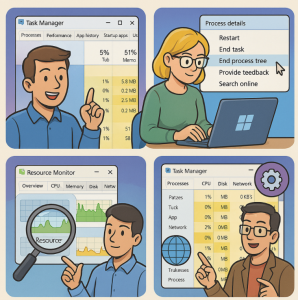
Task Manager in Windows 11 has evolved far beyond its early days as a simple process killer. With a redesigned interface, better performance insights, and more powerful controls, it has become a must-use tool for power users who want to monitor, troubleshoot, and optimize their system.
If you’ve been using Task Manager just to “end task” when apps freeze, you’re missing out on a lot. Here are some advanced Task Manager tips for Windows 11 power users.
1. Quickly Launch Task Manager
Instead of digging through menus, power users often rely on faster shortcuts:
- Ctrl + Shift + Esc → Opens Task Manager directly.
- Ctrl + Alt + Delete → Task Manager → Useful if Windows becomes unresponsive.
- Right-click on Taskbar → Task Manager → A Windows 11 addition that restores the classic right-click shortcut.
2. Use Efficiency Mode to Reduce Resource Usage
Windows 11 introduces Efficiency Mode, letting you throttle background apps to save CPU cycles and battery life.
- Right-click on a process → Efficiency Mode.
- Great for apps that hog CPU but don’t need high performance (like background updaters).
3. Analyze Process Dependencies
Before killing a process, check what’s linked to it:
- Right-click a process → Go to details.
- From the Details tab, you can see process IDs, priorities, and dependencies.
- This prevents accidentally closing essential background services.
4. Monitor GPU Usage and Per-App Performance
Gamers, video editors, and AI/ML users will love this:
- In the Performance tab, check GPU usage, dedicated vs shared GPU memory, and real-time performance.
- In the Processes tab, you can see GPU utilization per process, making it easier to spot apps that secretly use graphics power.
5. Startup Impact Analysis
Instead of disabling all startup programs blindly:
- Open the Startup apps tab.
- Look at the Startup impact rating (Low, Medium, High).
- Disable only those with “High impact” to speed up boot times without breaking functionality.
6. Resource Monitor Integration
Need deeper system insights?
- From the Performance tab, click Open Resource Monitor.
- This launches a more detailed breakdown of CPU, Disk, Network, and Memory activity.
- Perfect for diagnosing bottlenecks or tracking down rogue apps.
7. Set Process Priorities and Affinities
For performance tuning:
- In the Details tab, right-click a process → Set priority (Real-time, High, Normal, Low).
- Use Set affinity to limit a process to specific CPU cores.
- Handy for dedicating cores to demanding apps (like rendering software) while leaving others free.
8. Check Power Usage Trends
Windows 11 Task Manager tracks power usage per app:
- Columns Power usage and Power usage trend show which apps drain your battery over time.
- Useful for laptop users balancing performance and battery life.
9. Run New Tasks with Admin Rights
When troubleshooting:
- Go to Run new task.
- Enter a command (e.g.,
cmd,powershell, orexplorer.exe). - Check Create this task with administrative privileges for elevated access.
10. Dark Mode and Always-on Top
For better multitasking:
- Settings → Dark Mode → Match system theme or reduce eye strain.
- Always on top → Keep Task Manager visible while monitoring performance during stress tests or gaming.
Windows 11 Task Manager is no longer just a “last resort” for frozen apps—it’s a powerful diagnostic and optimization tool. By mastering features like Efficiency Mode, GPU monitoring, and process priorities, power users can squeeze every bit of performance out of their systems.
If you haven’t explored beyond the default Processes tab, take a few minutes to experiment—you might discover optimizations that make your Windows 11 experience smoother and faster.
Extra posts:
 Microsoft Defender Advanced Protection Tips for Windows 11
  Advanced File Explorer Tips for Faster Navigation in Windows 11
  Advanced File Explorer Tips for Faster Navigation in Windows 11
  Boost Your Productivity with Microsoft PowerToys The Ultimate Toolbox for Windows Power Users
  Unlocking the Power of Windows Event Viewer Usage, Benefits, and Troubleshooting Tips
  Top 10 Windows 11 Tips Every Beginner Should Know