If you’re new to Microsoft Teams, the platform might feel a little overwhelming at first. It’s packed with tools for messaging, video calls, collaboration, and file sharing—all in one place. But once you get the hang of the basics, it becomes an incredibly powerful tool for work, school, or personal projects.
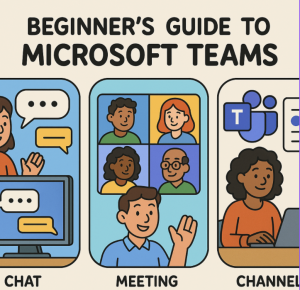
In this beginner-friendly guide, we’ll cover the core features: chat, meetings, and channels. These three areas form the foundation of how Teams works.
1. Chat: Quick Conversations and Collaboration
Think of Teams chat like instant messaging with extra productivity features built in.
- One-on-one chats: Perfect for quick questions or private conversations.
- Group chats: Create a chat with multiple people to collaborate in real time.
- Rich messaging: You can send text, emojis, GIFs, and stickers—or share files, links, and even meeting invites directly in chat.
- Threaded replies: Keep discussions organized by replying directly to a message rather than starting a new one.
💡 Pro tip: Use the @mention feature (@Name) to make sure the right person sees your message.
2. Meetings: Virtual Collaboration Made Simple
Teams makes scheduling and running online meetings straightforward, whether it’s a quick catch-up or a large presentation.
- Scheduling a meeting: You can schedule directly from Teams or Outlook, and the invite automatically includes a link to join.
- Joining a meeting: Simply click the link or open the meeting in your Teams calendar. No extra software needed.
- During the meeting:
- Turn on your camera and microphone for face-to-face interaction.
- Share your screen to present slides or demonstrate a process.
- Use the chat panel to share links, notes, or questions without interrupting the speaker.
- Recording: Record the meeting so team members can review it later.
💡 Pro tip: Try using background effects (blur or custom images) if you want a more professional look during video calls.
3. Channels: Organizing Your Workspaces
Channels are where teams collaborate in a structured way. Think of them as topic-specific chat rooms within a larger group.
- Teams vs. Channels:
- A Team is the overall group (e.g., “Marketing Department”).
- A Channel is a space within the team for a specific topic (e.g., “Campaign Planning”).
- Conversations: Instead of side chats, use channel conversations so everyone in the team can see and contribute.
- Tabs and apps: Each channel can host files, tasks, or apps (like Planner, OneNote, or SharePoint) pinned at the top for quick access.
- Files: Any files shared in a channel are automatically saved in the team’s SharePoint folder for easy organization.
💡 Pro tip: Use Standard channels for open collaboration and Private channels when only certain team members should have access.
Microsoft Teams might seem like just another communication app, but once you start using chat for quick updates, meetings for real-time collaboration, and channels for organized teamwork, it becomes a hub that keeps everything and everyone connected.
If you’re just starting out, focus on these three features. Master them, and you’ll be well on your way to using Teams like a pro.