
If you’re using Windows 11 daily—whether for work, gaming, or personal tasks security should never be an afterthought. As someone who has worked extensively with Windows systems, I can confidently say that Windows 11 is one of the most secure operating systems Microsoft has released. But here’s the catch: out-of-the-box security is only the starting point. To truly protect your PC, you need to actively configure and maintain it.
This complete guide walks you through practical, real-world steps to secure your Windows 11 PC without making it complicated.
1. Keep Windows 11 Updated
Let’s start with the most important step: updates.
Windows updates aren’t just about new features they often patch critical security vulnerabilities. Hackers actively look for outdated systems because they’re easier targets.
What to do:
- Go to Settings → Windows Update
- Click Check for updates
- Enable automatic updates
💡 Pro tip: Don’t delay updates for too long. Even a few weeks can expose your system to known exploits.
2. Enable and Configure Windows Security
Windows 11 comes with a built-in security suite called Windows Security (formerly Windows Defender), and it’s surprisingly powerful.
Key features to enable:
- Real-time protection
- Cloud-delivered protection
- Automatic sample submission
- Tamper protection
How:
- Open Windows Security
- Go to Virus & threat protection
- Click Manage settings
Make sure everything is turned ON.
3. Use Strong Passwords (or Go Passwordless)
Weak passwords are still one of the biggest security risks.
Best practices:
- Use at least 12–16 characters
- Combine uppercase, lowercase, numbers, and symbols
- Avoid obvious words like “password123”
Better option:
Use Windows Hello:
- Fingerprint
- Facial recognition
- PIN (device-specific and safer than passwords)
4. Turn On BitLocker Encryption
If your laptop gets lost or stolen, encryption is what protects your data.
BitLocker encrypts your entire drive so no one can access your files without authentication.
How to enable:
- Search BitLocker in Start
- Select Manage BitLocker
- Turn it ON for your system drive
Important: Save your recovery key somewhere safe (not just on your PC).
5. Enable Firewall Protection
The Windows Defender Firewall acts as a barrier between your PC and potential threats from the internet.
Steps:
- Go to Windows Security → Firewall & network protection
- Ensure firewall is ON for:
- Domain network
- Private network
- Public network
Avoid turning it off unless absolutely necessary.
6. Be Smart About App Downloads
One of the easiest ways malware gets in is through unsafe downloads.
Tips:
- Only download apps from:
- Microsoft Store
- Official websites
- Avoid cracked software (huge security risk)
- Watch for fake download buttons on websites
Bonus:
Enable Smart App Control:
- Blocks untrusted apps automatically
- Found in App & browser control
7. Use a Standard User Account for Daily Work
Many people run their PC as an administrator all the time—this is risky.
Why?
If malware runs under an admin account, it can do serious damage.
Solution:
- Create a standard user account for daily use
- Use admin account only when needed
8. Secure Your Network Connection
Your PC is only as secure as the network it connects to.
For home networks:
- Use a strong Wi-Fi password
- Enable WPA3 (if supported)
- Change default router credentials
On public Wi-Fi:
- Avoid sensitive tasks (banking, logins)
- Use a VPN for extra protection
9. Enable Device Find and Remote Lock
If your laptop is lost, you should be able to track or lock it.
How:
- Go to Settings → Privacy & Security → Find my device
- Turn it ON
You can then locate or lock your device via your Microsoft account online.
10. Control App Permissions
Many apps request access to your camera, microphone, location, and files.
Review permissions:
- Go to Settings → Privacy & Security
- Check:
- Camera
- Microphone
- Location
- File access
Disable anything unnecessary.
11. Protect Your Browser
Your browser is your gateway to the internet—and a common attack surface.
Best practices:
- Use Microsoft Edge or another modern browser with security features
- Enable:
- Tracking prevention
- Pop-up blocker
- Install only trusted extensions
Extra tip:
Clear cookies and cache regularly.
12. Watch Out for Phishing Attacks
No system is safe if the user is tricked.
Common signs of phishing:
- Urgent messages (“Your account will be locked!”)
- Suspicious email addresses
- Unexpected attachments
Rule:
If something feels off, don’t click.
13. Backup Your Data Regularly
Even with strong security, things can go wrong.
Options:
- External hard drive backups
- Cloud storage (OneDrive, Google Drive)
Recommended:
Use Windows Backup or File History:
- Settings → Accounts → Windows backup
14. Disable Unnecessary Startup Apps
Too many startup apps can slow down your PC and increase risk.
How:
- Open Task Manager → Startup apps
- Disable anything unnecessary
Less running software = fewer attack points.
15. Keep an Eye on System Activity
Sometimes, unusual behavior is your first warning sign.
Watch for:
- Slow performance
- Unknown apps running
- Unexpected pop-ups
Tools:
- Task Manager
- Windows Security scan
Run a full scan if something seems off.
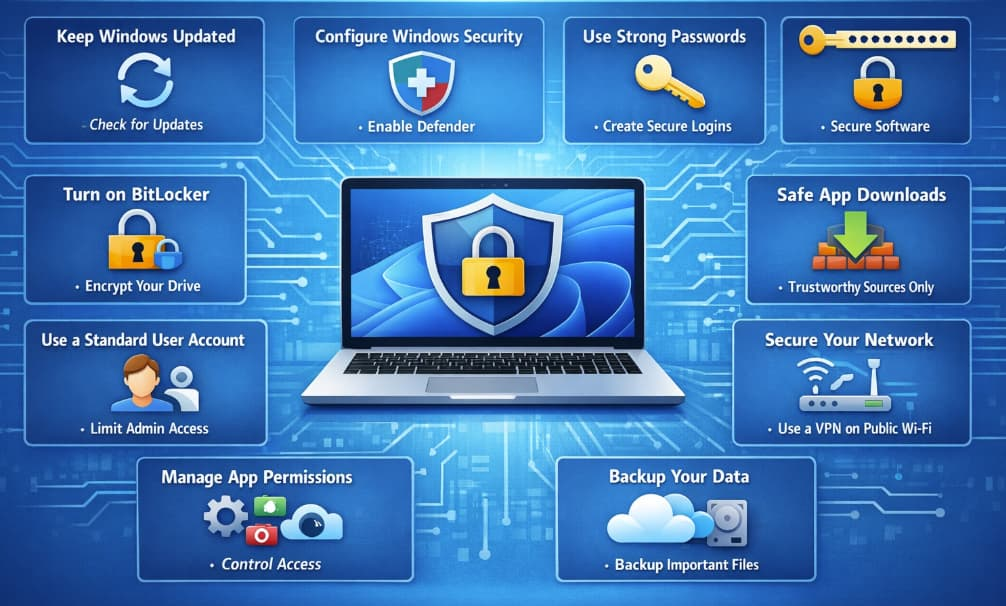
Securing your Windows 11 PC isn’t about doing one thing—it’s about layering multiple protections. Think of it like locking your house: you don’t just rely on one lock; you use several.
The good news? Windows 11 already gives you most of the tools you need. With just a bit of setup and awareness, you can significantly reduce your risk.
If you follow the steps in this guide, your system will be far more secure than the average user’s and that alone makes you a much harder target.
Extra posts:
 How to Speed Up Windows 11 Without Third-Party Tools (Complete Expert Guide)
  How to Automate Tasks in Windows 11: A Complete Guide for Power Users
  How to Record Audio and Screen Together in Windows 11: A Complete Beginner-to-Pro Guide
  Can I Rollback a Windows 11 Update? A Complete Guide to Reverting Windows Updates Safely
  How to Reset Windows 11 Without Losing Files: A Complete Step-by-Step Guide
  The Complete Guide to Widgets in Windows 11