

When it comes to managing Microsoft 365, some settings might seem minor at first glance—but one area that’s truly foundational is your organizational profile. While it doesn’t directly impact the day-to-day features like Teams calls or Outlook emails, it quietly underpins your organization’s identity, compliance, and user experience across Microsoft 365.
Whether you’re an IT professional, consultant, or Microsoft 365 admin, taking the time to properly configure your organizational profile can pay dividends in discoverability, governance, security, and branding. Let’s dive into what it is, why it matters, and how to set it up effectively.
What Is the Microsoft 365 Organizational Profile?
In simple terms, the organizational profile is a centralized hub within Microsoft 365 where you define key details about your organization. Think of it as your organization’s “identity card” for Microsoft 365. The information you provide here helps Microsoft services understand your company and ensures a consistent experience for your users.
Some of the core details you can set include:
- Company name and physical address – This information is used for licensing, regional service delivery, and official communication.
- Technical and marketing contact info – Contacts help Microsoft know whom to reach for updates, support, or service notifications.
- Industry and company size – Useful for Microsoft to tailor recommendations, guidance, and analytics to your organization.
- Privacy and branding details – URLs for your privacy policy and optional branding information like logos or sign-in page customization.
This information appears in several places across Microsoft 365:
- Admin Center – For administrators managing users and licenses.
- Azure Active Directory (AAD) – Where identity and security settings live.
- User-facing portals – For instance, Delve or the “My Account” page where employees see company details.
By keeping this profile accurate, you ensure that both your internal team and Microsoft have the right context for your organization.
Why Your Organizational Profile Matters
You might be wondering: “Does filling out my company info really make a difference?” The answer is a resounding yes. A well-maintained organizational profile has practical benefits across several areas:
1. Brand Consistency
When users log in to Microsoft 365 apps or check their account details, the organization’s name, logo, and branding are visible. Maintaining a consistent identity helps reinforce professionalism and trust. If users see inconsistent names or outdated logos, it can create confusion—or worse, reduce confidence in internal communications.
2. Security and Incident Response
Your organizational profile contains critical security contact information. Microsoft relies on this to alert admins during security events, service outages, or potential data breaches. An outdated or missing contact could delay responses and increase risk exposure.
3. Compliance and Governance
For organizations that operate in regulated industries, having accurate organizational data is often mandatory. Information such as addresses, legal entity names, and privacy URLs may be required for audits or compliance checks. Ensuring your profile is accurate helps you stay aligned with legal obligations.
4. Enhanced User Experience
A complete profile improves the employee experience. Microsoft services use this information to personalize communication and provide relevant insights. For example, knowledge about your company’s size and industry allows services like Delve and Viva Insights to offer tailored recommendations to users.
How to Configure Your Organizational Profile
Setting up your organizational profile is straightforward. Here’s a step-by-step guide:
Step 1: Sign in to the Admin Center
Visit https://admin.microsoft.com and log in using your Global Administrator account. This ensures you have the necessary permissions to make organization-wide changes.
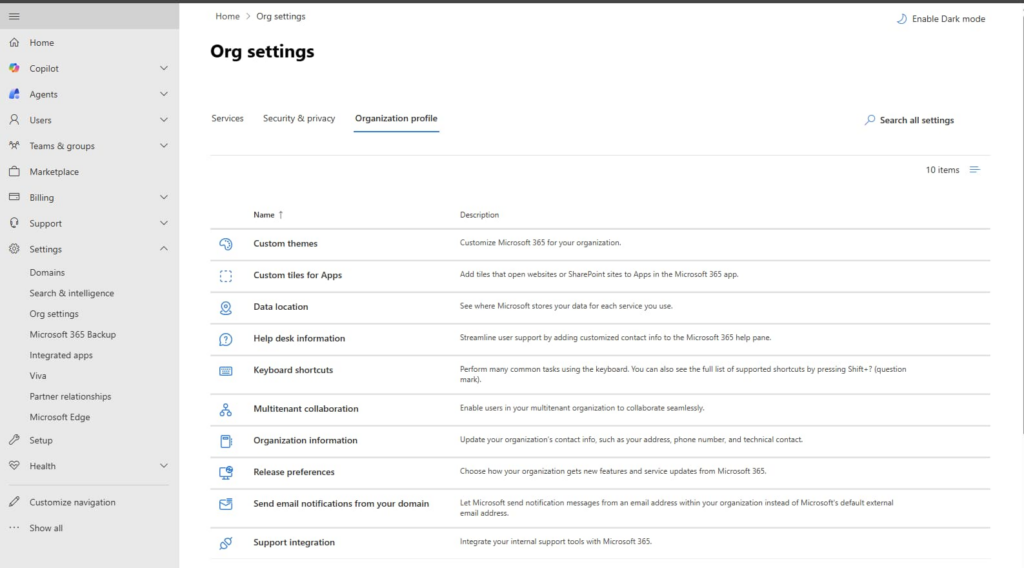
Step 2: Navigate to Organization Settings
Once logged in:
- In the left-hand navigation, select Settings.
- Choose Org settings, then click on the Organization profile tab.
Here, you’ll find fields where you can input or update your company information.
Key Fields to Review and Configure
It’s worth taking your time to review each field carefully. Here’s a breakdown of the most important fields and why they matter:
| Field | Why It Matters |
|---|---|
| Organization name | Displayed in user portals, emails, and official Microsoft communications. |
| Address | Used for licensing, billing, and regional service delivery. |
| Technical contact | Microsoft uses this for service updates and technical notifications. |
| Security contact | Critical for alerts during data breaches or security incidents. |
| Privacy statement URL | Shown in portals like Delve and My Account. |
| Industry and size | Helps Microsoft provide relevant insights and recommendations. |
| Preferred language | Impacts communication, notifications, and admin alerts. |
tip: Never leave the Security contact blank. Microsoft relies on this during major incidents, and missing information could delay your organization’s response to a security event.
Adding Branding (Optional but Recommended)
Beyond the essential contact info, you can also enhance the visual experience for your users by adding branding. This is done via Azure Active Directory > Company Branding, where you can customize:
- Sign-in page background image
- Banner logo
- Sign-in page text
- Footer information, like copyright details
Adding consistent branding not only reinforces your organization’s identity but also improves user trust and engagement when employees log in.
Governance Tip: Review Your Profile Annually
Organizational information isn’t static. Addresses change, people move into new roles, privacy statements get updated. Treat your organizational profile like any other key system asset: review it at least once a year as part of your Microsoft 365 audit. Keeping this information up to date avoids compliance headaches and ensures Microsoft has the right contacts for alerts and updates.
While configuring the Microsoft 365 organizational profile might seem like a small task, it has a big ripple effect. From maintaining brand consistency and improving user experience to ensuring compliance and security readiness, a properly configured profile sets the foundation for smooth operations across your Microsoft 365 environment.
Take 15–30 minutes to go through the fields, double-check your contacts, and optionally add branding. Then, revisit it annually to make sure everything remains accurate. Your future self—and your IT team—will thank you.
In short, the organizational profile is one of those quiet yet essential settings that keep your Microsoft 365 tenant running professionally, securely, and smoothly. It may not be flashy, but it’s absolutely worth the attention.
Extra posts:
 Empowering the Workforce How to Configure and Use the Copilot Employee Self-Service Agent in Microsoft 365
  How to Use Microsoft’s AI Builder or Power Virtual Agents to Configure a Chatbot
  How to Configure a Microsoft Copilot Agent for HR to Streamline the Travel Process
  Getting Started with SharePoint Copilot Agents: How to Use, Configure, and Create
  Managing Microsoft 365 on the Go The Power of the Microsoft 365 Admin Mobile App
  Microsoft 365 vs Azure vs Dynamics 365 – What’s the Difference?