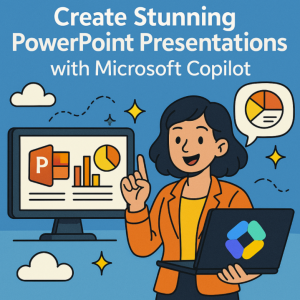
In today’s fast-paced world, presentations need to be more than just functional—they need to grab attention, tell a story, and leave a lasting impact. Microsoft Copilot, integrated into PowerPoint, is changing the way professionals, educators, and creators design slides. With AI-powered assistance, you can transform rough ideas into polished, visually striking presentations in minutes.
What Is Microsoft Copilot for PowerPoint?
Microsoft Copilot is an AI-powered assistant embedded within PowerPoint that helps you:
- Generate slides from scratch using natural language prompts.
- Summarize long content into concise bullet points.
- Suggest layouts and visuals that match your theme.
- Rewrite text for better clarity, tone, or impact.
- Adapt designs to different presentation styles—corporate, educational, creative, or minimal.
It works seamlessly within the PowerPoint interface, blending your creative direction with AI efficiency.
Key Features That Make It Stand Out
- Instant Slide Creation
Simply describe your topic, and Copilot can draft a complete deck with relevant headings, bullet points, and imagery. - Theme and Style Suggestions
Copilot can recommend color palettes, typography, and slide layouts that align with your brand or mood. - AI-Generated Visuals and Icons
Whether it’s stock photos, illustrations, or diagrams, Copilot can source and suggest visuals without breaking your workflow. - Smart Content Editing
Copilot can rephrase sections for better readability, shorten lengthy explanations, or make your message more persuasive. - Data Visualization
Provide data in plain text or tables, and Copilot can instantly turn it into clean, dynamic charts and infographics.
How to Use Microsoft Copilot in PowerPoint Effectively
- Start With a Clear Prompt
The more specific your request, the better the results. For example, “Create a 10-slide presentation on remote work productivity tips for small businesses” will produce more tailored slides than “Make a presentation about remote work.” - Leverage Iterative Refinement
Treat Copilot like a collaborator. Review the initial slides, ask for adjustments, and refine until it matches your vision. - Blend AI Output with Human Touch
While Copilot is powerful, your personal expertise adds authenticity. Use AI to handle structure and design, but add your own examples and stories. - Use Copilot for Time-Consuming Tasks
Delegate repetitive work—like reformatting slides, aligning elements, or resizing images—to Copilot so you can focus on content and delivery. - Experiment With Creative Ideas
Ask Copilot for multiple design variations, metaphors, or storytelling approaches to make your presentation stand out.
Benefits for Different Users
- Professionals: Create investor decks, strategy briefings, and client proposals faster.
- Educators: Develop engaging lessons and visual explanations in minutes.
- Students: Present research with polished visuals and concise talking points.
- Marketers: Build campaign pitches and creative concepts with minimal design time.
Microsoft Copilot for PowerPoint isn’t just a time-saver—it’s a creativity amplifier. By combining AI’s speed with your personal insight, you can craft presentations that are not only visually appealing but also deeply impactful. Whether you’re pitching an idea, teaching a class, or presenting research, Copilot can help you create slides that inform, inspire, and impress.
Extra posts:
 Elevating the Executive Briefing From a Teams Meeting Transcript to a PowerPoint Deck in One Prompt
  Create interactive presentations with Sway from office 365
  How to Generate Slides in PowerPoint Using Microsoft Copilot in Minutes
  Best AI Animation Software in 2025 Create Stunning Animations with Less Effort
  How to Create Reusable Templates in Word, Excel, and PowerPoint
  Create Learning Journals with Copilot in OneNote