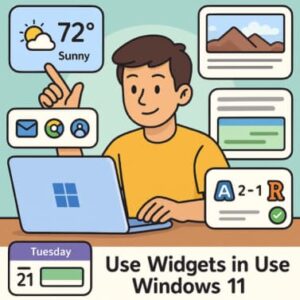
When you start your PC or wake it from sleep, the first thing you see is the lock screen. In Windows 11, it’s more than just a gateway to your desktop — it’s an opportunity to make your computer feel personal, functional, and inspiring. Whether you prefer a minimalist look or something dynamic with useful information, customizing your lock screen in Windows 11 is quick and rewarding.
This guide will show you how to personalize it step by step — from changing wallpapers and adding slideshows to setting widgets and status apps.
Why Customize the Lock Screen?
Customizing your lock screen offers both style and practicality:
- Visual Appeal: A custom background or rotating slideshow can make your PC experience more enjoyable.
- Useful Information: Display weather, calendar events, or emails at a glance without unlocking your computer.
- Brand Identity: For businesses, customizing the lock screen can reflect company branding or internal messages.
- Personal Motivation: A favorite quote, artwork, or personal photo can help start your workday with a positive mindset.
Step-by-Step: How to Customize the Lock Screen in Windows 11
1. Open Lock Screen Settings
- Click Start → Settings or press Windows + I.
- Navigate to Personalization → Lock screen.
This is where you can configure backgrounds, widgets, and other display options.
2. Choose the Background
Under “Personalize your lock screen,” you’ll find three main choices:
- Windows Spotlight – Displays curated images from Microsoft that change automatically.
- Picture – Lets you select one static image from your PC.
- Slideshow – Rotates a folder of images for a dynamic background experience.
Tips:
- For slideshows, choose folders containing high-resolution images with consistent aspect ratios (16:9 is ideal).
- To make your sign-in screen match your lock screen, enable the option “Show the lock screen background picture on the sign-in screen.”
3. Set Lock Screen Status or Widgets
Windows 11 lets you choose one app to show detailed status (like Mail, Calendar, or Weather) and several apps for quick status (simple notification icons).
Recent Windows 11 updates have also added widgets to the lock screen. You can toggle them on or off or choose which widgets appear. These might include calendar events, system status, or personalized updates.
4. Adjust Additional Options
- Turn on or off “Get fun facts, tips, and more on your lock screen.” This allows Windows to display useful messages or daily inspiration.
- If your device supports motion effects, you might see the option “Make the lock screen image react when I move my PC.”
- Manage screen timeout or sleep options under Settings → System → Power & Sleep to control how quickly your screen locks or dims.
5. Preview and Apply Changes
After adjusting your settings, simply close the Settings window.
Lock your PC by pressing Windows + L to see your new lock screen in action.
If you’re using a slideshow, let the images rotate a few times to ensure they look good and fit properly.
Advanced Tips and Considerations
Here are a few professional tweaks to make your setup even better:
- Use the Right Image Format: JPG or PNG files at your monitor’s native resolution work best.
- Optimize for Readability: Avoid very bright or cluttered backgrounds that make the clock and notifications hard to read.
- Mind Battery Use: Slideshow backgrounds can use slightly more power on laptops.
- Be Security-Conscious: Anything shown on the lock screen — such as email snippets or calendar items — is visible before you log in.
- Enterprise Customization: Businesses can enforce a specific lock screen or background using Group Policy or device-management tools.
- Rotate Seasonal or Motivational Themes: Change your slideshow folder every few months to keep your desktop feeling fresh.
Common Mistakes and How to Fix Them
- Image too dark or too bright: Choose balanced lighting so time and status icons stay readable.
- Slideshow not working: Ensure your chosen folder actually contains image files and is correctly selected in settings.
- App status not showing: Verify that the selected app supports lock-screen display and is installed.
- Image cropped incorrectly: Use images that match your display’s aspect ratio and keep key visuals centered.
- Widgets appearing unexpectedly: Disable any unwanted widgets under Lock Screen → Widgets if you prefer a cleaner look.
Creative Ideas for a Personalized Look
- Inspirational quotes: Add backgrounds with motivational sayings.
- Travel memories: Use photos from your favorite trips as a slideshow.
- Brand or logo images: Perfect for business PCs or team setups.
- Minimalist design: A single-color wallpaper with subtle gradients for a clean, modern vibe.
- Seasonal updates: Rotate backgrounds based on holidays or weather themes.
Customizing the lock screen in Windows 11 is one of the simplest ways to make your PC feel like your own. Whether you prefer calming landscapes, personal photos, or a feed of real-time updates, these options give you full creative control.
A well-chosen lock screen can improve your daily workflow, reflect your personality, and even give you useful information before you log in. Spend a few minutes exploring the options — you’ll be surprised how much difference it makes in how you interact with your device.
Call to Action
Ready to personalize your computer?
- Open your Windows 11 Lock Screen settings.
- Experiment with Windows Spotlight, Picture, or Slideshow backgrounds.
- Add a widget or a status app that’s meaningful to you.
- Lock your screen and admire your new look.
Your PC isn’t just a tool — it’s part of your daily environment. Make it reflect you.
Extra posts:
 How to Clean Install Windows 11 — Step-by-Step (The Friendly, No-Nonsense Guide)
  Setting Up Windows Hello Face and Fingerprint Sign-In A Step-by-Step Guide
  How to Change Taskbar Position and Icons in Windows 11 (Step-by-Step Guide)
  How to Map Network Drives in Windows 11: A Complete Step-by-Step Guide
  Step-by-Step Guide to Changing Desktop Icons in Windows 11
  How to Personalize Your Windows 11 Desktop Like a Pro