
In today’s fast-paced world of hybrid work and remote teams, organizations need reliable platforms that promote communication, transparency, and productivity. SharePoint Online, the cloud-based version of Microsoft’s SharePoint platform, is one of the most powerful tools for this purpose. It enables teams to create centralized spaces for file sharing, project management, document collaboration, and intranet communication.
In this guide, we’ll explore how to get started with SharePoint Online for collaboration — from understanding its core benefits to setting up your first team site, managing permissions, and adopting best practices to ensure long-term success.
What Is SharePoint Online and Why It Matters
SharePoint Online is a cloud service included in Microsoft 365 that helps organizations store, share, and manage information securely. It serves as a digital workplace where teams can create websites, collaborate on files, manage projects, and share knowledge across departments.
Here’s what makes SharePoint Online a collaboration powerhouse:
- Centralized content management: It allows you to create sites where documents, lists, and information are stored in one accessible location, eliminating version chaos and scattered data.
- Real-time co-authoring: Teams can work on documents simultaneously while maintaining version history, ensuring accuracy and transparency.
- Anywhere access: Being cloud-based, SharePoint Online can be accessed from any device, supporting remote and hybrid work models.
- Deep Microsoft 365 integration: It seamlessly connects with Teams, OneDrive, Power Automate, and Outlook for a unified collaboration experience.
Because of these strengths, many organizations use SharePoint Online as their primary collaboration and intranet platform.
Step 1: Plan Your SharePoint Online Collaboration Environment
Before jumping in, take time to plan your structure and governance. A well-planned setup prevents confusion and “site sprawl” later on.
Define Your Use Cases
Identify how your teams will use SharePoint Online. Common examples include:
- Project collaboration for tasks, deliverables, and file sharing
- Departmental sites for HR, Finance, Marketing, or IT resources
- Company-wide intranets for announcements, policies, and internal news
Plan Your Site Structure
In SharePoint Online, there are two main types of sites:
- Team sites: Designed for collaboration among specific groups or projects.
- Communication sites: Used for broadcasting information to a larger audience.
Plan how many sites you need, how they will be organized, and whether you’ll use hub sites to connect related ones. Establish naming conventions that make sense across your organization.
Governance and Permissions
A clear governance model ensures data security and consistency:
- Define who can create new sites.
- Use standard roles like Owners, Members, and Visitors.
- Limit external sharing and apply access controls.
- Schedule periodic content reviews to keep sites accurate and relevant.
Step 2: Create Your First Team Site
Once planning is complete, you’re ready to create your first SharePoint Online site.
- In the SharePoint Admin Center, select Create Site.
- Choose Team Site to collaborate with specific colleagues.
- Enter the site name, description, privacy level (public or private), and language.
- Add members and owners.
- Once created, you’ll have a home page, document library, and navigation menu ready to customize.
Customize Your Site
After the basic setup:
- Adjust permissions so the right people have access.
- Add web parts like News, Quick Links, or Activity feeds to make the homepage useful.
- Create additional document libraries or lists for specialized content (e.g., marketing assets, templates).
- Connect your site to a hub site if your organization uses one for grouping related teams.
Step 3: Use Libraries, Co-Authoring, and Collaboration Tools
With your site ready, it’s time to make collaboration happen.
Document Libraries and Co-Authoring
Upload files to your site’s document library and share them with your team. SharePoint Online supports:
- Secure sharing: Grant view or edit permissions as needed.
- Co-authoring: Multiple people can edit Word, Excel, or PowerPoint documents at the same time.
- Version control: Every edit is tracked, allowing you to restore earlier versions if needed.
Lists, Pages, and News
Beyond document collaboration, SharePoint Online offers:
- Lists for managing tasks, issues, assets, or contacts.
- Pages for publishing project updates, FAQs, or announcements.
- News posts for sharing team highlights or organizational updates.
Integration with Teams and OneDrive
Every Microsoft Teams channel has a connected SharePoint Online site for file storage. You can also sync libraries locally via OneDrive for offline access — a powerful feature for teams that frequently travel or work from various devices.
Step 4: Best Practices for Successful Collaboration
A well-structured SharePoint Online environment supports productivity, but success also depends on how it’s maintained. Follow these best practices:
1. Keep Structure Simple and Consistent
Avoid unnecessary complexity. Use clear naming conventions and create sites only when truly needed. This keeps navigation intuitive and prevents duplication.
2. Promote User Adoption
Provide training on how to upload, share, and co-author documents. Encourage employees to use SharePoint as the “single source of truth” for files rather than relying on email attachments.
3. Use Metadata and Search
Applying metadata (tags and categories) to documents improves search results. This helps users quickly locate files even across multiple sites.
4. Automate with Power Automate
Simplify workflows by automating approvals, reminders, or document routing. Automations save time and reduce manual errors.
5. Maintain Governance and Lifecycle Management
Schedule periodic reviews to remove outdated content and inactive sites. Audit permissions regularly to ensure security compliance.
6. Manage External Sharing Securely
If you work with partners or clients, enable external sharing carefully. Restrict by domain, set expiration dates for links, and review shared access regularly.
Step 5: Measure Success and Continuously Improve
To understand whether your SharePoint Online environment is driving collaboration:
- Monitor active vs. inactive sites.
- Track document activity and co-authoring statistics.
- Review search analytics to see what users are looking for.
- Collect user feedback to identify pain points or feature requests.
Use this information to improve site design, governance, and training materials. SharePoint Online is a living system — the more you refine it, the better it supports your organization’s goals.
Common Mistakes to Avoid
- Too many overlapping sites: Leads to confusion. Create a clear site-creation policy.
- Inconsistent naming or tagging: Makes search ineffective. Establish metadata standards early.
- Lack of user engagement: Train users and highlight real benefits like version control and remote access.
- Loose security: Regularly audit permissions and external sharing.
- No maintenance plan: Schedule reviews and archive outdated sites.
Getting started with SharePoint Online for collaboration doesn’t have to be difficult. With thoughtful planning, clear structure, and consistent governance, your organization can transform how teams communicate and work together.
By setting up team sites for each department or project, using document libraries for real-time co-authoring, and leveraging tools like Power Automate and Teams integration, you can build a collaborative ecosystem that’s flexible, secure, and scalable.
Whether you’re replacing legacy file shares or creating a modern digital workplace, SharePoint Online provides all the tools you need to empower teamwork and ensure everyone stays connected — anytime, anywhere.
Extra posts:
 Creating Groups in Exchange Online and SharePoint Online A Unified Collaboration Experience
  Collaboration Scenarios How Teams, SharePoint, and OneDrive Work Together for Seamless Productivity
  Getting Started with SharePoint Copilot Agents: How to Use, Configure, and Create
  Avoiding SharePoint Sprawl Without Killing Collaboration
 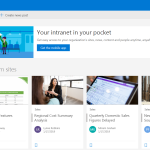 Create SharePoint Online Site from SharePoint Online Admin
  The Future of SharePoint AI, Agents, and Smarter Collaboration (2025 Update)