

IA SharePoint site can become the place where a project team stops hunting through email attachments, duplicated network folders, and outdated document copies—and starts working from one controlled source of information.
That is the real value of SharePoint Online collaboration. It is not simply cloud storage. SharePoint provides sites, document libraries, permissions, metadata, version history, search, and integration with Microsoft Teams and Microsoft 365. Used correctly, those capabilities give teams a structured way to manage documents and information without creating a maze of folders and access rules.
For IT professionals and solution architects, the challenge is knowing where to start. The best implementation begins with the collaboration model, not with clicking “Create site.”
What SharePoint Online Actually Does for Collaboration
SharePoint Online is Microsoft’s cloud-based platform for managing organizational content and collaboration. A typical implementation uses a combination of team sites, communication sites, document libraries, lists, and Microsoft 365 services.
The distinction between site types matters.
- Team sites are designed for collaboration around a project, department, or working group.
- Communication sites are better suited to publishing information to a broader audience.
- Hub sites connect related sites through shared navigation and organizational structure.
- Document libraries provide controlled storage for files, metadata, versioning, and access management.
A common mistake is treating SharePoint as a replacement for a traditional file server. That approach usually produces a familiar folder hierarchy in a new location.
Instead, design around how people actually find and use information.
For example, a software development organization might create a project team site containing architecture documents, requirements, release documentation, meeting records, and operational runbooks. The site can then be connected to Microsoft Teams so conversations and files live within the same collaboration environment.
Microsoft recommends using Teams and SharePoint together for collaboration scenarios. Standard Teams channels use the SharePoint site connected to the Microsoft 365 group for their files, while private and shared channels use separate SharePoint sites.
Start With the Right SharePoint Site Structure
Before creating sites, define the boundaries of collaboration.
Ask three questions:
- Who needs access?
- What information are they collaborating on?
- How long is that collaboration expected to last?
For a project involving developers, architects, testers, and business stakeholders, a dedicated team site may be appropriate. A company-wide knowledge portal, on the other hand, is better modeled as a communication site.
This distinction also affects permissions.
A SharePoint team site is normally connected to a Microsoft 365 group. Owners and members of that group receive access to the associated SharePoint site and other connected Microsoft 365 services. When the site is connected to Teams, Microsoft recommends managing membership and permissions through Teams rather than creating a parallel permission structure in SharePoint.
That leads to a useful architectural principle:
Keep the collaboration boundary aligned with the identity and membership boundary.
If the same people collaborate in Teams, manage their SharePoint access through that collaboration group instead of maintaining separate lists of users.
Design Document Libraries Around Information, Not Folders
Once the site exists, the next question is how to organize its content.
A document library is more than a folder container. It can use columns, metadata, views, version history, sharing controls, and other features to make content easier to manage.
Suppose an engineering organization stores architecture documents. A basic folder structure might look like:
- Architecture
- Current
- Archived
- Requirements
- Design
- Testing
- Operations
That can work, but metadata can provide a more flexible model. A document could have properties such as:
- Document type
- Project
- Application
- Environment
- Owner
- Status
- Review date
Users can then create filtered views without physically moving files between folders.
The right balance depends on the organization. Do not eliminate folders simply because metadata exists. A small amount of folder structure combined with useful metadata is often easier for users to understand than an entirely flat library.
Use Version History Instead of “Final_v7_REAL_FINAL.docx”
One of SharePoint Online’s most useful collaboration capabilities is version history.
When multiple people work on Office documents stored in Microsoft 365, they can collaborate on a single file rather than creating separate copies. Office applications support coauthoring, so users can work in the same Word, Excel, or PowerPoint file while seeing other contributors’ activity. SharePoint also provides version history so previous versions can be reviewed or restored.
This changes the workflow considerably.
Instead of:
Architecture.docx → Architecture_Final.docx → Architecture_Final2.docx → Architecture_Approved_Final.docx
the team can maintain one controlled document.
Version history also provides an important recovery mechanism. Users can identify previous versions, determine who made changes, and restore an earlier version when necessary. Microsoft describes version history as part of SharePoint and OneDrive’s built-in data protection capabilities.
For administrators, version-history settings can be configured at organization, site, and library levels, allowing storage and recovery requirements to be balanced.
Treat SharePoint Permissions as an Architecture Decision
Permissions are where a simple SharePoint deployment can become complicated quickly.
SharePoint supports permissions at multiple levels, including sites, libraries, folders, and individual items. By default, permissions are inherited from the parent object, but inheritance can be broken to create unique permissions.
That flexibility is powerful—and easy to misuse.
A common anti-pattern is creating unique permissions for individual files whenever someone asks for an exception. Over time, this produces a difficult-to-audit security model.
A better approach is:
- Define access at the site or Microsoft 365 group level where possible.
- Use separate libraries when information genuinely requires different access boundaries.
- Minimize unique permissions on individual files and folders.
- Document exceptions that cannot follow the standard model.
- Review external sharing regularly.
Microsoft specifically notes that large numbers of unique permission scopes can affect performance and recommends keeping the number of unique ACLs in a document library well below the technical maximum.
For external collaboration, administrators should also decide whether guests are permitted and what type of sharing links are appropriate. SharePoint supports different external-sharing configurations, ranging from organization-only access to authenticated guest sharing and, where allowed, Anyone links.
Security should therefore be designed before content migration begins.
Connect SharePoint Online With Microsoft Teams
For teams already using Microsoft Teams, SharePoint should usually be part of the same collaboration architecture rather than a separate repository.
Users can open the Files area of a Teams channel and select Open in SharePoint to access the underlying SharePoint location. Likewise, SharePoint sites connected to Teams expose the relationship between the two services.
This gives each tool a clear role:
- Teams: conversations, meetings, collaboration, and day-to-day communication.
- SharePoint: structured document management, pages, lists, metadata, permissions, and content organization.
- Office apps: document creation and real-time coauthoring.
- Microsoft 365 Groups: membership and access foundation for many team-based collaboration scenarios.
The result is much easier for users to understand than asking them to decide manually where every file should live.
Scale the Environment With Hub Sites
As an organization grows, the number of SharePoint sites can grow quickly too.
This is where hub sites become useful. A hub can connect related sites around a department, business function, project portfolio, region, or another organizational concept. Associated sites can share navigation and provide a more coherent information architecture.
For example:
Engineering Hub
- Platform Engineering
- Application Development
- DevOps
- Architecture
- Security Engineering
The important detail is that associating a site with a hub does not automatically change its permissions. Security boundaries remain independent, which means architects can create navigational relationships without accidentally granting users access to content.
That separation between information architecture and security architecture is worth preserving.
A Practical Starting Checklist
If you’re implementing SharePoint Online for a new team, start small.
1. Define the collaboration boundary
Identify the team, project, department, or business process that owns the content.
2. Choose the appropriate site type
Use a team site for active collaboration and a communication site for publishing information broadly.
3. Design libraries before migrating files
Decide which information belongs together and which metadata will actually help users find it.
4. Establish the permission model
Prefer group-based access and inherited permissions. Avoid building a security model around individual file exceptions.
5. Connect Teams where appropriate
If the team already works in Microsoft Teams, integrate the SharePoint site rather than creating a disconnected file repository.
6. Define governance
Establish ownership, naming conventions, external-sharing rules, retention requirements, lifecycle policies, and review responsibilities.
7. Migrate selectively
Do not blindly move every legacy file into SharePoint. Remove duplicates, identify obsolete content, and decide what genuinely needs to be retained.
The Practical Next Step: Build for How Teams Work
Getting started with SharePoint Online is less about learning where every button is and more about making a few sound architectural decisions early.
Start with the people and their collaboration patterns. Map those patterns to Microsoft 365 groups, Teams, SharePoint sites, libraries, and permissions. Then add metadata, versioning, search, and governance where they solve a real problem.
The goal is not to create the most sophisticated SharePoint environment possible. It is to create an environment where users know where information belongs, who can access it, how changes are controlled, and how to find what they need.
That is when SharePoint stops being another document repository and becomes a practical collaboration platform.
Extra posts:
 Creating Groups in Exchange Online and SharePoint Online A Unified Collaboration Experience
 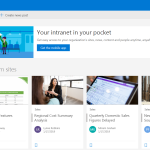 Create SharePoint Online Site from SharePoint Online Admin
  Getting Started with SharePoint Copilot Agents: How to Use, Configure, and Create
 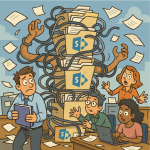 Avoiding SharePoint Sprawl Without Killing Collaboration
  The Future of SharePoint AI, Agents, and Smarter Collaboration (2025 Update)
 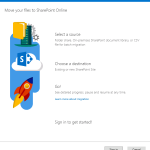 Free SharePoint Migration tool to SharePoint Online and Office 365