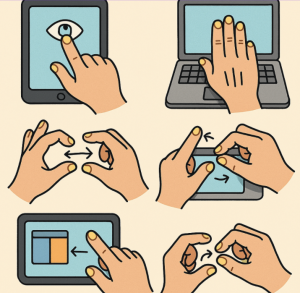
Touchscreens and touchpads have become such a natural part of our daily interactions that we often overlook their hidden potential. Beyond the basic taps and swipes, there’s a world of lesser-known gestures that can supercharge your efficiency and make your device feel more intuitive. Whether you’re on a laptop trackpad, a tablet, or a smartphone, here are some hidden gestures worth exploring.
For Touchscreen Users
1. Three-Finger Swipe (Multitasking Magic)
On many smartphones and tablets, a three-finger swipe can quickly switch between apps or bring up the multitasking view. Instead of reaching for the home button or gesture bar, this trick saves precious time.
2. Double-Tap to Zoom Precisely
Most people pinch to zoom, but double-tapping with one finger (or even two fingers on some apps) zooms in smoothly on content. Another double-tap zooms you back out.
3. Hold & Drag for Text Selection
Press and hold on a word, then use additional fingers to adjust the selection without lifting your first finger. It feels awkward at first but makes selecting text more accurate.
4. Swipe from the Edge
Many devices let you swipe from the left or right edge of the screen to go back or forward in apps and browsers. It’s faster than hunting for tiny navigation buttons.
5. Hidden Shortcuts in Keyboards
On iOS and Android, long-pressing certain keys (like “.” or “-”) often reveals hidden characters and symbols—super useful when typing fast.
For Touchpad Users
1. Three-Finger Tap for Quick Lookups
On MacBooks, a three-finger tap on a word brings up its dictionary definition or quick preview. Windows Precision touchpads also support customizable three-finger taps.
2. Four-Finger Swipe for Desktop Switching
Swiping four fingers left or right quickly switches between virtual desktops. Perfect for multitasking without clutter.
3. Pinch to Show Desktop
A reverse pinch (moving two fingers apart) on many laptops shows all open windows, while pinching inward clears the screen to reveal the desktop.
4. Scrolling Sideways with Two Fingers
Everyone knows two-finger scrolling, but don’t forget you can scroll sideways too—great for spreadsheets, large images, or timeline-based editing software.
5. Hidden Right-Click with Two Fingers
Instead of fumbling for the corner of the trackpad, simply tap with two fingers to bring up the context menu.
Pro Tips to Remember
- Check your system settings (Windows Precision or MacBook Trackpad preferences) to customize gestures and unlock even more shortcuts.
- Some apps have app-specific gestures—experiment inside your favorite tools to see what’s hidden.
- Gestures may vary by device, so explore your settings menu or help guides for the full list available to you.
Mastering these hidden gestures can make your touchscreen or touchpad experience faster, smoother, and more fun. Next time you’re working or browsing, try a few of these tricks—you’ll wonder how you ever managed without them.
Extra posts:
 24 Hidden Windows 11 Features You’ll Wish You Found Sooner
  Registry Tweaks to Unlock Hidden Features in Windows 11
  Xbox Game Pass Integration and Hidden Features
  Hidden Settings That Make Multitasking Easier in Windows 11
  How to Reconfigure the Hidden Context Menu and Unlock Power Tweaks in Windows
  Unlocking Hidden Superpowers in Windows 11 Speech, Eye, and Voice Access Tools You Didn’t Know You Had