
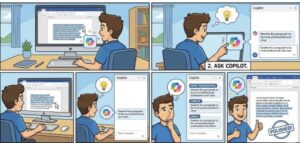
While working in a word document and trying to make your writing sound more polished, professional, or simply easier to understand. Most of us want our writing to be clear and confident now as Microsoft has introduced a powerful tool to help us get there: Copilot in Microsoft Word.
Whether you’re drafting reports, client proposals, academic papers, or creative content, the tone and clarity of your writing can make or break your message. Copilot helps bridge the gap between what you mean to say and how it actually comes across on the page.
In this blog, will explore how to ask Copilot to enhance your writing style, refine your tone without losing your authentic voice.
Why Tone and Clarity Matter in Your Writing
Good writing is not just about correct grammar. It is about how your message makes people get and feel and what actions it encourages them to take.
Tone helps convey your personality and intention:
— Are you trying to sound approachable? Authoritative? Encouraging?
Clarity makes sure readers can easily understand your message:
— Are your sentences straightforward and aligned with your goals?
Together, tone and clarity improve the following:
Reader engagement
Professional credibility
Communication effectiveness
Brand or personal voice consistency
Copilot helps you achieve all of that more easily.
How to Ask Copilot to Improve Tone and Clarity
The more specific prompt will lead to better results. Copilot responds well to clear directions like:
- “Rewrite this paragraph to sound more professional.”
- “Make this email friendlier and more conversational.”
- “Improve clarity and remove unnecessary wording.”
- “Adjust the tone for a college-level audience.”
- “Simplify technical language for a general reader.”
Here’s a quick step-by-step:
- Highlight the text you want improved
- Open Copilot in Word (usually in the sidebar)
- Choose a rewrite option or type a custom prompt
- Review multiple suggestions
- Insert the version that best fits your needs
Copilot provides multiple rewrites so you can compare and choose what feels right.

Prompt Examples You Can Use
To make your writing sound:
🔹 More professional
“Rewrite this to sound confident and formal while keeping the key details.”
🔹 More friendly and engaging
“Lighten the tone and make this message sound helpful and conversational.”
🔹 Clearer and more concise
“Shorten these sentences and improve readability without changing the meaning.”
🔹 Audience-specific
“Adjust this content for an executive audience with a focus on decision-making benefits.”
🔹 More persuasive
“Strengthen the wording to be more compelling and action-oriented.”
Using direct language in your request helps Copilot understand the goal behind your edits.
Practical Tips for Better Results
Be specific about tone — Use words like formal, authoritative, friendly, empathetic, neutral
Mention your audience — executives, customers, students, general public
Set your intent — inform, persuade, explain, inspire
Break text into sections — shorter passages lead to better rewrites
Keep your voice — Copilot is a tool, not a replacement for your personality
Treat Copilot as a writing partner, not the final decision-maker.
Common Use Cases Where Copilot Shines
Copilot is especially helpful for the following:
- Business emails and proposals
- Reports needing a more polished voice
- Creative writing brainstorming
- Job applications, cover letters, and resumes
- Academic writing needing simplified explanations
- Website and marketing copy tone adjustments
If your writing feels “almost there” but not quite right, Copilot can give it the extra clarity and confidence it needs.
Advantages of Using Copilot for Style Refinement
Here’s what makes Copilot a standout editing tool:
| Feature | Benefit |
|---|---|
| Instant rewrites | Saves valuable time |
| Multiple tone options | Flexibility for different audiences |
| Context understanding | Content remains accurate and relevant |
| Smart simplification | Avoids over-editing or losing important ideas |
| Learning your style over time | Maintains consistency |
Rather than jumping between apps, you adjust and refine your content right in Word—where writing already happens.
Maintaining Your Unique Writing Voice
A concern many people have is whether AI will make their writing sound robotic. The key is to review and refine. Copilot gives great starting points, but you still remain the author.
Use AI suggestions as enhancements. Keep your unique stories, examples, and personality woven in. Think of Copilot as your digital editor—not your ghostwriter.Improving tone and clarity used to require multiple drafts or another set of eyes. Now, you can turn to Copilot in Word anytime for fast, intelligent guidance.
You can:
✔ Ask for tone adjustments
✔ Improve clarity and structure
✔ Communicate more confidently
As writing expectations evolves tools like Copilot give us the advantage of clearer communication without added stress. Try experimenting with different prompts and tone styles you may be surprised at how much stronger your writing becomes.
Extra posts:
 Using Microsoft Copilot in Word to Write Faster and Smarter
  From Chaos to Clarity Governance Tips for Organizations Rolling Out Microsoft 365 Copilot
  How to Sync Song Lyrics in Microsoft Word with Music in Clipchamp
  How to Create Reusable Templates in Word, Excel, and PowerPoint
  Microsoft 365 Copilot & Agents Fundamentals
  How to Use Copilot in Microsoft Edge for Web Based Workflows