
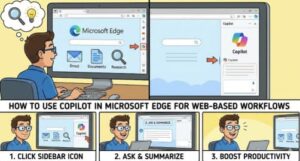
The modern web workflow now is about working faster, tasks automation and gaining insights . Microsoft Edge is enhancing beyond a traditional web browser with the help of Copilot an integrated AI assistant built directly into the sidebar.
This blog explains how to use Copilot in Microsoft Edge to support your web based work from summarizing articles and drafting emails to querying data and transforming workflows with automation.
What is Copilot in Microsoft Edge?
Copilot is Microsoft AI tool that is designed to support creativity, productivity, and decision making while you browse. Instead of jumping between apps or copying and pasting content Copilot brings AI interaction directly into your web experience.
You can use Copilot to:
Summarize long pages in real time
Generate emails, blog posts, marketing copy, or code
Analyze selected text or copied data
Ask for explanations, translations, comparisons, research insights
Extract structured information from unstructured websites
Query files stored in Microsoft 365
Automate repetitive web tasks
Copilot is always accessible through the Edge sidebar, providing instant context-aware help.
How to Access Copilot in Edge
- Open Microsoft Edge (latest version recommended)
- Look to the top-right of the browser
- Click the Copilot icon (a bright sparkle or star-shaped symbol)
- The sidebar panel opens, ready for your prompt

If you don’t see the icon, make sure Copilot is enabled:
Then go to Settings

Key Copilot Features for Web Based Workflows
Below are the most powerful features that can enhance work done inside the browser.
Summarizing and Reviewing Web Content
Research becomes faster and more actionable. Highlight any section of text—or the entire webpage—and ask Copilot:
“Summarize this page into bullet points.”
Copilot can also:
- Extract action items from articles
- Write citations
- Compare multiple sources
- Provide opinions or sentiment analysis
This is highly useful for journalists, students, analysts, and content strategists.
AI-Powered Writing Assistance
If you are composing emails, blog posts, message replies, customer support responses, or product descriptions Copilot is a writing powerhouse.
Try prompts like:
- “Rewrite this paragraph to be more persuasive.”
- “Generate a friendly customer service reply using this information.”
- “Write a 300-word introduction about financial technology.”
You can even set:
- Tone (professional, casual, friendly, authoritative)
- Length (short, medium, long)
- Formatting (lists, tables, headlines)
Copilot for Developers and IT Professionals
Copilot can analyze code snippets from websites or developer documentation inside Edge.
Example prompts:
- “Explain this JavaScript code.”
- “Convert this CSS into Tailwind.”
- “Debug this Python function.”
Paired with web-based environments like GitHub Codespaces, this creates a seamless coding workflow.
Data Extraction & Analysis
If you’re looking at pricing tables, financial data, or market research, Copilot can convert messy website information into structured output.
Ask:
- “Turn this data into a downloadable CSV.”
- “Create a comparison table of the top 5 items listed here.”
- “Visualize this data in a chart.”
This eliminates manual copy-and-paste and hours of cleanup.
Automating Repetitive Online Tasks
Although Copilot isn’t a full robotic process automation tool—yet—it can perform many micro-automations:
- Compose multiple variations of marketing copy
- Create calendar reminders
- Convert units or currencies
- Help navigate Microsoft 365 apps from the browser
Future updates continue to expand automation capabilities.
Copilot with Microsoft 365 Integration
When logged into your Microsoft account, Copilot can access:
- Word documents
- Excel spreadsheets
- Emails in Outlook
- Teams messages
- SharePoint files
You can ask questions like:
“Find last quarter’s sales spreadsheet and summarize the top-performing regions.”
This brings enterprise collaboration directly into the browser workflow.
Copilot for E-Commerce and Customer-Facing Work
Improve productivity with AI-generated:
- Support responses
- SEO-optimized product descriptions
- Social posts promoting products
- Consumer sentiment summaries from review pages
It’s especially beneficial for Shopify and marketplace sellers operating entirely in the browser.
Tips for Getting Best Results From Copilot
To make Copilot smarter and more useful:
| Tip | Benefit |
|---|---|
| Provide context in prompts | More accurate and customized output |
| Use follow-up prompts to refine results | Faster iteration |
| Highlight specific webpage content | Improved contextual understanding |
| Grab data from multiple tabs | Better cross-referencing |
| Try multiple prompt styles | Enhanced creativity and choices |
Example of a strong prompt:
“Summarize this webpage in 10 bullet points focused on pricing strategy insights for SaaS marketing teams.”
Security and Privacy Considerations
Microsoft focuses on enterprise-grade security:
- Data processed through secure cloud services
- Corporate tenants can enforce compliance rules
- Users retain control over what data Copilot accesses
Always avoid providing confidential personal or business information unless on a secured Microsoft 365 tenant.
Copilot in Microsoft Edge represents the future of web-based productivity—where browsing, working, writing, and automation merge into one seamless flow. No more switching between apps or losing time capturing information manually.
By learning how to use Copilot effectively, you can:
- Speed up research and decision-making
- Automate repetitive digital tasks
- Enhance creativity and communication
- Bring data insights directly into your workflow
Extra posts:
 How Enterprises Are Using Microsoft Copilot to Boost Productivity, Drive Innovation, and Gain a Competitive Edge
  Microsoft 365 Copilot Gets Smarter: GPT-5.5 Thinking and ChatGPT Images 2.0 Transform Workflows
  Designing Safe Agentic Workflows with Microsoft Copilot
  Unlocking the Power of Microsoft 365 Copilot Agents The Future of Intelligent Workflows
  How Copilot Automates Enterprise Workflows (Technical Breakdown)
  Exploring the Copilot Prompt Gallery A Game-Changer for AI-Assisted Workflows